Interaction » Measurement
The measurement dialog box provides a collection of different distance measurement tools. It also provides a ruler that can be enabled using the corresponding icon in the icon bar. While the ruler is enabled, Shift-click in the scene to position it.
The main GUI of the measurement module is divided into three parts. The upper section contains a list of all measurements and that you can manage. The middle section displays additional information for the currently selected measurement. The lowest section contains some general options affecting all measurements including the active color scheme or hiding all measurements in the render window.
Measurement List Context Menu
- Add Point to Point Measurement
-
After picking the first and the second point by Shift-clicking, the distance will be calculated between explicitly picked points. After creation the picked points can be readjusted under properties.
- Add Object to Object Measurement
-
The minimal distance between the picked objects is calculated. After creation the hierarchy level used for calculation can be selected under properties.
- Add Line to Object Measurement
-
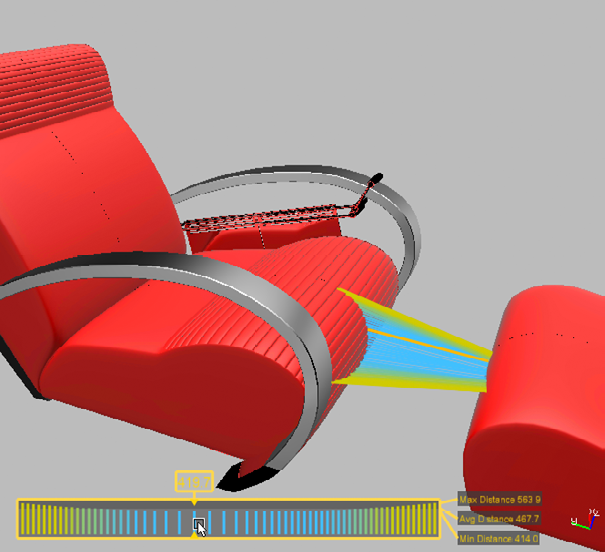
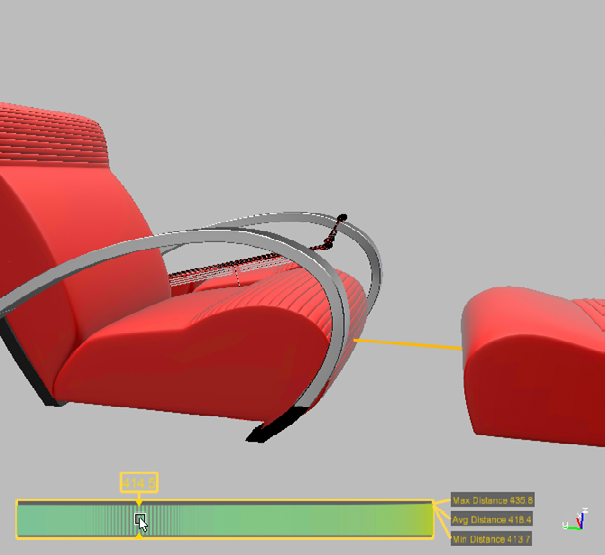
A special measurement for judging gaps is a line-to-object measurement, which can be used when the original model already contains according line geometry. For creating a line-to-object measurement, the first object has to be a line geometry, while the second may be either any other geometry. The measurement then creates sample points along the line and for each point the minimum distance to the second object is calculated. The result is displayed in the render window using a special visualization of all distances. The distances are displayed as lines both in the 3D scene and in a 2D diagram at the lower left corner of the render window. Hovering with the mouse over the diagram highlights a particular distance in the 3D view and shows its exact value on top of the diagram.
- Add Circle Measurement
-
By picking three points it's possible to calculate the radius, diameter and the circumference, for example, a cylinder.
- Add Gap Measurement
-
The most complex measurement is the gap measurement which is a useful substitute of the line-object-measurement in the case no appropriate line geometry is available. The gap measurement is calculated along the line segment between two picked points on two distinct objects. The viewer tries to find multiple minimum distances between the two objects, where each distance calculation is restricted to be on a plane perpendicular to the line segment. The result is displayed in the render window using a special visualization of all distances, as for line-to-object measurements.Note: The measurements starting and ending on objects identifying these objects by their name. Ensure that your measured objects have a unique name within the scenegraph structure when saving and loading measurements.
- Remove Measurement
-
Removes the selected measurement.
- Update Measurement
-
Recalculates the measurement when, for example, an object is moved.
- Zoom in
-
Zooms to a specific measurement.
- Load Measurements
-
Loads measurements in an .xml file.
- Save Measurements
-
Saves all measurements in an .xml file.
- Remove All
-
Deletes all measurements in the measurement module.
Properties
Shows different properties depending on the selected measurement.
- Point to Point
-
- 3D Distance: The distance between two points.
- 2D Distance: Shows the distance between the two points for each axis.
- First position: Shows the coordinates of the first picked position. You can select a new position using the pick button.
- Second position: Shows the coordinates of the second picked position. You can select a new position using the pick button.
- Point to Object
-
- 3D Distance: Shows the minimum distance between the point and the object.
- 2D Distance: Shows the distance between the point and the object for each axis.
- Position: Shows the coordinates of the first picked position.
- Node: Shows the selected node.
- Object to Object
-
- 3D Distance: Shows the minimum distance between both objects.
- 2D Distance: Shows the distance between the objects for each axis.
- First Node: Shows the first selected node.
- Second Node: Shows the second selected node.
- Line to Object
-
- Line: Shows the selected line.
- Object: Shows the second selected node.
- Avg. Dist.: Calculates the average distance.
- Min. Dist.: Shows the minimum distance.
- Max. Dist.: Shows the maximum distance.
- Circle
-
- Rad./Dia./Circumf: Shows the data for radius, diameter, and circumference.
- First Position: Shows the location of first picked point.
- Second Position: Shows the location of second picked point.
- Third Position: Shows the location of third picked point.
- Gap
-
- 1st Object: Shows the first selected node.
- 2nd Object: Shows the second selected node.
- Avg. Dist.: Calculates the average distance.
- Min. Dist.: Shows the minimum distance.
- Max. Dist.: Shows the maximum distance.
Visualization
- Show Measurements
-
Enables/Disables all measurements in the scene.
- Color Scheme
-
Defines the display color of the measurements. Available colors are: Orange, Red, Green, Blue.
- Measurement Precision
-
Sets the decimal measurement precision.