この例では、ユーザがボタンをクリックした後にグラフィックス スクリーン上で点を指定できるようにする簡単なダイアログ ボックスの作成方法を示します。
注: AutoLISP での DCL のサポートは Windows のみに制限されています。
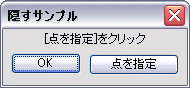
このダイアログ ボックスは、次の DCL で定義されています。
hidedcl : dialog
{
  label="Hide Example";
  : column
  {
    : text
    {
      key="message";
      label="Click PickMe to pick a point";
      fixed_width=true;
      fixed_height=true;
      alignment=centered;
    }
    :row
    {
      ok_only;
      :retirement_button
      {
        label = "PickMe";
        key = "hide";
        mnemonic = "H";
      }
    }
  }
}
このダイアログ ボックス定義は、ユーザがクリックできる 2 つのボタンを定義します。[OK]をクリックすると、ダイアログ ボックスが閉じます。[PickMe]をクリックするとダイアログ ボックスを非表示にするコードが実行され、点を指定するようユーザに求めるプロンプトが表示されます。次の AutoLISP コードは、ダイアログ ボックスを表示し、2 つのボタン タイルの動作を定義します。
(defun c:hidedcl (/ dcl_id what_next cnt)
  (setq dcl_id (load_dialog "hidedcl.dcl"))  ; Load the dialog box.
  (setq what_next 2)
  (setq cnt 1)
  (while (>= what_next 2)                    ; Begin display loop.
    (if (null (new_dialog "hidedcl" dcl_id)) ; Initialize dialog
      (exit)                                 ; box, exit if nil
    ) ; endif                                ; returned.

    ; Set action to take if a button is pressed. Either button
    ; results in a done_dialog call to close the dialog box.
    ; Each button associates a specific status code with
    ; done_dialog, and this status code is returned by
    ; start_dialog.
    (action_tile "accept" "(done_dialog 1)") ; Set action for OK.
    (action_tile "hide" "(done_dialog 4)")   ; Set action for PickMe.
    (setq what_next (start_dialog))          ; Display dialog box.

    (cond
      ((= what_next 4)                       ; Prompt user to
        (getpoint "\npick a point")          ; pick pt.
      )
      ((= what_next 0)
        (prompt "\nuser cancelled dialog")
      )
    )
  )
  (unload_dialog dcl_id)
 (princ)
)
注: term_dialog 関数はすべてのダイアログ ボックスを一度に終了させますが、ステータス コードを返さないので、アプリケーションでは、ネストされたボックスが隠されたのか、エラーによりボックスがキャンセルされたのかを区別する方法がありません。