With the Combustion map, you can create maps interactively using the Autodesk Combustion software and 3ds Max at the same time. As you use Combustion to paint on a bitmap, the material updates automatically in the Material Editor and in shaded viewports.
-

 Material Editor > Material/Map Browser > Maps > Standard > Combustion
Only Combustion 2.1 and later formats are supported. Maps in the Combustion 1 format are not supported in 3ds Max.
About the 3ds Max and Combustion Integration
You can use Combustion as a material map in 3ds Max. With a Combustion map, you can create a material from a Paint or composite operator, and in turn apply that material to objects in a 3ds Max scene. The Combustion map can include Combustion effects, and it can be animated.
In addition, with Combustion you can import 3ds Max scenes that have been rendered to a rich pixel file (RPF or RLA file). The imported rich-pixel rendering becomes an element of your composite. You can adjust its 3D position relative to video elements of the composite, and you can apply Combustion 3D Post effects to objects within it. See the Combustion User’s Guide for more information.
3ds Max Materials and the Combustion Map
In 3ds Max, a material is data that you assign to the surface or faces of an object so that it appears a certain way when rendered. Materials affect the color of objects, their shininess, their opacity, and so on.
The Material Editor is where you create and manage materials. In the Material Editor, you can assign maps to a material's color components and to its numeric components such as opacity. Maps add images, patterns, color adjustments, and other effects to the visual properties of the material.
In the 3ds Max Material Editor, you assign a map by clicking the map button for a component color or other component. This displays the Material/Map Browser, which lets you choose the map type.
3ds Max provides several types of maps. The most basic is a 2D map, a two-dimensional image that is typically mapped onto the surface of geometric objects.
Other uses of 2D maps are as environments to create a background for the scene, as projections from lights, and as displacements to "emboss" geometry.
A Combustion map is a 2D map. It is a Combustion project used by the 3ds Max Material Editor, so like any Combustion project, it is vector-based, animatable, and fully editable. From within the Material Editor, you can have Combustion create a new project from scratch, or use an existing composite or Paint branch. You can synchronize the Combustion Timeline with the 3ds Max time slider so animated materials synchronize with your 3D scene.
With a Combustion map, you can paint in either program: That is, you can paint either in the Combustion viewport or on 3ds Max objects. Both programs update the paint display. You also have the option of using Combustion to paint on an "unwrapped" projection of 3ds Max object geometry.
In addition, with Combustion effects that require you to pick a point, such as Lens Flare or Ripple, you can use either program, Combustion or 3ds Max, to pick the point.
Tips for Working with a Combustion Map in 3ds Max
- If you have a dual-screen configuration, you can set it up so you can see both the 3ds Max and the Combustion windows at the same time. Otherwise, you need to use Alt+Tab to switch between the two windows.
- To work with Combustion, the 3ds Max object must have mapping coordinates. Primitive objects have a Generate Mapping Coordinates toggle, which is on by default. Some objects, such as editable meshes, do not have a Generate Mapping Coordinates toggle. For these kinds of objects, go to the Modify panel and apply a UVW Map modifier.
- Sometimes it can be hard to see how the Combustion operator is oriented to the 3ds Max object's mapping coordinates. It can help to paint some temporary strokes in Combustion to see how they are aligned in 3ds Max viewports. Displaying the mapping coordinates in Combustion can help. See the procedure, "To display an unwrapped mesh." It can also help to paint directly on the object in a 3ds Max viewport. See the procedure, "To paint directly on the 3D object."
Procedures
To create a new Combustion map:
- Apply a Combustion map to the Diffuse Color of a material.
- Click to turn on
 (Show Shaded Map In Viewport).
 In the scene, the object turns black in shaded viewports.
- In the Parameters rollout, click Edit.
This launches Combustion, which displays the New Workspace dialog.
- Set up the new project.
The composite or Paint branch that you create in Combustion appears on the object in 3ds Max viewports, as well as in the sample slot for the material with the Combustion map. The workspace name and path are assigned to the material, and appear on the Project button in the material’s Combustion Parameters rollout.
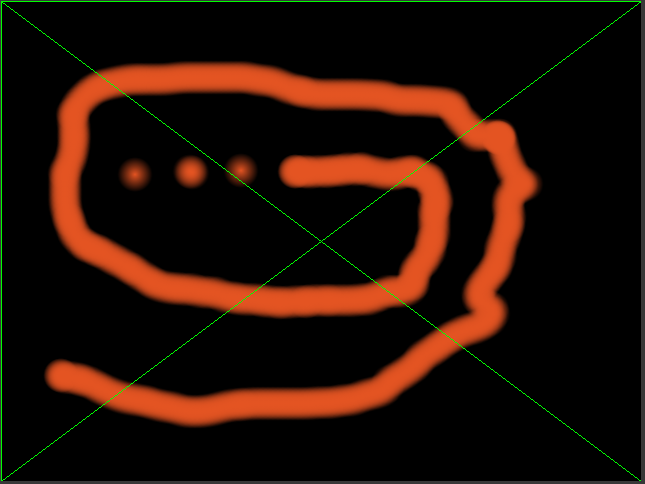
For example, you can use the Paint operator in Combustion. When you release the mouse, the stroke appears on the 3ds Max object.
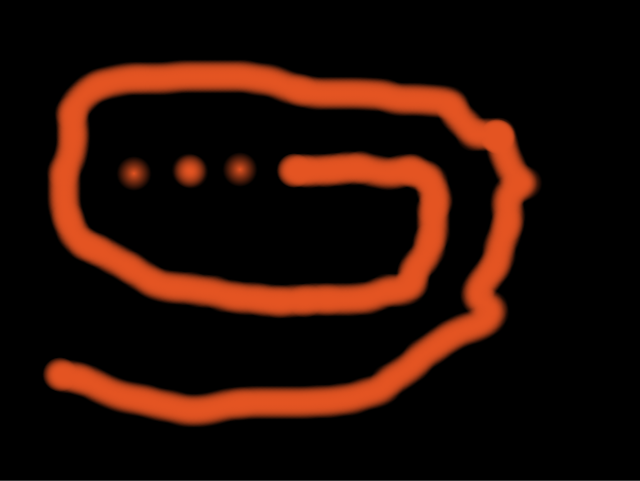
Paint operator in Combustion
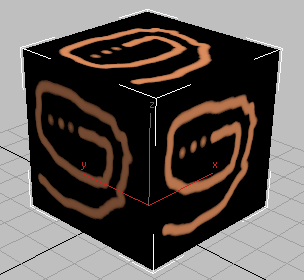
Painted object in 3ds Max
To display an unwrapped mesh:
- Create a Combustion map.
- In the 3ds Max Material Editor, enable Unwrap Selected in the Live Edit group.
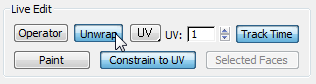
In Combustion, a mesh appears. This is an "unwrapped" projection of the 3D object.
3D object in 3ds Max
Corresponding mesh in Combustion
In the 3ds Max Material Editor, you can use the Unwrap Mesh feature to display your 3D object as a 2D mesh in Combustion. You can adjust the color and size of the mesh.
The mesh display is only an overlay to help you orient paint strokes and other Combustion effects. It is displayed in Combustion but is not a part of the composite or the map.
To set the mesh parameters:
- In Combustion, choose File
 Preferences Mesh.
Use To Anti-Alias Mesh Remove jaggies from the mesh. Display During Playback Display the mesh when you play back the animation. Color Click the color box to set the color of the mesh using a color picker.
To paint directly on the 3D object:
- Create a Combustion map.
- In Combustion, select one of the following drawing tools:
 Freehand
  Straight Line
  Rectangle
  Ellipse
- In the 3ds Max Material Editor, enable Paint in the Live Edit group of the Combustion Parameters rollout.
In the 3ds Max viewport, a pen cursor appears. Drag the cursor over the object to paint on it.
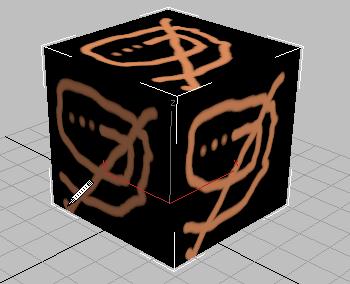
When you release the cursor, the Paint object also appears in Combustion.
To animate Combustion Paint strokes:
- Create a Combustion map.
- In Combustion, set the time scale to start at frame number 0. Choose File Preferences. In the Preferences dialog select General, set Display Time As to Frames (From 0), and then click OK.
- In the 3ds Max Material Editor, enable Track Time in the Live Edit group of the Combustion Parameters rollout.
Now the time slider in 3ds Max controls the Timeline indicator in Combustion.
- In 3ds Max, move the time slider to a frame and create a Paint object.
The Paint object appears on that frame in both Combustion and 3ds Max.
- Move to another frame and use Combustion to modify the Paint object. Combustion uses interpolation to determine the appearance of the Paint object between keyframes. If you add a new Paint object, that object simply appears, starting on the frame where you created it.
- Continue advancing in the clip, adding and modifying Paint strokes and effects to create your animated material. For more information on animating objects in Combustion, refer to the Combustion User’s Guide.
You can add Paint strokes in either program, but to modify them you must use Combustion.
Note: Remember, Combustion tracks the time slider in 3ds Max, but 3ds Max does not track the Timeline indicator in Combustion. If the 3ds Max viewport does not appear to be updating as you paint in Combustion, you might be painting on a different frame than the one displayed in 3ds Max. To find your Paint objects, move to the correct frame in 3ds Max.
To use an existing Combustion workspace as a material map in 3ds Max:
- Apply a Combustion map to the Diffuse Color of a material.
- In the Combustion Parameters rollout, click the Project bar.

The Open Project dialog appears.
- Browse for the workspace file (.cws) that you want to use as a map, and click the Open button.
The Combustion workspace name and path appear in the Project button.
To apply the map to an object, drag the sample slot from the Material Editor to the object in a 3ds Max viewport.
To edit the map, click the Edit button in the Parameters rollout. In Combustion, the workspace corresponding to the selected map opens, and you can edit the image.
To paint geometry with a bitmapped material already assigned to it:
- In 3ds Max, select the object that you want to paint.
- In the Material Editor, click
 (Pick Material From Object) so you can see the material in the Material Editor.
 - Open the Maps rollout and note the name of the bitmap file.
- Replace the bitmap with a Combustion map.
- On the Paint Parameters rollout, click the blank Project button, and then choose the same bitmap.
- Click Edit.
Combustion is launched and the Import Footage dialog appears. Import the same bitmap.
To paint on the bitmap, select Paint. You can also key or color correct the bitmap, or use it to build a composite. For more information, see the Combustion User's Guide.
- In the 3ds Max Material Editor, click to turn on (Show Standard Map In Viewport).
In the scene, the object is mapped in shaded viewports.
Object with original bitmap
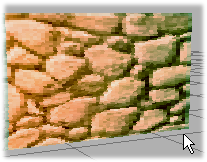
Object with painted bitmap
To paint selected faces:
- In 3ds Max, select the object you want to paint.
- In the Modify panel, apply an Edit Mesh modifier to the object. (Choose Edit Mesh from the Modifier drop-down list.)
If you are working with an editable mesh object, or a patch or NURBS surface, skip step 2. For geometry primitives, an option is to convert the object to a mesh, patch, or NURBS surface before step 3. However, you then lose the ability to adjust object parameters (for example, the radius of a sphere, the height of a box).
- Choose Face as the sub-object selection level. Select the faces on which you want to paint.
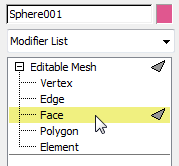
- Drag a material from a sample slot in the Material Editor onto the selected faces.
- In the modifier stack display, choose the object again, to disable sub-object selection.
- In the Material Editor, use (Pick Material From Object) to grab the material from the geometry.
You now have a new Multi/Sub-Object material. The original material appears as a sub-material applied to the selected faces.
- In the Multi/Sub-Object material, go to the material assigned to the faces you want to paint.
A Multi/Sub-Object material is simply a container for multiple sub-materials assigned to different faces of the same object. Click a Sub-Material button to go to a sub-material.
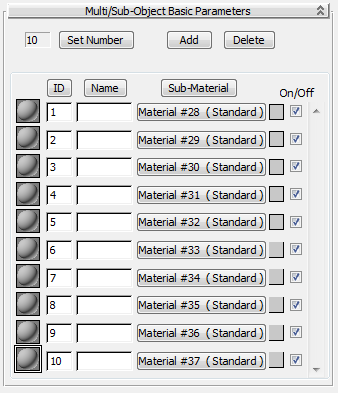
- Assign a Combustion map to the Diffuse component of the sub-material applied to the selected faces.
- Click Edit to launch Combustion.
- Use the tools in Combustion to modify the material.
Use a Multi/Sub-Object material to control the location of your painting. Any sub-material can have a Combustion map, so you can use Combustion to affect only the selected faces.
To modify a Combustion map:
- In the Material Editor, select the material you want to modify.
Material maps created in Combustion are vector-based and fully modifiable.
- In the Combustion Parameters rollout, click the Edit button.
The workspace corresponding to the Combustion map opens in Combustion. As you modify the workspace in Combustion the map is updated in 3ds Max.
- In Combustion, save the workspace before you disable the Edit button in 3ds Max.
To create a displacement map:
- In 3ds Max, select the object to which you want to apply the displacement map.
In this example, the displacement is applied to a box primitive.
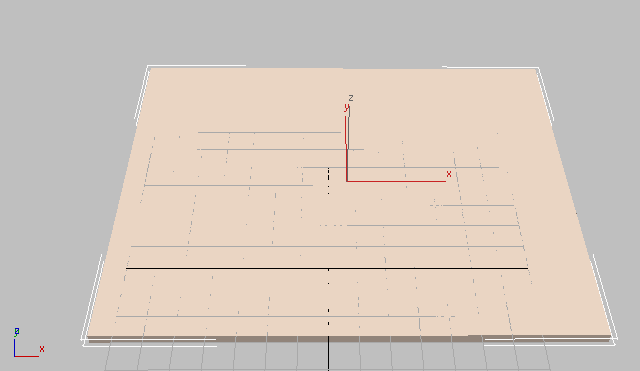
In the object's Parameters rollout, increase the number of Length and Width Segments. The closer the number of segments approaches the resolution of the displacement map, the more accurate is the result.
In the example, 150 by 150 gives good results.
- Apply a Displace modifier: In the Modify panel, choose Displace from the Modifier drop-down list.
- In the Parameters rollout, Image group, click the Map button.
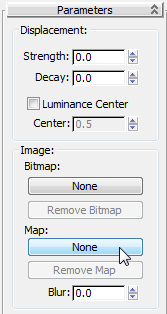
- The Material/Map Browser appears. Select Combustion and click OK.
The Map button now reads Map #1 (Combustion).
- Open the Material Editor, and then click and drag the Map #1 (Combustion) button to an unused sample slot in the Material Editor.
An Instance (Copy) Map dialog is displayed.
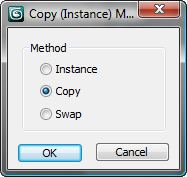
- Select Instance and click OK.
- In the Material Editor, Combustion Parameters rollout, click Edit.
This launches Combustion. In the New dialog, set the Type To Paint, and create a grayscale image to use as a displacement map. For more information, see the Combustion User's Guide.
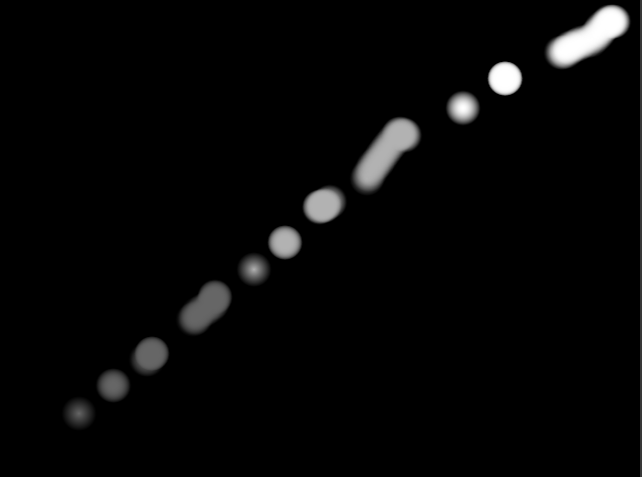
- In 3ds Max, increase the Displacement strength in the modifier Parameters rollout.
As you increase the strength, you can see the result of the displacement map on the selected object.
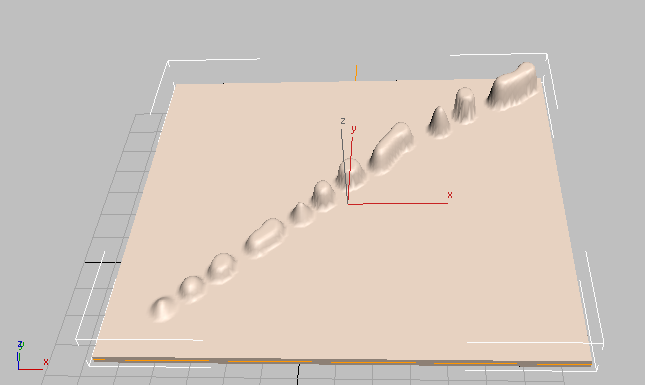
- In Combustion, save your project, then in 3ds Max, disable Edit in the Combustion Parameters rollout to exit Edit mode.
In 3ds Max, the Displace modifier acts as a force field to push and reshape an object's geometry. You can apply its variable force directly from the modifier gizmo, from a bitmap image, or from a Combustion workspace.
The grayscale component of the image is used to generate the displacement. Lighter colors in the image push outward more strongly than darker colors, resulting in a 3D displacement of the geometry.
Interface
2D Mapping Coordinates
Like any 2D map in 3ds Max, mapping coordinates control how a Combustion map is positioned on objects.
For geometric primitives, mapping coordinates are usually provided automatically. For some kinds of geometry, such as meshes, patches, and NURBS surfaces, you must apply a UVW Map modifier to provide mapping coordinates.
Controls in a 2D map's Coordinates rollout affect how the map is positioned.
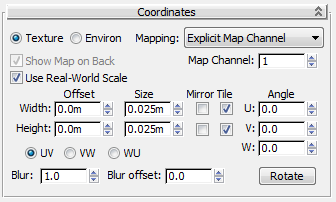
When you work with a Combustion map, these are the important points to remember:
- When you apply a Combustion map to an object, leave mapping set to the default values of Texture and Explicit Map Channel.
- When you use a Combustion map as an environment map, set mapping to Environ and then choose the mapping shape from the Mapping drop-down list.
- The offset, tiling, mirror, and angle controls are useful especially when the size of the projected Combustion map is smaller than the geometry.
- You can choose between UV, VW, and WU projections. (You can also do this from the Combustion Parameters rollout, as described below.) UV projects onto the surface of geometry like a slide projector. VW and WU project the map at right angles to the geometry. With a Combustion map, UV is almost always the most useful choice.
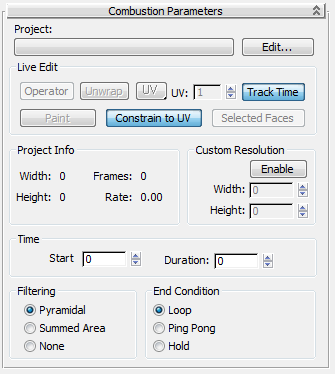
Combustion Parameters rollout
The Combustion Parameters rollout appears when you assign a Combustion map to a material.
- Project
- Loads the file to use in Combustion. You can load only file types supported by Autodesk Combustion, such as Combustion workspace files (cws), or footage and image file formats supported by Combustion (see the Combustion User's Guide for information on supported footage formats).
- Edit
- Launches Combustion from the 3ds Max Material Editor. If a project is loaded, it is opened in Combustion. If no project is loaded, Combustion displays the New dialog. This dialog lets you specify a project type, name, video format, duration, and background color.
Live Edit group
These controls affect how you use Combustion with 3ds Max.
- Operator
- Switches control to Combustion, where you can select an operator. The results of the operator appear as the image in the Combustion map. The operator does not have to be the last operator in the pipe.
While Combustion is active, you can also adjust the operator. The Combustion map updates to show the results.
- Unwrap Selected
- Takes the current UVW mapping coordinates of the currently selected 3D object (or the current Face sub-object selection), and displays them in Combustion. This can help you coordinate the map and the mesh as you paint. The Unwrap display is only an overlay. It is displayed in Combustion but is not a part of the composite or the map.
- UV List
- Changes the mapping coordinate system (the direction in which the map is projected) from UV to VW or UW. UV projects onto the surface of geometry like a slide projector. VW and WU project the map at right angles to the geometry. With a Combustion map, UV is almost always the most useful choice.
- UV
- Specifies which mapping channel to unwrap and paint. Range=1 to 99.
- Track Time
- Links the Timeline in Combustion to the time slider in 3ds Max. When Track Time is enabled, you can use the time slider in 3ds Max to navigate between frames in Combustion. Note: This control is not bidirectional; changing the frame in Combustion does not change the frame in 3ds Max.
- Paint
- When enabled, displays a paint cursor in 3ds Max viewports. You can then paint directly on the 3D geometry. Dragging the cursor in the viewport over the geometry in 3ds Max creates paint strokes inside Combustion.
- Constrain To UV
- When enabled, constrains paint strokes to remain within the edges of the UV mapping coordinates. When paint strokes are unconstrained on an object such as a box, they can jump to the other side of the map when you cross a map’s edge. This can give erratic results. To prevent this, enable Constrain To UV.
In general, use the Constrain To UV option when you paint on boxes and other objects with planar maps. Disable this option when you want to paint on spherical maps or anywhere else the mapping has a singularity (where the edges of the map converge to a single point).
- Selected Faces
- Constrains the Combustion image to only the faces selected. This gives additional control or masking based on faces rather than UV mapping.
Project Info group
These readouts display the format of the Combustion Paint or composite operator. They are active when a Combustion workspace is loaded or Edit mode is active.
- Width
- Sets horizontal resolution of the frame in pixels.
- Height
- Sets vertical resolution of the frame in pixels.
- Frames
- Sets number of frames in the Combustion workspace.
- Rate
- Sets playback speed in frames per second.
Custom Resolution group
With these controls, you can customize the resolution of the Combustion map.
- Enable
- Enables the Width and Height controls.
- Width and Height
- Width changes the horizontal resolution of the map. Height changes the vertical resolution of the map.
Time group
These controls relate frames in the Combustion workspace to frames in the Combustion map. See the controls under "End Condition Group" for how to handle the map when it contains fewer frames than the 3ds Max scene.
- Start Frame
- Determines which frame of the Combustion sequence is used as the first frame of the Combustion map in 3ds Max.
- Duration
- Sets how many frames of the Combustion file sequence are used by the Combustion map in 3ds Max.
Filtering group
These controls determine the method for calculating antialiasing:
- Pyramidal (The default.) This method is faster than Summed Area filtering.
- Summed Area Implements a better method of antialiasing. Summed Area filtering uses more memory than Pyramidal. If it has to use virtual memory, it can dramatically increase rendering time.
- None Performs no antialiasing. This option takes the least time to render, but yields the lowest quality results.
End Condition group
These controls define what the 3ds Max renderer should do when the duration of the Combustion project (or the range of frames used in the Combustion map) is shorter than the rendering sequence in 3ds Max.
- Loop Plays the Combustion project animation repeatedly until the rendering sequence ends.
- Ping Pong Plays the animation forward, then backward, and repeatedly plays forward and backward until the rendering sequence is completed.
- Hold Plays the animation once, then repeatedly displays the last frame of the project until the rendering sequence is completed.