The previous lesson showed you a detailed procedure of how to assign faces to a portion of a texture map, using the Edit UVWs dialog. In this lesson, you complete the mapping of the airplane, but the steps are less detailed because for the most part, the methods are the same.
Set up the lesson:
- Continue from the previous lesson or
 open
p47_texture_wing_left_top.max.
open
p47_texture_wing_left_top.max.
- If you open the saved file, then
 click to select the P-47 fuselage, go to the
  Modify panel, then go to the Unwrap UVW modifier
  Polygon sub-object level.
 Now you are ready to proceed with assigning more faces using Unwrap UVW.
Map the top of the right wing:
- On the main toolbar, make sure the Window/Crossing selection toggle is in its
 Crossing state, then in the Top viewport, drag a selection box to select all the faces on the top of the right wing.
 In the Left viewport, Ctrl+click to select the narrow faces along the leading edge of the wing, as well.
Tip: To select the faces on the leading edge of the wing, it helps to maximize the Left viewport (press Alt+W).
 - On the main toolbar, in the Named Selection Sets field, name this selection Wing Right Top.
- On the Modify panel Projection rollout, click
 (Planar Map), then click
  (Align To Z), then click
  (Planar Map) once again to deactivate it.
 - In the Edit UVWs dialog, use
 Freeform Mode to rotate the wing 90 degrees counterclockwise, then move and scale the faces to position them over the camouflage pattern to the left of the left wing pattern. Tip: For symmetrical pairs of face selections, such as the wings, it helps to turn off
 (Display Only Selected Faces), so you can match the size and proportion of the opposite side of the plane.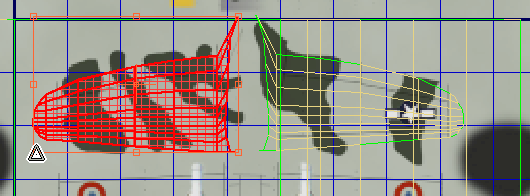
Map the bottoms of the wings:
- Change the Top viewport to a Bottom viewport.
- Drag a selection box to select the faces on the bottom of the right wing (which is now in the lower half of the viewport).
In the Front viewport, make sure that none of the leading-edge faces is selected. If one is, use Alt+click to remove it from the selection.
Face selection sets with faces that overlap are hard to work with in the Edit UVWs dialog.
- On the main toolbar, in the Named Selection Sets field, name this selection Wing Right Bottom.
- On the Modify panel Projection rollout, click (Planar Map), then click (Align To Z), then click (Planar Map) once again to deactivate it.
- If the Edit UVWs dialog is not already open, then on the Modify panel Edit UVs rollout, click Open UV Editor.
- In the Edit UVWs dialog, use Freeform Mode to rotate the wing –90 degrees clockwise, then move and scale the faces to position them over the wing-bottom pattern just below the left wing faces.
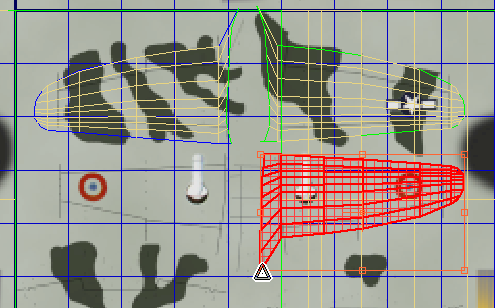
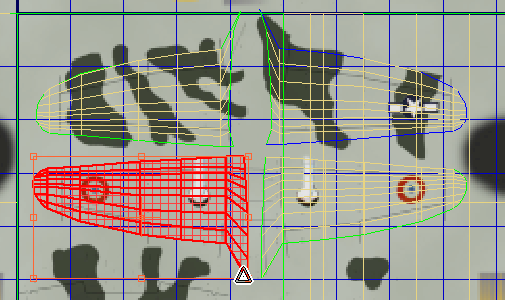
- Repeat the previous steps for the bottom of the left wing, naming the selection Wing Left Bottom and placing it to the left of the faces for the bottom of the right wing.
Map the horizontal stabilizers:
- Change the Bottom view back to a Top view.
- Select the faces on the top of the left horizontal stabilizer, and name the selection H Stabilizer Left Top.
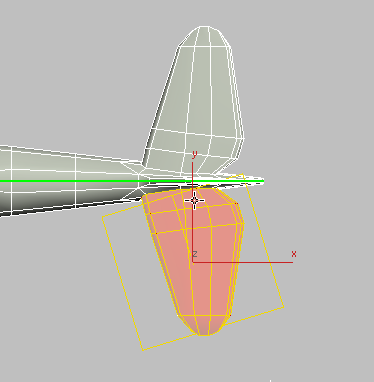
Top faces of the left horizontal stabilizer selected
- Click (Planar Map), then click (Align To Z), then click (Planar Map) again to deactivate it.
- In the Edit UVWs window, position the selection as shown.
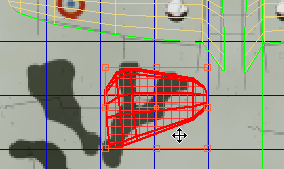
- Select the faces on the top of the right horizontal stabilizer, name the selection H Stabilizer Right Top, click (Planar Map), then click (Align To Z), then click (Planar Map) again to deactivate it.
- In in the Edit UVWs window, position the selection as shown in the illustration, to the left of the left horizontal stabilizer.
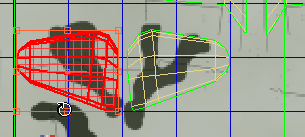
The pattern for the bottom of the stabilizers is also below the wings, but to the right.
- Change the Top viewport to a Bottom view. Select the faces on the bottom of the right horizontal stabilizer, name the selection H Stabilizer Right Bottom.
- Click (Planar Map), then click (Align To Z), then click (Planar Map) again to deactivate it.
- In the Edit UVWs window, position the selection as shown. Tip: Rotate the bottom faces of the horizontal stabilizers –90 degrees, clockwise.
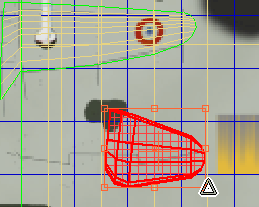
- Select the faces on the bottom of the left horizontal stabilizer, name the selection H Stabilizer Left Bottom, click (Planar Map), then click (Align To Z), then click (Planar Map) again to deactivate it.
- In the Edit UVWs window, position the selection as shown, to the left of the right horizontal stabilizer.
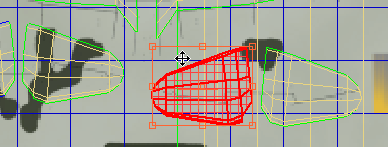
Because the fuselage is at an angle to the base of the horizontal stabilizers, you can’t select all of them with a single rectangle: Make an initial selection, then use Ctrl+click to add the remaining faces.
The pattern for the tops of the horizontal stabilizers is below the wings and to the left of the Edit UVWs window.
Map the sides of the fuselage:
- To select the left side of the fuselage, including the side of the vertical stabilizer, select faces in the Front viewport, then use other viewports to make sure you haven’t missed faces. If you select faces that aren’t part of the left side of the fuselage, use Alt+click to remove them from the selection. Tip: You can use click and Ctrl+click to select faces, or
 Paint Selection region to speed up the process. The green outlines displayed by the Unwrap UVW modifier are a good guide to help you see which faces to include.
 Pay particular attention to the narrow faces that surround the left wing and horizontal stabilizer; use both Top and Bottom views to make sure you select the narrow faces along the left-right seam.
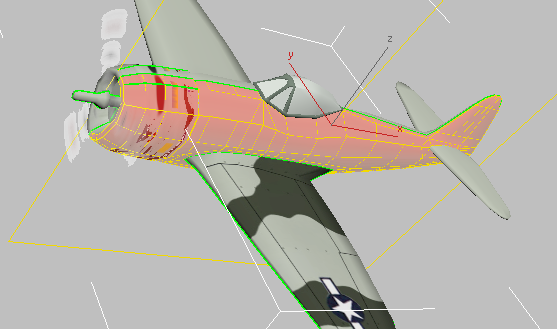
Camera001 viewport: Left side of the fuselage selected
In the Left viewport, Ctrl+click to add the faces on the leading edge of the engine cowl.

Left viewport: Front of engine cowl selected
Name the selection Fuselage Left.
- On the Projection rollout, click (Planar Map), and then click
 (Align To Y). Click (Planar Map) again to deactivate it.
 - In the Edit UVWs window, use Freeform Mode to position the fuselage and tail faces over the pattern at the lower right. While you do this, watch the viewports too, so the insignia are well positioned, the nose is in the area of yellow paint, and the cockpit opening is surrounded by dark green.
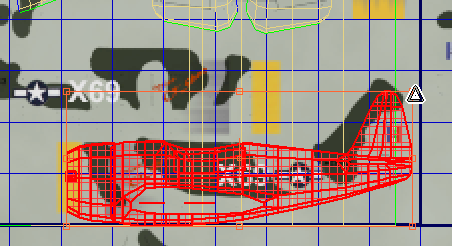
- Change the Front viewport to a Back view, then repeat the preceding steps for selecting faces on the right side of the fuselage. Tip: Change the Camera001 view to a Perspective view, and then
 orbit it so you can see the right side, make sure the narrow faces above the right wing are selected, and watch it while you adjust how the faces are placed on the texture.
 - Name the selection Fuselage Right.
- As before, click (Planar Map) to activate it, click (Align To Y), then click (Planar Map) again to turn it off.
- On the Edit UVWs dialog toolbar, click
 (Mirror Selected Subobjects) to orient the selection correctly, then in the Edit UVWs window, place the fuselage faces above and to the left of the left-side selection.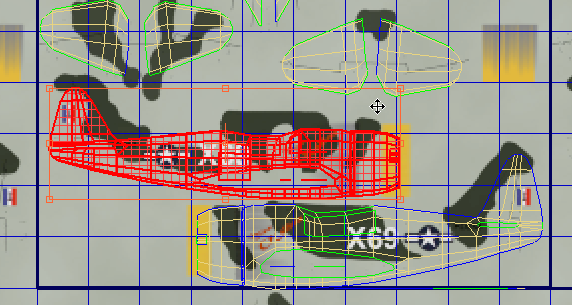
Map the air intake:
- In the Left viewport, select the air-intake faces that surround the propellor shaft.
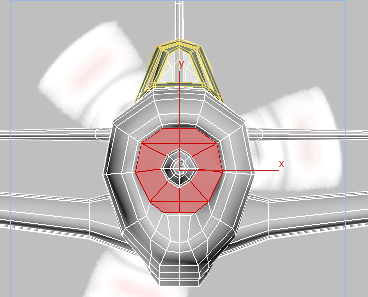
Name the selection Air Intake.
- Click (Planar Map), then click
 (Align To X). Click (Planar Map) a second time to deactivate it, then scale and move the faces so they are within the dark blob near the upper right of the texture map.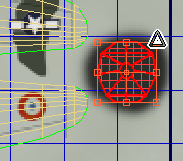
Map the propellor shaft:
- Finally, on the main toolbar, change the Window/Crossing selection toggle to its
 Window state. In the Left viewport, drag to select the propellor shaft.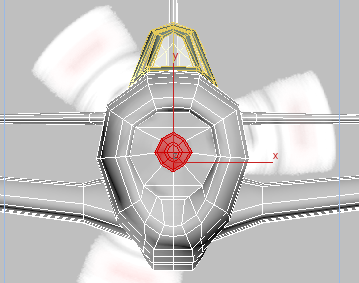
- Look at other viewports, and if you selected extraneous faces (there might be some in the cockpit area), use Alt+click or Alt+drag to remove them from the selection.
Name the selection Propellor Shaft.
- Click (Planar Map), then click (Align To Y). Click (Planar Map) a second time to deactivate it. Rotate the faces 90 degrees (counterclockwise), then scale and move the faces so they are within the yellow and gray area below the air-intake faces.
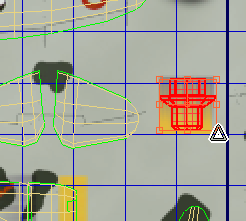
Now all the faces of the P-47 have been assigned the appropriate portion of the texture map.
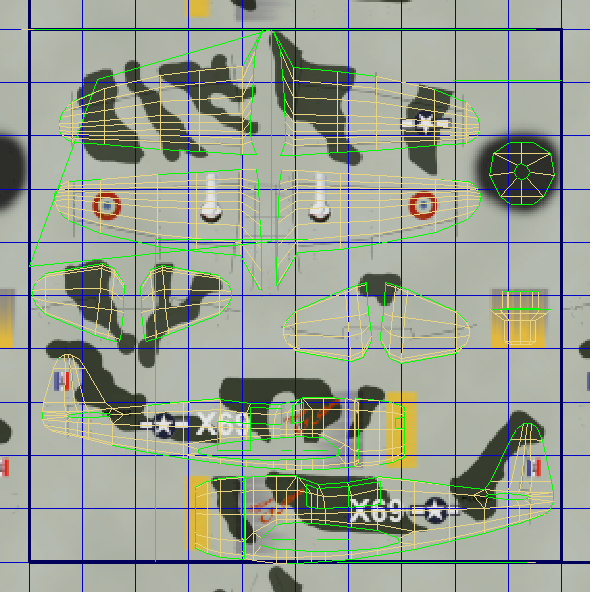
-
 Close the Edit UVWs dialog.
Render the resulting image:
- Activate the Perspective viewport, and press C to change it back to the Camera001 view.
-
 Render the Camera001 view.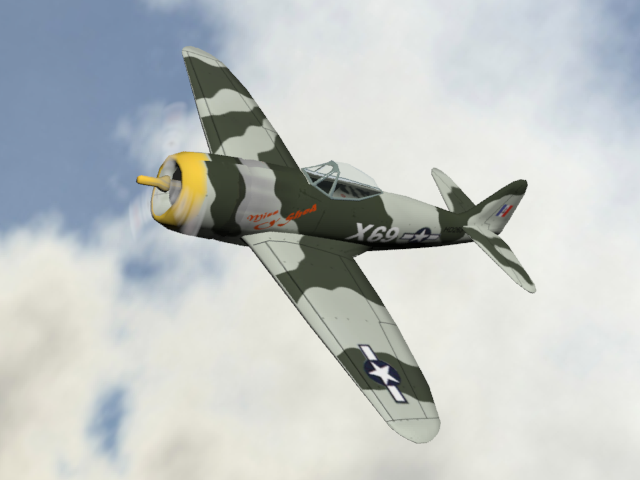
Save your work:
- Save the scene as my_p47_textured_all.max.
To see a completed version of this scene, you can open p47_texture_completed.max.
Summary
This tutorial showed how to apply a complicated texture, such as the painting of a military airplane, to 3ds Max geometry. To do so, use an Unwrap UVW modifier. At the modifier’s Face sub-object level, select the faces that correspond to a portion of the map. Click (Planar Map) or  (Quick Planar Map) to generate an initial projection; then in the Edit UVWs dialog, use Move, Rotate, and Scale (or Freeform Mode, which combines all three transforms) to place the selection over the portion of the map which has been designed for those faces.
To create a patchwork texture such as the one used for the Thunderbolt, you can use the Viewport Canvas tool, which lets you interactively paint directly onto geometry. The two learning movies "Using Viewport Canvas" (In the "Materials & Mapping" section) show how to create a texture similar to the one used in the preceding tutorial.