The list must be updated with the information from the model.
Start the BOM Editor
To access the command
Ribbon: Output  Document Manager:

Command line: _Astm4CommBomEditorEx
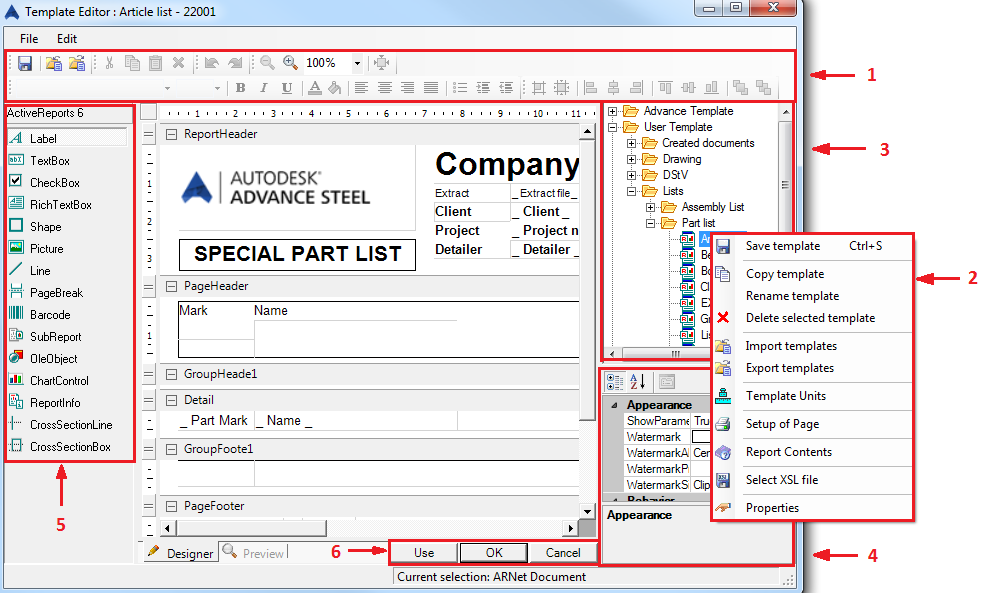
The BOM editor window opens.
The BOM Editor window
Template designer Template preview |
|
Tools for template customization
| Button | Description |

|
Save modifications to the edited template. |

|
Import *.temp files as templates. |

|
Export selected templates as *.temp files. |

|
Cut the selected control from the template. |

|
Copy the selected control to the clipboard. |

|
Paste a control from the clipboard. |

|
Delete the selected control from the template. |

|
Cancels the effect of one or several commands. |

|
Reverses the effects of previous Undo commands. |

|
Zoom out the template. |

|
Zoom in the template |

|
Display the template at its actual size. |
Tools for template management
Different tools for template management are available in the context menu of a selected template.
|
Button |
Description |

|
Save modifications to the edited template. |

|
Copy an existing template to the User or Project database within the same category. |
|
Rename the selected template. |
|

|
Delete the selected template |

|
Import *.temp files as templates. |

|
Export selected templates as *.temp files. |

|
Set the units for the selected template |

|
Opens the Report settings dialog box for page and printer setup, and styles. |

|
Displays the list of object whose related information from the model is used in the report. |

|
Select XSL file. |

|
Displays the properties dialog box. |
Template tree
The predefined templates for material reports is displayed in the right panel of the BOM Editor window. The tree is divided in three groups of templates.
|
Advance Template |
Includes all BOM templates from Advance. Their properties cannot be modified. |
|
User Template |
Includes a copy of all BOM templates from Advance. Their properties can be modified. |
|
Project Template |
This group can be used to copy templates for project specific modifications. |
Each group contains the following categories:
Derived documents
These lists are related to the created lists and their status.
List on drawings
These templates are used by the lists created on drawings.
Lists
These templates are for quantity take-off, material loading or shipping.
- Part list - based on single parts
- Structured list - based on assemblies
Properties list
Displays the current settings for properties of the selected object in the Design area. You can modify any property that can be changed by specifying a new value.
The properties are grouped in several categories.
Appearance
Contains the fields for alignment, font, color and style.
Behavior
Controls the visibility of the field in printed documents and the field behavior on changing the field content.
The field size may adjust according to the content or the content may be shown on multiple lines.
Data
Controls the content and the data format.
Design
Identifies the field.
Layout
Controls the location and the size on the report.
Buttons for applying or canceling the modifications
Use
Applies the selected template. The BOM Editor closes and the list creation begins.
OK
Saves any modifications and exit the BOM Editor.
Cancel
Closes the BOM Editor without saving any modifications.