The list frame is defined by two diagonal points. Once the frame is created, you can control the list layout: the size and the format. The list format is set by a template.
To access the command
Ribbon: Labels & Dimensions > Management:

Command line: _AstM4CommDetInsertBom
To create a list on a drawing
- Open a detail drawing.
Labels & Dimensions
tab,
Management
panel: Click
.
- Select a point for the top right corner of the frame.
- Select a point for the lower left corner of the frame.
- The List dialog box appears.
- On the Layout tab, define two fixed points of the list to specify the required width: the top right corner and the left corner.
Note: Points for the list height should not be selected since it would prevent the list from extending as more material is added.
- On the Template tab, select the desired template.
- Close the dialog box.
- The frame is created and the list must be updated.
To modify the list template
- Select the list or the list frame.
- Right click and select Advance Properties from the context menu.
- In the properties dialog box select the Template tab.
- Select the desired template from the list.
Bill of Materials on overview drawings
- In case of a partial overview that has been created using a drawing style that uses the Complete model or Complete model with Xrefs options in Model objects selection (from the Drawing Style Manager), bills of material created on this view will contain all the objects from the model, not only the ones included in the Detail box.
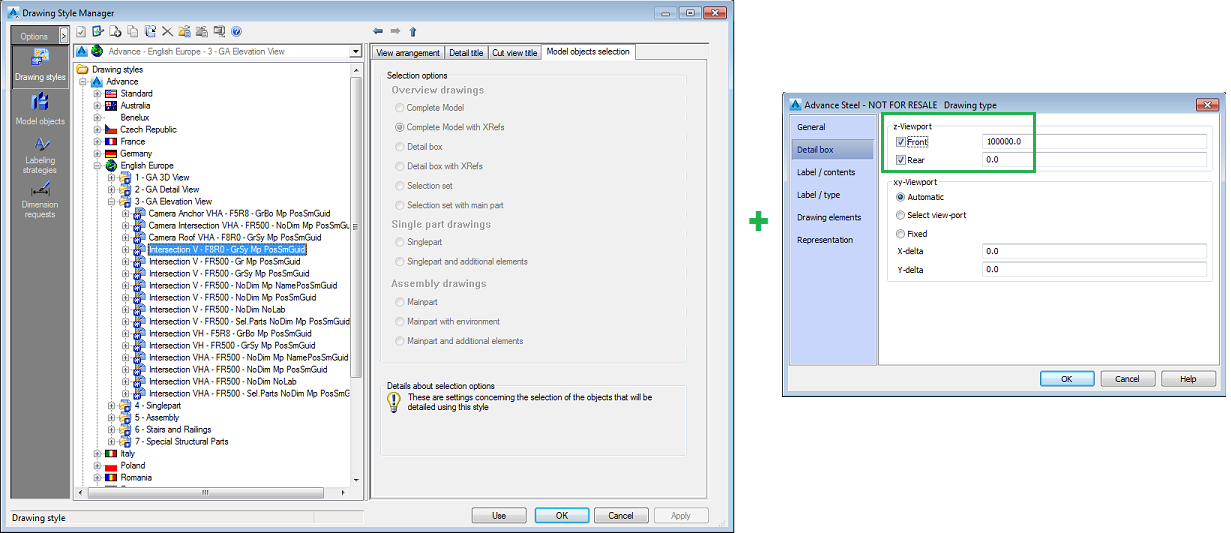
- Bills of material created for this type of partial overview will have a warning text placed at the bottom, explaining that the content of the bill is inconsistent with the content of the partial overview. This text is part of the bill of material, sharing the same text style and moving together with the list. It cannot be removed.
- If the detail style uses the Detail box or Detail box with Xrefs option, the bill of material will not have this text attached to it.
- The quantities shown in the list for single parts are total quantities. In case of a partial overview, the quantity displayed in the list for each single part will be the total quantity existing in the model for that part, even if not all these identical objects are present in the view.
- In case of an un-numbered model, all quantities shown in the list are singular.
- When the drawing contains both Mainpart details and Single part details, the bill of material created for the entire drawing will contain only the elements from the Mainpart detail.
- When the drawing contains both Mainpart details and Overviews, the bill of material created for the entire drawing will contain only the elements from the Mainpart detail. If you want to create a Bill of material for the overview, you can use the Insert a details list command.
- When the drawing contains both Single part details and Overviews the bill of material contains all the elements from these views.