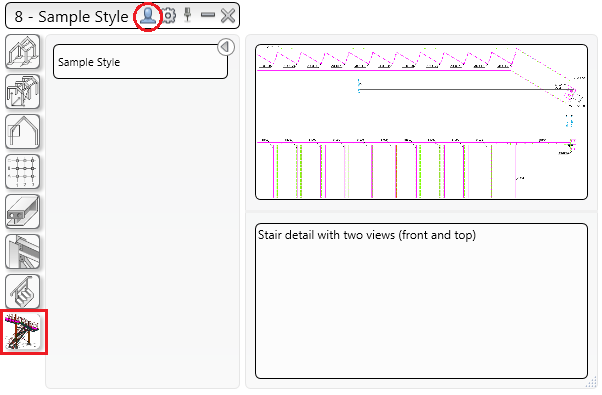
To add your own customized content in the Drawing Styles tool palette, such as, the category image (active and inactive), the descriptive image and the descriptive text, you need to work with the AstorAddIn.mdb database and enter the information in the specific tables.
To do so, follow these steps:
- Create a new drawing style category:
- Access the Drawing style manager: Go to the Output tab
 Document Manager panel and click
 (Drawing style manager).
- In the Drawing Styles category User folder,
create a new drawing style category or
copy an existing one.
- Access the Drawing style manager: Go to the Output tab
- Add the PNG files you want to use for the style category icons and for the descriptive image, in the C:\ProgramData\Autodesk\Advance Steel 2017\Steel\Support\Toolbars folder.
- Open the AstorAddIn.mdb from the C:\ProgramData\Autodesk\Advance Steel 2017\User2\Data folder.
Note: Make sure you have Microsoft Access installed on your computer to be able to open and modify the database.
- In the AstorAddIn.mdb database, access the DetBaseCategories table and enter the category image filename of your category PNG files (active and inactive) in the Image and ImageInactive columns for your new drawing style category entry:
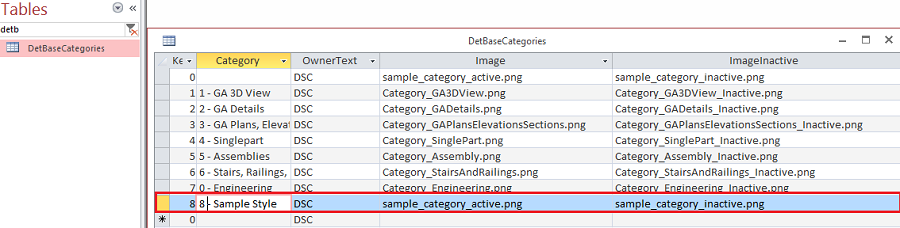
- In the AstorAddIn.mdb database, access the DetailMaster table and enter the category image filename of your style example PNG file in the ExamplePicture column.
- In the AstorAddIn.mdb database, access the DetailMaster table and enter the descriptive text for your style in the HelpText column.
- Save and close the database, restart Advance Steel and open the
Drawing Styles palette to see your new category.
Note: Make sure you select the User category in the top right of the palette heading.