Example: Create a bill of materials based on a previously created model extract
- Click Output
 Document Manager
  (BOM editor).
- Select a Bill of materials (BOM) template or create a new template as necessary.
- Click
Use.
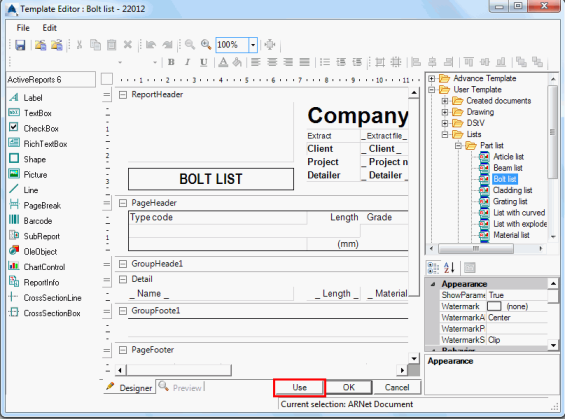
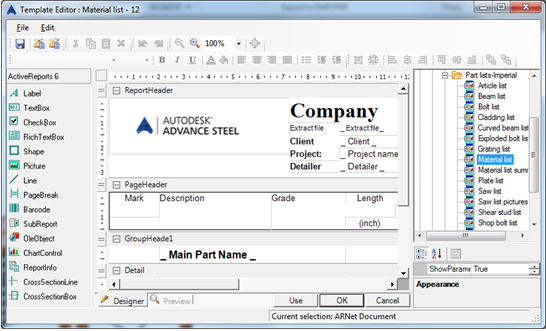
- Select the desired model extract in the next dialog.
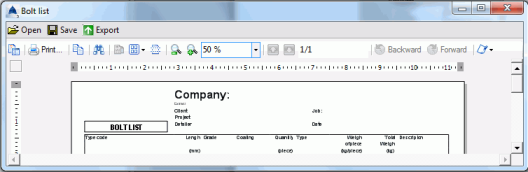
- Click OK to finish the BOM creation.
The structured BOM appears. It can be printed, saved, exported, or sent by e-mail using the corresponding icons on the menu bar.
- Click Export. The Report export dialog appears displaying the export options.
- Select an export format, such as PDF from the list.
- Click OK.
- Save and name the BOM file. The BOM file saves as a report in the folder:
...\[model folder]\[model name]\BOM\[BOMfilename]