Learn how to use the necessary views engine to control the views that appear on a drawing according to the filters set in the Necessary Views configuration dialog.
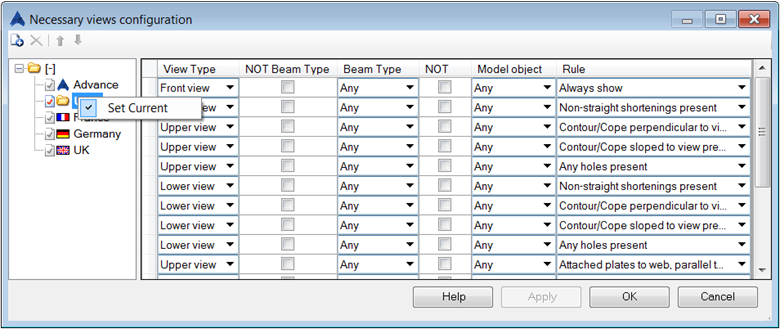
The necessary view configuration is table-based, with a set of entries that map the view with a geometrical condition. A view will appear on the drawing if the condition set here is fulfilled. Below is a fragment of an existing necessary view configuration:

The first line sets the front view to always show for any object. This means that regardless of the object geometry, the front view will always appear if it is present in the drawing style configuration.
The second line is for the top view which denotes non-straight shortening geometry.
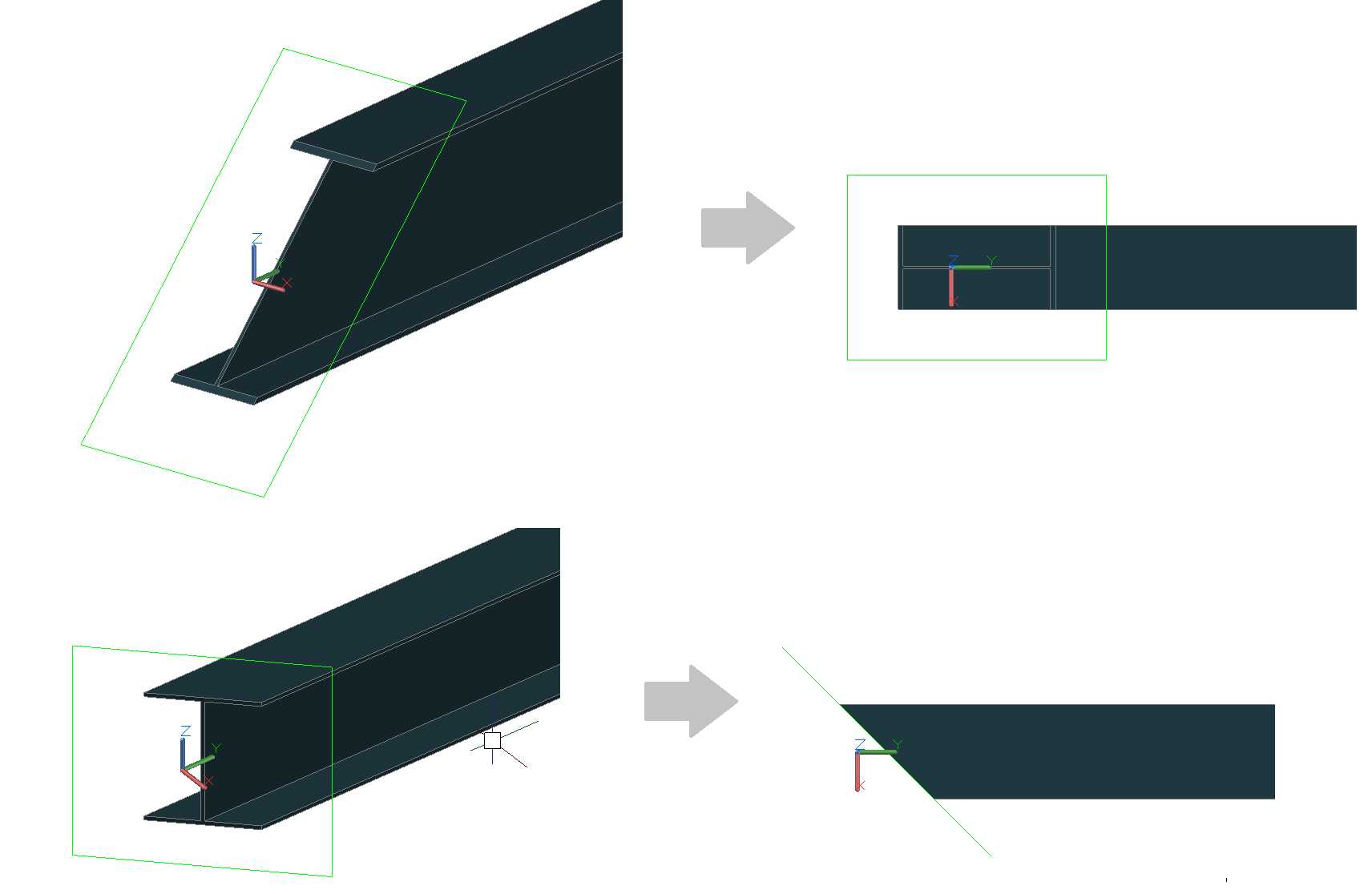
In the examples below, the first image shows a top view with a shortening created straight against the view. This means that the necessary view condition is not fulfilled. The second image shows the top view with a shortening that is skewed against the view. This means that the necessary view condition is fulfilled and Advance Steel will automatically create a top view on the detail drawing.
Each line contains an independent condition and only one needs to be fulfilled (per view) for the view to appear on the detail drawing.
The necessary views engine can be enabled or disabled by checking or not checking the "Use the necessary views verifications" default, available in the Management Tools.
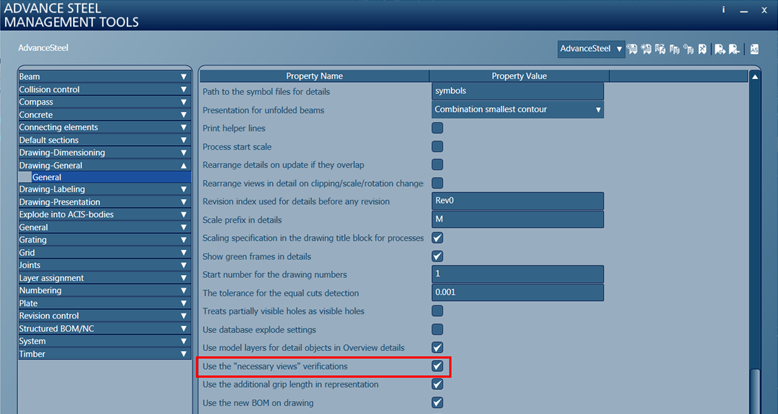
If the default is disabled, Advance Steel will stop checking if a view is needed or not on a drawing, and it will show all the views that are configured in the associated drawing style.
If the default is enabled, Advance Steel uses the default filter configuration. You can create other filter configurations and save them using the Necessary View Wizard, located in the Output tab  Document Manager panel
 (Necessary View Wizard).
To create a configuration:
- Start the Necessary View Wizard: Output tab Document Manager panel
(Necessary View Wizard).
- Right click on the User folder and set it to current.
- Apply the filters you want in the view using the drop-down lists from each column (View Type, Beam Type, Model object or Rule), according to how you want the views to be shown on the detail drawings.
- Click Apply and then OK.