You can add radiators to a drawing using data from an XML file produced by a heating calculation program such as SOLAR COMPUTER Desktop. The XML file contains an identifier for one or more of the spaces in the model. Each space identifier in the file precedes a list of the radiators to be placed into the space.
To add new radiators to a drawing using calculation data
- In the Piping workspace, click
 .
.
- In the Import Radiators dialog box, under Select file, browse to the XML file that contains the imported calculation data, and open it.
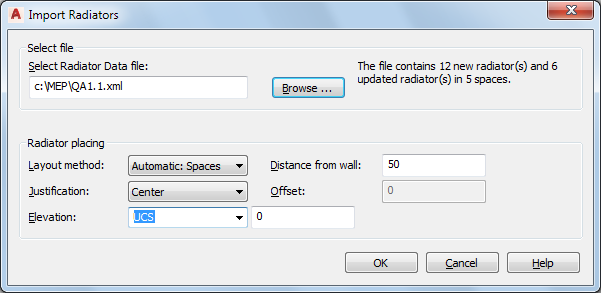
- For Layout method, select one of the following.
- Automatic: Spaces
The software places the radiator by applying the positioning options to a window and its wall.
The software adds a radiator beneath each window in the space. It matches the length of the radiators in the list to the width of the windows in the space. If the list contains more radiators than the number of windows currently in the space, the software zooms to that space and prompts you to enter 2 points to place the additional radiators.
- Manual: Two points
The positioning options apply to the line defined by the specified left and right points.
The software zooms to the space being processed. For each radiator in the list, the software prompts you to enter 2 points to position the radiator within the space.
- Automatic: Spaces
- Specify the positioning options for the radiators.
If you want to... Then... center each radiator for Justification, select Center. place each radiator off center for Justification, select Left or Right, and for Offset, enter a distance. place each radiator a specified distance from a wall for Distance from wall, enter a value. - For Elevation, specify an elevation, or enter a value.
- If the XML file specifies a radiator part size that does not already exist, in the Missing Radiator Parts dialog box, select one of the following:
- Create Custom Parts: Adds the missing radiator parts to the current drawing
The software does not create the parts in the MvParts catalog or make them available for use in other drawings. You can reference the added radiators for tasks such as scheduling. However, the capability for changing them is limited.
Note: Click Always create custom parts if you do not want the dialog box to display again. - Cancel: Ends the processing so that you can create the required radiator parts in the MvParts catalog and then run the command again.
The parts will then be available for use in this or other drawings. (See Creating Custom Radiator Parts.)
- Create Custom Parts: Adds the missing radiator parts to the current drawing
- If the file contains more radiators than windows for a space, the software zooms to the space. Follow the prompts and enter 2 points to place each radiator.