From the Image / Transcode / LUT Options menu, you can manually apply a LUT or colour transform to media imported using the Wiretap Gateway. Or you can select the Auto Convert option to automatically apply the appropriate transformations, as specified in the current Input rules, as well as simply tagging your media to define its colour space without actually changing the pixels, leaving your sources unmodified.
Applying a LUT or Colour Transform
- From the Conversion LUT Type box, select 1D Lut, 3D Lut or Colour Transform.
- Click Enable.
- Select an item from the list, or click the Browse (...) button to locate and select a different LUT or colour transform. File paths are:
- 1D LUTs: /opt/Autodesk/project/<project_name>/lut/
Note: The Wiretap Gateway supports Flame-compatible 1D LUT files only. Lustre-compatible 1D LUT files are not supported.
-
3D LUTs:
- Flame Premium:opt/Autodesk/project/<project_name>/lut/Lustre_Color_3DLUTs/
- Lustre Standalone: /opt/Autodesk/Lustre_Color/lut/Lustre_Color_3DLUTs/
- Colour Transforms:
Click the Bookmark field to switch between the
Project,
Shared, and
Autodesk locations. See
Colour Management Files and Locations and
Autodesk Colour Transform Categories.
In addition to native .ctf files, you can also select files in several other supported LUT and transform formats.
- 1D LUTs: /opt/Autodesk/project/<project_name>/lut/
Using Auto Convert
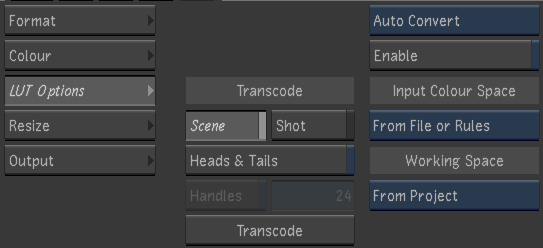
Auto Convert: This option lets you to select the Input and the Working spaces and then converts the pixels from the Input Space to the Working Space. Images are tagged as being in the Working Space.
From File or Rules: When using the Auto Convert colour management mode, you can manually select an Input Colour Space or you can select From File or Rules. What this does is analyze in the media file for a readable colour space, if none is found, it defaults to the current Input Rules and uses the first rule that matches the media.
Using Tag Only
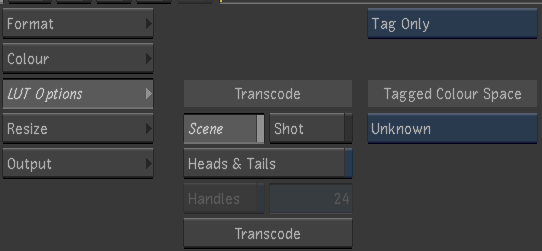
Tag Only: This option lets you set the Colour Space tagging metadata for clips but does not modify the pixels.