Use this menu as an alternative to the Home tab for access to the following common commands:
- Open a saved TIVUS file for running a simulation.
- Import a 3D CAD file to use as a basis for a simulation. Over 25 file formats are supported.
- Save a project TIVUS file.
Perhaps the most important use of this menu is for reviewing and adjusting project settings. Before importing a CAD file for your simulation, check that Simulation Utility is configured to match the characteristics of the file, as follows:
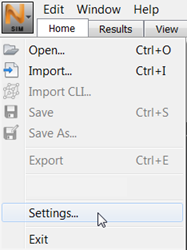
- From the main SIM menu (upper left corner), select Settings.
- In the Settings window, General tab, note the setting for Units, and change it if necessary to match the units in the CAD file being used.
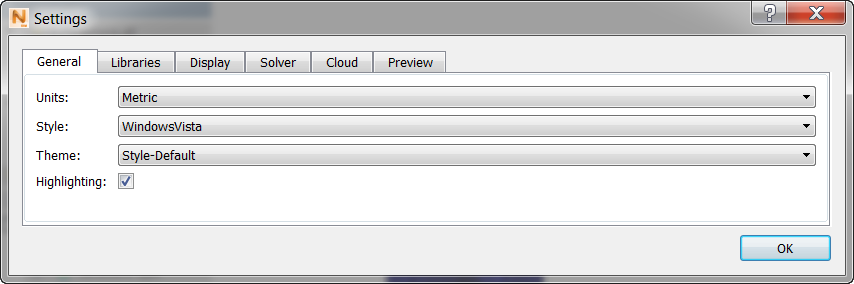
- Review other settings to ensure they meet your requirements:
- General tab Style, Theme, and Highlighting control the visual appearance of the user interface. The Style settings enable you to replicate common appearances such as Motif and Windows XP.
- Libraries tab shows the current path to the library of process parameter (PRM) files. You can change the path here.
- Display tab allows you to adjust Ambient Occlusion settings for improved rendering of parts.
- Solver tab identifies the executable file that solves the simulation, the maximum number of physical processing cores, and the KMP Stacksize environment variable.
- Cloud tab sets a value that applies when you run simulations on the Cloud rather than on a local computer. If a job costs more Cloud Credits that the value shown here, you will be prompted to approve the cost.
- Preview tab allows you to enable new functionality that is under development in the product. In so doing, you are invited to submit comments to the developers about your experience with the new features.