 By clicking on the Scale icon, choosing Scale in the Part menu or context menu or by pressing S, the dimensions of one or more selected parts can be changed. In the Scale Parts dialog window, the current selection, the part’s position, size and its scale center are displayed.
First, you can insert the factor, by which the length along the respective axis is multiplied. With factor 1.00, the dimensions remain the same. With a factor bigger than 1.00, the part is enlarged, while with a smaller factor than 1.00, the part is shrunk. If you insert a negative value, the part is inverted. It’s also possible to scale by percentage or enter the actual desired part size.
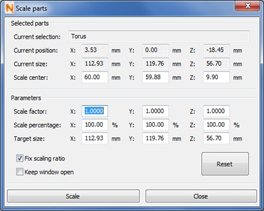
The dialog box for scaling parts
With the Fix scaling ratio box ticked, the dimensions of all three axes are scaled by an equal factor and consequently makes the whole part bigger or smaller. With unequal scaling however, different factors can be entered for the three axes. Consequently, the scaling process changes the proportions of the part’s geometry and changes the part’s shape.
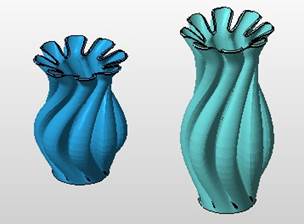
The part scaled unequally only along one axis and becomes distorted in the process.
If the box Keep window open is ticked, you can apply the changes by Scale, the dialog will stay open and you immediately can scale the part again.