The orientation of a part for manufacturing is affected by a number of considerations. This module analyzes a part by and calculates several suggestions for orientation. These suggestions are determined heuristically based on support minima, and are listed with an array of additional values which are displayed color-coded for easier identification of which one to prefer. By clicking a suggestion, the orientation is visualized and can then be applied or reset.
Find this feature as Arrange, Orient Part.
Parameters
Netfabb will attempt to find a number of rotation variations where the surface requiring support is at a minimum from a set of user-defined values. Only the actual surface is taken into account, triangle density does not matter.
- Cutoff Angle: Surfaces angled against the X/Y plane up to this angle are considered to require support. This is similar to the Critical and Non-Critical Angle (set to the same value) of the Support module.
- Smallest Angle between Minima: When two minima are oriented up to this rotational angle apart, only the "better" one is listed and the other one is discarded. Smaller values will significantly increase calculation time.
- Support the Bottom Surface as well: Makes Netfabb take into consideration that any surface parallel to the platform still requires support. Ticking this box enables control to specify a distance from the platform.
- Rotation Axis: To restrict calculating suggestions to rotations around either the X or Y axis, use this section.
- Distance from the Bottom Plate: If the bottom surface is selected to be supported, this slider and field becomes active to specify an additional distance of up to 50 mm.
- Search: Calculates suggestions based on the values specified.
- Reset: Restores all values to either default or to whatever was specified for the most recent calculation.
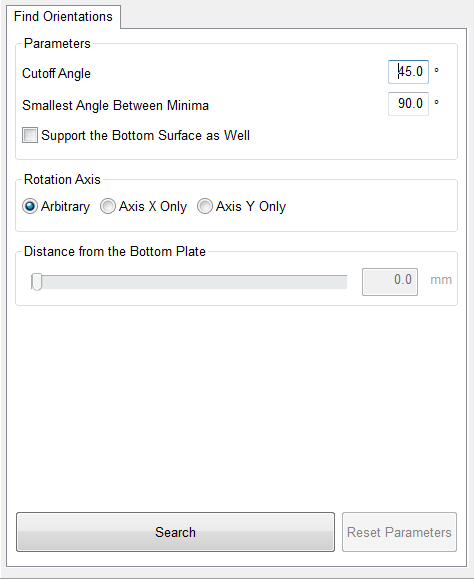
Provide the parameters.
Results
Calculated suggestions will appear in a second tabsheet. The column headers can be clicked to sort by them in ascending or descending order. Clicking an entry rotates the part to visualize the new orientation. Click Accept to perform the rotation on the part as selected and return to the default view.
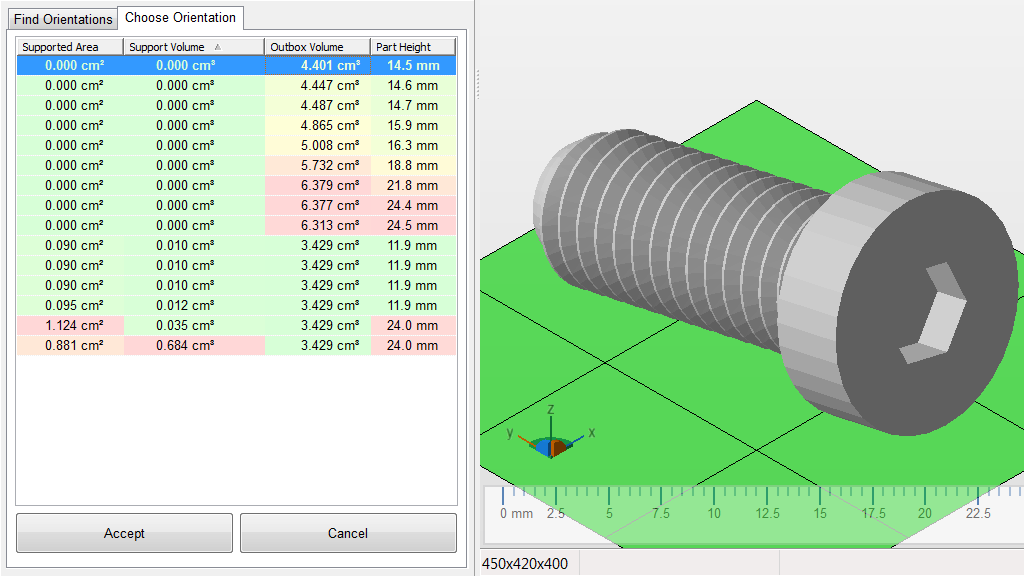
Orientations have been found.