There is also a function in this module, which enables you to automate the labeling process. With a CSV-list or an in Netfabb created list you can duplicate parts and label them with the spreadsheets content. This way, mass labeling and mass production become accessible easily. This function is available in the labeling menu via the toolbar or the context menu and is called list labeling.
As mentioned above, there are two possible ways to use the list labeling: either with a prepared csv list or with a list you can newly create in Netfabb. In this labeling module, you’ll find a tabsheet similar to those in the above described labeling functions.
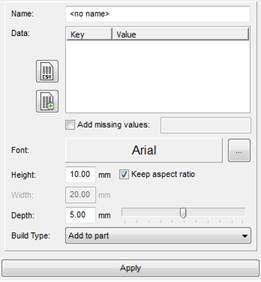
The list labeling tabsheet: either label by a csv list or make your own list in Netfabb.
Load CSV File
 Click on the Load CSV file icon in order to open the import dialog (CSV files can be created and saved with every common spreadsheet software). Then open such a spreadsheet with at least one column via the Filename button and set its options:
- Separator & Quote character: these two characters affect the import mode of the csv file. Make sure the import options in Netfabb correspond with the export options in your spreadsheet software.
- Trim Spaces: deletes needless blanks
- First row contains header: if you set the checkmark here, the first row of your document won’t be used as a label.
Choose for which purpose you want to use the columns:
- Column for key: this column will be used as the future part name.
- Column for value: this text will be labeled on the part.
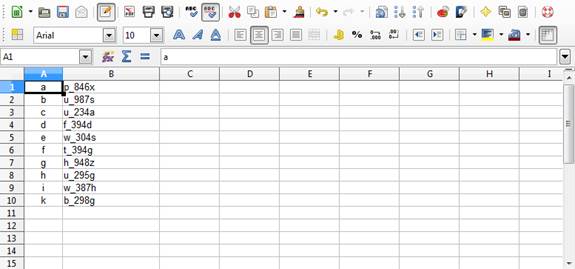
Example of a csv file which you can load in the Netfabb list labeling.
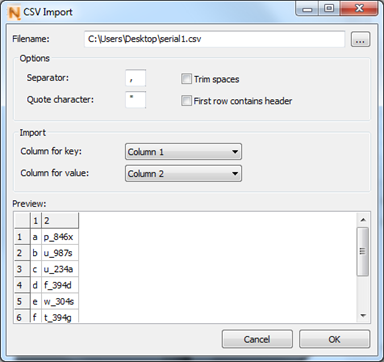
The imported list: Column 1 is used as a key (affects the actual file name) and Column 2 for the text label on the part.
In the Preview field you can see all your changes directly. After setting the parameters, click on OK to load the list.
If values are missing in your list, you can add one. Set the checkmark to the according box: The value you type in will be filled into every empty field.
Then you can change the font parameters with the "..."-button, then define the height, width and depth below. It’s also possible to adjust height and width by dragging the label’s blue outlines with the mouse. Rotate the part by dragging the little grey boxes. Then choose the build type: Add parts will make the label stand out of the model, subtract from part will engrave it. Press Apply to finally label the part.
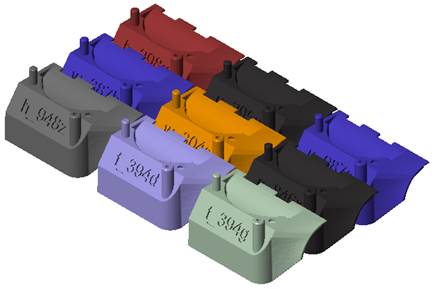
Result of a list labeling process with a csv file.
Generate a New List in Netfabb
 If you don’t have a prepared csv list, then you can create a new list easily in Netfabb. Click on the according icon in the tabsheet in order to get into the dialog for generating a numbered list. Then set the following parameters:
- Prefix: tag at the beginning of each label
- Suffix: tag at the end of each label
- Start: first value that will be labeled
- Count: determines how many parts you will have in the end
- Step: values will be left out, for example 1 = 1, 2, 3; 2 = 1, 3, 5; 3 = 1, 4, 7
- Digits: digits displayed between pre- and suffix, for example 1 = 1; 2 = 01; 3 = 001
- Example: Shows the preview of the new list
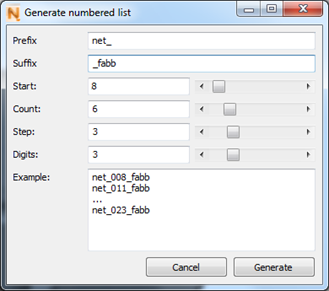
The dialog for creating your own new list for labeling.
After setting the parameters, click on OK to generate the list. Then you can change the font parameters with the "..." button, then define the height, width and depth below. It’s also possible to adjust height and width by dragging the label’s blue outlines with the mouse. Rotate the part by with dragging the little grey boxes. Then choose the build type: Add parts will make the label stand out of the model, subtract from part will engrave it. Press Apply to finally label the part.
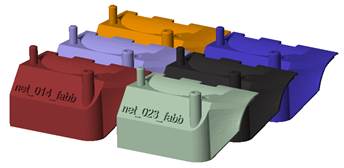
Result of the labeling with a list that was generated in Netfabb