 For the repair module, there are several selection options. Depending on the chosen selection mode, either single triangles, all triangles of surfaces or all triangles of shells can be selected with a mouse click. The brush selection tool allows you to paint over multiple triangles to select them coherently. By using the scroll wheel of the mouse you can increase or decrease the size of the brush. With default settings, selected triangles are colored green on the outside and darker green on the inside, while unselected triangles are colored blue on the outside and red on the inside.
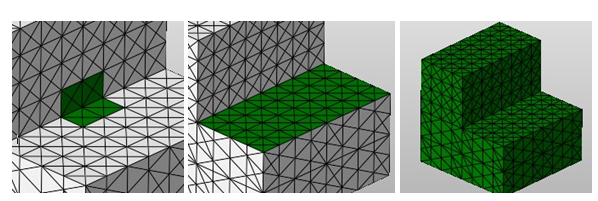
Left: Selected Triangles. Center: A selected surface. Right: A selected shell.
If the Ctrl key is held, triangles, surfaces or shells can be deselected or added to the selection with a mouse click. If both the Ctrl key and the left mouse button are held, all triangles, surfaces or shells crossed by the mouse cursor are either added to or removed from the selection, depending on whether you first click on a selected or on an unselected triangle. Holding the Shift key instead of Ctrl works similarly, but only for adding to the selection.
Alternatively to selecting with simple mouse clicks, single triangles, surfaces or shells can also be selected in the context menu without changing the selection mode. If you are selecting single triangles or even using one of the manual repair modes, you can select a whole shell by right-clicking on it and choosing Select this Shell in the context menu. The same goes for triangles and surfaces.