The default zooming options are replaced, as there is only one part on the screen and single triangles can be selected. They are:
 Zoom on Part: The part is moved into the center of the screen and the zoom is reset so that the part is adjusted to the edges of the screen.
 Zoom on Selected Triangles: The zoom is reset so that selected triangles are in the center of the screen and these triangles fit exactly into the frame of the viewing screen.
 Zoom to Selection: This feature enables you to drag a selection rectangle when holding the left mouse button. Netfabb then zooms in to that selection. By ticking the respective boxes in the visualization settings in the Status register, you can choose whether to highlight holes with a yellow line, show degenerated faces, visualize the triangle mesh and highlight errors with a thicker line. Errors can also be highlighted during operations by holding the H-key.
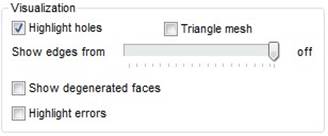
The visualization settings in the tabsheet
If the triangle mesh is not shown, there is the option to visualize triangle edges exceeding a certain angle which can be adjusted with a slider. Here, 0° stands for triangles lying in the same plane and all angled edges are shown, while with 180° (or off), no edges are visualized. The setting of this regulator also has an influence on the selection of surfaces.
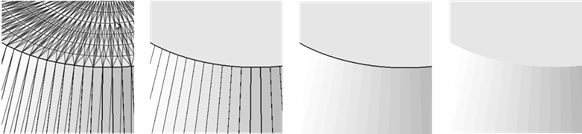
One part with four different options for the visualization of edges. First the triangle mesh is shown (all edges), then it is switched off and all angled edges (Setting 0◦), all edges exceeding 20◦ and no edges are visualized (180◦/off).