 By clicking the Automatic Repair button in the tabsheet, in the context menu or Repair menu, several repair scripts are offered. Netfabb comes with three scripts already created, named Simple Repair, Default Repair, and Extended Repair, which cannot be altered. Simple Repair automatically fixes flipped triangles and first closes trivial holes and then all holes. Default Repair automatically performs most semi-automatic repair functions. Extended Repair is the most powerful one and additionally wraps the part in order to delete unwanted inner shells and duplicated triangles
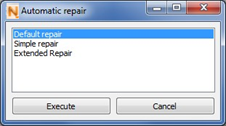
Choose one automatic repair option in the dialog box.
In the Repair Scripts register of the tabsheet, you can define individual repair scripts, as well as view, edit and save existing and new automatic repairs. The drop-down menu at the top shows you which repair script you are currently working on. New scripts can be created by clicking on the button with the blue plus-icon. If you want to remove existing scripts, double-click on the red X.
In between, there is a button depicting a gear wheel. After clicking on that button, you can load scripts, save the current script, duplicate your script or rename it.
The field below shows which repair functions are performed in which sequence by the script. The sequence of the repair functions can be changed by clicking on one of them and moving it by drag & drop within the list. By clicking on the green tick next to a listed function, you can perform one function separately, and by clicking on the button with the red X, the function is deleted from the script.
Some operations in the script have a small Plus on the left side. If you click on it, a tree is opened and you can view and edit the parameters of these functions, for example the tolerance.
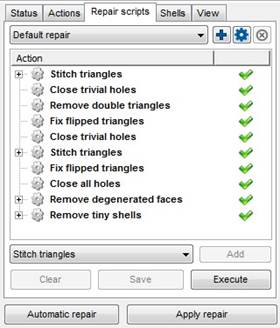
Repair Script of Default Repair.

Specifications for the function Stitch Triangles can be altered within the repair script.
Below the field containing the chosen functions, there is a drop-down menu which includes all repair functions which can be added to a script. This can be done by selecting a function and click on Add. Clicking Clear deletes all functions from the script. Finally, the repair script can be saved to your disc, for example to be copied to other computers, or it can executed directly.