In the tab View, you can now take a look inside the part. This is very helpful if you need to repair a mesh which is hidden in or behind another shell and which you can’t reach from outside. If your model contains texture information, tick the box Show textures to make them visible. The next check box turns the whole part transparent and you can see every shell the model contains. The scroll bars below are the actual viewing tool: move a bar until you see an outline on the model and click on one half of the little orange box on the left side of the bar. The model will be opened and you can now edit and repair the interior parts of the file. A click on the box Transparent Cuts hides or shows the cut off part.
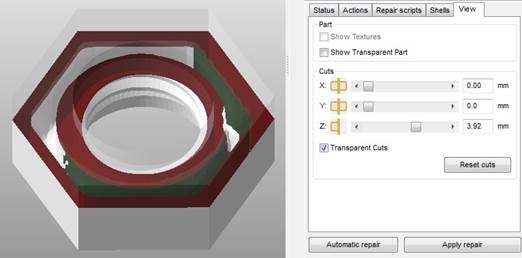
With the tab View you can take a look inside the part. Open the part with the cutting bars and can not only view the inside but also work on inner shells.