This feature can be found in the Mesh Edit menu or in the context menu after right-clicking on a selected triangle. You have to have at least 5 triangles selected for this function. In the triangle reduction, Netfabb unifies triangles to create bigger one. When you start the function, a dialog box appears with the tabs Basic Reduction and Advanced Reduction. The basic mode is useful, as it proceeds very quickly. If you need more accurate results, we recommend to use the advanced mode.
In both dialog boxes, you can see how many triangles are selected and you can set, if you want to reduce the triangle count to a certain target count or if you simply want to reach the lowest possible number of triangles. If the triangle mesh is very much finer than necessary, it is recommended to conduct the triangle reduction in several steps, for example halving the triangle count. Otherwise, you may get unwanted side effect like double surfaces.
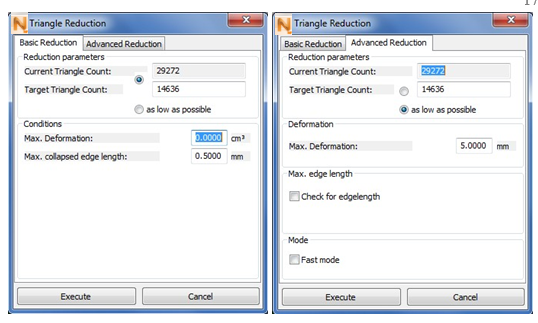
Left: For a quick triangle reduction. Right: For a more accurate reduction.
Below, there are a few important condition you can define for the triangle reduction. The maximum deformation represents the maximum change in volume of the part. The maximum collapsed edge length determines the maximum length of edges which are unified. Please note that wrong condition settings, for example extremely high values, may lead to unsatisfying results, such as strong distortion or self-intersections. In the advanced reduction you can choose the Fast mode, which works faster but a little less accurate. This is very useful for testing reduction values.
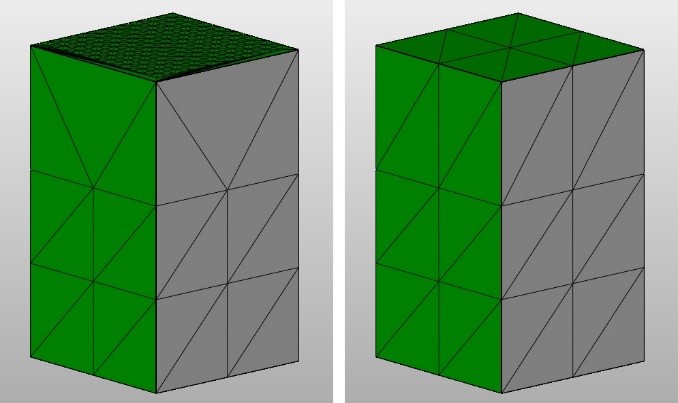
The number of triangles is reduced without any distortion of the part.