A part does not always contain just one support area. The part may include a lot of support areas, which are not connected. The automatic support prepares the whole part and every single support area will be prepared in just one step.
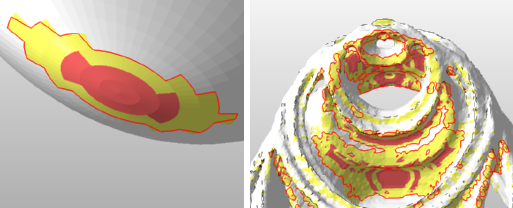
Areas that need support. Left: one simple cluster. Right: many different clusters.
Support Scripts
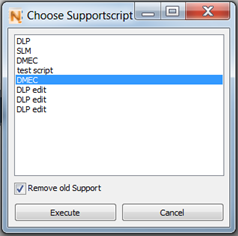
The Enhanced Support Module comes with two predefined scripts for automatic support creation: DLP (for bar support) and SLM (for volume support). With these scripts, support operations are executed in a predefined sequence. To access it, click Supportscript in the Analysis tab and choose the relevant script. Support structures will automatically be created according to your downskin settings.

Click on Supportscript in order to access and execute predefined automatic support sequences.
By default, all previous support will be deleted when running a new script. You can uncheck this option in the supportscript overview
In the Support Scripts register of the tabsheet, you can define individual support scripts, as well as view, edit and save existing and new automatic structures. The drop-down menu at the top shows you which script you are currently working on. New scripts can be created by clicking on the button with the blue plus-icon. If you want to remove existing scripts, double-click the red X.
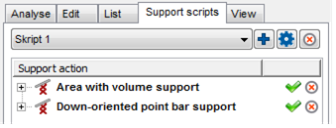
Support scripts
In between, there is a button depicting a gear wheel. After clicking on that button, you can load scripts, save the current script, duplicate your script or rename it.
The field below shows which support functions are performed in which sequence by the script. By clicking on the green tick next to a listed function, you can perform one function separately, and by clicking on the button with the red X, the function is deleted from the script.
Some operations in the script have a little Plus on the left side. If you click on it, a tree is opened and you can view and edit the parameters of these functions, for example the anchor distance.
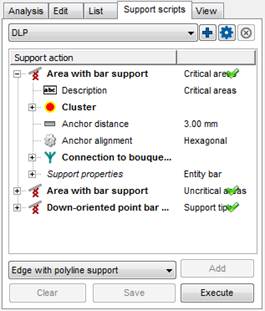
Example of available actions for the automatic support scripts.
Below the field containing the chosen functions, there is a drop-down menu which includes all functions which can be added to a script. This can be done by selecting a function and click Add. Clicking Clear deletes all functions from the script. Finally, the support script can be saved to your disk, for example to be copied to other computers, or it can be executed directly.
For this, go to the Support scripts tab. Available actions are:
- Edge with Polyline Support
- Area with Volume Support
- Area with Bar Support
- Area with Polyline Support
- Down-oriented point bar support
- Surround Volume by Polyline
- Skeleton with Polyline Support
- Cluster-contour by Polyline
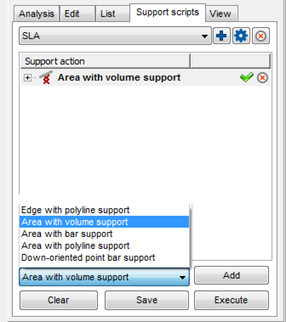
The Support scripts tab for adjusting and fine tuning the automatic support actions.
Support script quicklaunch
You can run support scripts directly, without having to launch the Enhanced Support Module. While in standard module, pick Extras, Automatic Support Generation, then select your desired support script. Progress will be displayed in a new section, the Job List, a dockable window.
Currently, this quicklaunch method is the only feature to use this job list.
Support Actions
| Name | Description | Example |
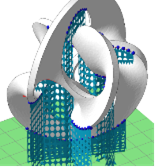
| Edge with Polyline Support | This action indicates down oriented, critical edges. The edges will be supported with polylines. |
|
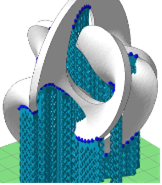
| Area with Volume Support | This action creates a volume support to every detected critical area. Anchor points will be created around the contour of this area. |
|
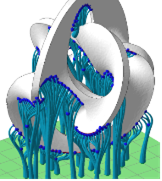
| Area with Bar Support | This action creates a bar support to every detected critical area. The bigger the area, the more bars will be created. |
|
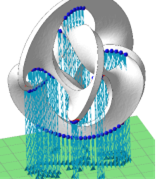
| Area with Polyline Support | This action creates a polyline support to every detected support area. The area will supported with one parallel polyline after another. |
|
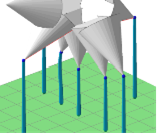
| Down-oriented point bar support | This action indicates critical points of a part. If there are down-oriented points, they will be supported with bars. Usually there are also down oriented areas. This support type identifies them and will support it with bars, too. |
|
| Surround Volume by Polyline | This action helps to reinforce existing volume support. It will identify volume support and then put a polyline around it. | |
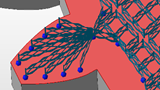
| Skeleton with Polyline Support | This is important for volume supports, which have been offset from the outer contour. In some cases that can lead to large unsupported areas, which cannot be built like that. This action will put a polyline in these places to reinforce the area. |
|