This feature can be found in the Extras menu in the Mesh manipulation section or in the context menu after right-clicking on the part and choosing Extras. It is also available in a reduced version in the Repair mode. In the triangle reduction, Netfabb unifies triangles to create bigger ones. Its benefit is to reduce the file size and speed up the workflow.
When you start the function, a frame appears on the lower right corner with the tabs Triangle reduction and Smoothing. You can see the number of triangles the original part has and as soon as you calculate any changes how many triangles the part will have.
In the Settings below, reduce the triangle count to a maximum deformation represents the maximum change in the surface of the part. The maximum edge length determines the maximum length of edges which are unified. Please note that wrong condition settings, for example extremely high values, may lead to unsatisfying results, such as strong distortion or self-intersections. You can choose the Fast mode, which works faster but a little less accurate. Show a preview of the reduction by clicking on Calculate and if you want to get back to the original mesh, press Reset.
In the Display options you can make the mesh visible (Show triangles) and by pressing and holding the Show original mesh button you’ll get to review the triangulation before you reduced it. With a check in the Auto update box, all the changes you make will be displayed on the model immediately. This is very useful for checking the new mesh with every change, but can lead to long calculation times when working with complex files. If you always want to use the same reduction settings on all your models, click on Save settings to make them available later. Apply your calculations by pressing OK.
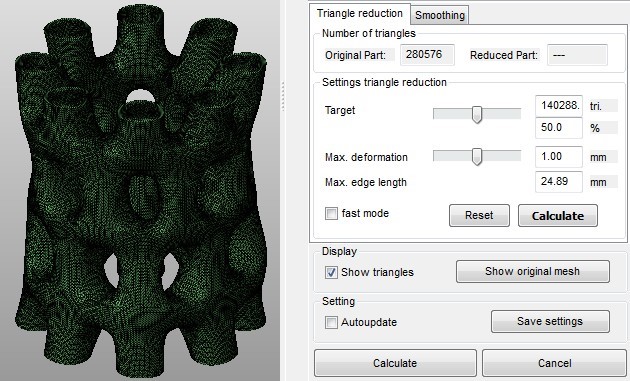
The original mesh
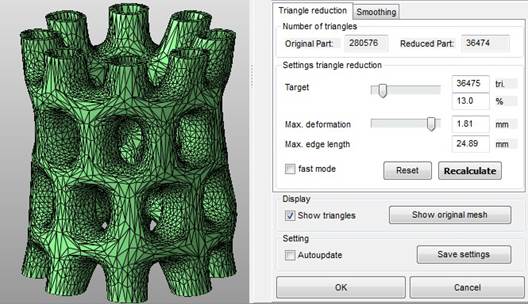
Reduced triangles