 With this function in the repair module, it is possible to draw lines on a part and cut the surface of the part along that line. Triangle edges are inserted along the drawn line and are split open. This feature is available in the toolbar, in the Mesh Edit menu or the context menu of the screen.
When this mode is activated, you can click anywhere on the surface of the part. With every additional click, a red line is inserted between the last two points you clicked on. That way, you can draw a line by clicking on the surface of your part. If the surface is not flat, the line may be inserted along existing triangle edges. If the surface is not flat, the line may be inserted along existing triangle edges, as the path of the line is calculated newly for each flat area.
When you right-click on the screen, you have three options in the context menu. With Reset Line, the line is removed and a new line can be created. With Close Line, the first and the last point are connected and the line is finished. No further points can be added. If you click on the surface again, the line is removed and a new line is started.
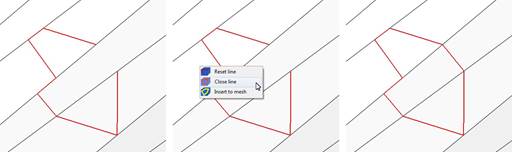
Left: A red line is inserted between the points clicked on. Center: Choose Close Line in the context menu. Right: The first and the last point of the line are connected.
The option Insert to mesh includes the closing of the line and has two further effects. Firstly, triangle edges are inserted along the drawn line and the surface is retriangulated accordingly. Secondly, the surface is split along the line, creating open border edges. Consequently, everything within the line becomes an own shell and can be selected with the Select Shell mode in the toolbar. If you have chosen only two points, the surface is only split along the line and no new shell is created.
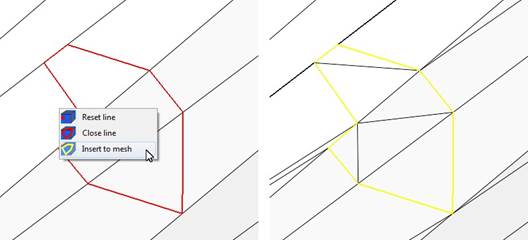
Left: Choose Insert to Mesh in the context menu. Right: New triangle edges are inserted and the surface is split.