 Unlike the previous Simple Packer and 2D Packer, this tool does not nest parts by outbox but rather by actual shape. Its settings affect the outcome in packing density, processing speed and outer restrictions. It is available via context area icon, Edit menu, and the viewing screen’s context menu. It is also available in Collision Detection’s tabsheet.
Determine minimum distance between parts, and accuracy. The smaller the distance and the higher the accuracy, the tighter the packing. Define how many Z-Rotation Steps are allowed: the lower the degree value the higher the packing efficiency. Mind that with this high efficiency, the calculation time will increase.
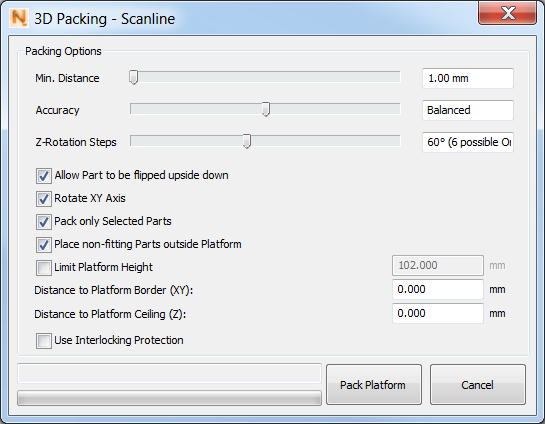
Define the parameters in the Packing dialog
If you allow the part to be flipped upside down, the parts can be rotated along the x and y axis if it’ll help to pack more densely. You can also choose to pack only the selected parts and to place non-fitting parts outside the platform. Limit the platform height if you prefer a lower arrangement of parts, and determine the distance to the platform border and its ceiling. Now click Pack Platform to have you parts arranged.
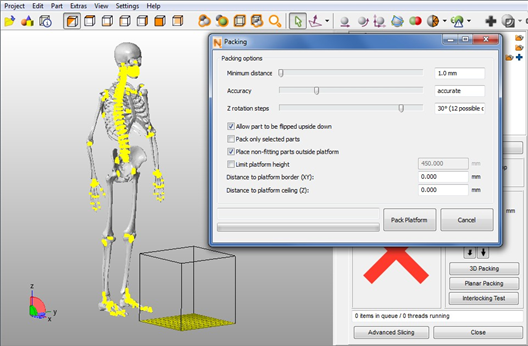
A whole skeleton project supposed to be packed.
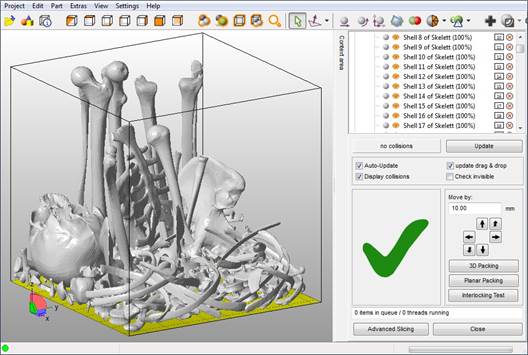
The skeleton placed in the build volume.