If your part has a very irregular mesh, you can remesh the triangles and get a smoother shape. This is very helpful for scans and organic shapes. The feature is available in the Extras Menu in the Mesh manipulation section. First, choose the resolution the new mesh should have. The lower this value is, the more similar the result will be to the existing part and the finer the triangle mesh will be. As the value becomes bigger, the simpler the surface will be.
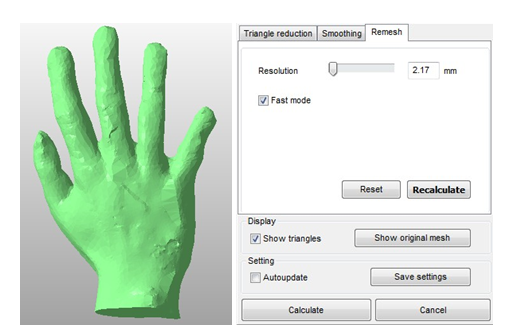
If the quality of the mesh is unsatisfying, especially with organic shapes or scans, remesh the model: The higher the resolution, the stronger all irregularities will be sorted out.
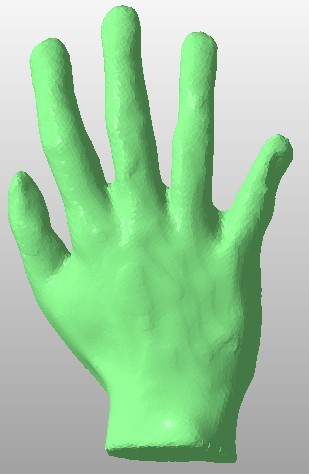
The scan after remeshing by 0.95 mm (Fast mode unchecked) with an improved surface quality.
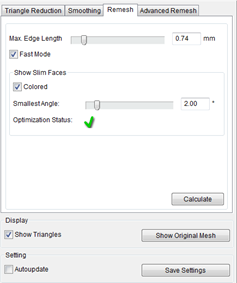
The regular Remesh is the quickest way to perform a remesh. You can set the resolution and also which mode to perform the operation in. Uncheck the Fast Mode”option for a better result.
In the Display options you can make the mesh visible (with Show triangles) and by pressing and holding the Show original mesh button you will get to review the triangulation before you remeshed it. With a check in the Auto update-box, all the changes you make will be displayed on the model immediately. This is very useful for checking the new mesh with every change, but can lead to long calculation times when working with complex files. If you always want to use the same reduction settings on all your models, click on Save settings to make them available later. Apply your calculations by pressing OK.
Advanced Remesh works on an improved algorithm and will give you better results for most configurations while the regular remesh will calculate the new mesh faster. For Remesh Advanced you can also set the smoothing, in order to receive a more homogenous mesh.
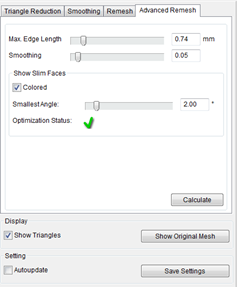
Advanced Remesh allows you to go into more detail as you can also set a smoothing value. In general Remesh Advanced will give you more precise results, but with longer calculation times.
The Show Slim Faces option helps you analyze, whether the mesh of your current part is suitable for further analysis options, such as the Optimization Utility. Being able to perform optimization or finite elements analysis highly depends on the mesh quality of the part. Triangles need to be homogeneous regarding shape and size. This is achieved by having evenly distributed angles on each triangle. To check for that, turn the Colored option on and choose the smallest possible angle. You will receive two types of feedback regarding the mesh quality. First the optimization status might change from a green checkmark to a red triangle, indicating that there are triangles where the angle is below the threshold on one or more corners. The second kind of feedback is visible directly on the part, as problematic triangles are going to be displayed in a gradient from orange to red. This allows you to judge where the problems occur. After the analysis you should perform a remesh, then recheck the status, to see whether your part is suitable for optimization now.
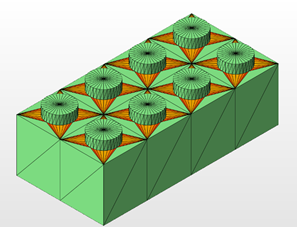
The triangles with angles below the threshold are being displayed in a gradient, ranging from orange to deep red color.