Some new and changed features of Revit LT 2017 result in certain behaviors for upgraded models. Review this information before upgrading your models.
Text Measurement
The method for measuring text size is changed so that the Text Size parameter more accurately represents the height of a capital letter (similar to AutoCAD). Previously, Revit LT measured the size of text from the font baseline to the ascender line. Since most characters do not extend to the ascender line, physically measuring the font may not have produced expected results.
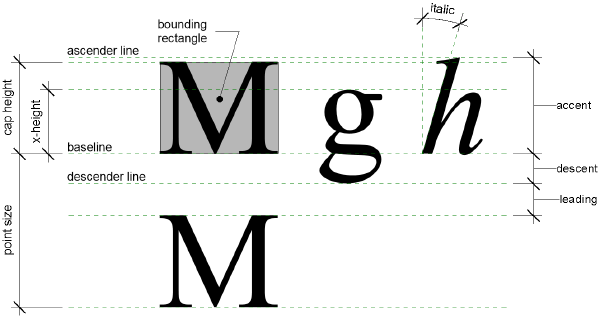
The size of text now reports using the cap height, which measures from the baseline to the top of a capital letter M. It is important to note that many Asian characters are somewhat taller than the capital letter M, so these characters appear taller than the Text Size parameter value for Western fonts. Adjust the Text Size parameter to make these characters the desired height.
This change affects all text in Revit LT. After upgrading a model, please review all views and sheets to verify the changes to your text instances.
- The editor can support font sizes from 1 point to 1638 points. For Arial, these font sizes translate to approximately 0.1" to 16.3" or 0.3 mm to 413.6 mm.
- The text note also has a maximum width of 84" or 2135 mm.
Toposurfaces
The behavior of additional contours is improved to adhere to the Additional Contours specifications in the Site Settings dialog.
Previously, additional contours started at the bottom of the toposurface regardless of the Start or Stop settings. As a result, when you upgrade a model, existing toposurface objects are not regenerated; the post-updated model looks the same.
However, the first time the toposurface regenerates, such as when you edit the boundary or perform other related operations, Revit LT uses the new contour behavior. If desired, you can adjust the start range for the Additional Contours settings to achieve the same visual effect as the pre-updated model. See Define Site Settings.
Keynote Legends
The behavior of keynote legends is improved. When a keynote legend is set to By Sheet, Revit LT takes into account whether a keynote is visible in the view as a result of View Range settings, Design Option settings, or Depth Clipping/Far Clipping settings.
Previously, keynote legends listed keynotes that were not in the view because they were outside the view range, in a different design option than the one currently displayed in the view, or outside the view's Depth Clipping/Far Clipping range.
When you upgrade models that have keynote legends By Sheet, ensure that they display correctly. Note that a legend may have changed because it does not display keynotes that are not within the view range, depth clipping, or design option of the views on the sheet. See About Keynote Legends.
Railings
Enhancements to railings required changes to existing functionality. When you upgrade a model, railings hosted by floors will likely be slightly altered, as will railings sketched outside a host.
After upgrade, inspect all views to verify changes to railings.