As you digitize line features with containers, the containment relationship is established automatically.
You can later change the containment relationship on Quick Info or the Feature Info palette on the Dashboard.
- Click
Home tab
 Palettes panelDashboardFeature Info.
- In the canvas, select the features of interest.
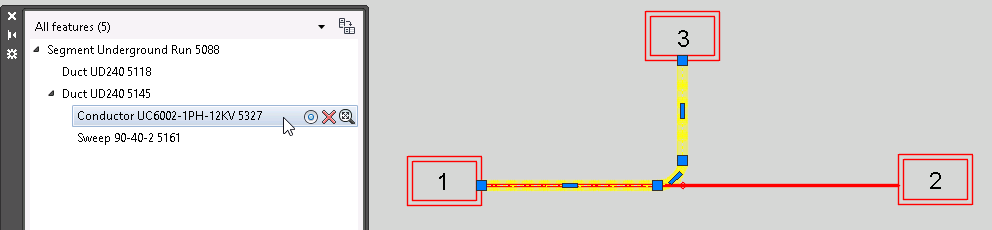
In the following example, we select an underground segment that contains a duct, and the duct contains a conductor.
- Do either of the following operations:
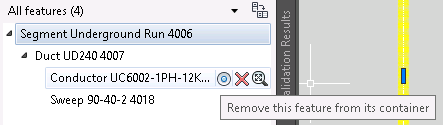
- To remove a feature from a container, select the contained feature in the feature list and click
 .
.
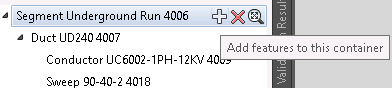
- To add a feature to a container, select the container feature in the feature list, and then click
 .
.
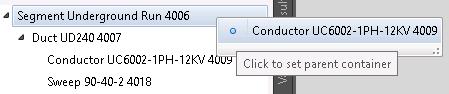
Click the feature to add.
- To remove a feature from a container, select the contained feature in the feature list and click
To Reroute Lines
The button "Add features to this container" for a line container (e.g. a segment) allows selection of features from adjacent sections. Choosing a line will contain it to the selected segment. This can be used to reroute a line.
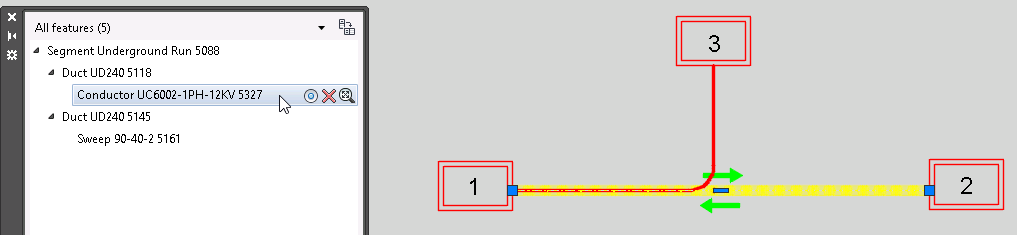
For example, a conductor is in the duct connecting vault 1 to vault 2, and you can follow the steps below to reroute it to the duct connecting vault 1 to vault 3.
- Click
Home tabPalettes panelDashboardFeature Info.
- In the canvas, select the segment connecting to vault 1 which contains both ducts.
- Select the conductor under the duct connecting vault 1 and vault 2, and then click
.
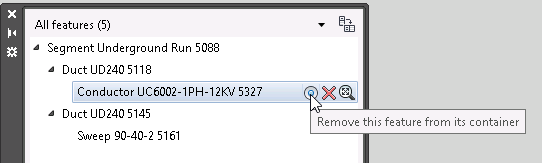
Now the conductor is not in any duct.
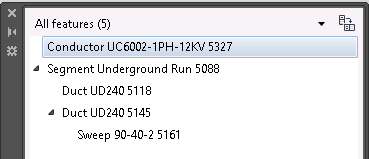
- Select the duct between vault 1 and vault 3, and then click
.
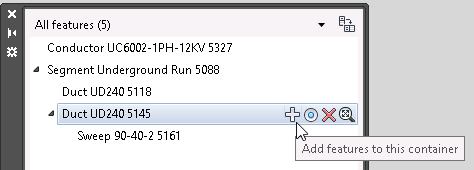
Click the blue dot before the conductor.
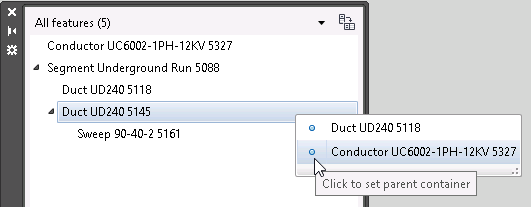
Now the conductor is in the duct connecting vault 1 to vault 3, and the geometry follows the duct.
 Note: The line will be shown as a candidate only if the shortest distance from the line to the container feature is within the Containment Distance Threshold, as configured in Utility Design Options.