Use a Toolpath feature to directly create a single toolpath movement. You can create the moves of a toolpath in three ways:
- Create each move individually. You would typically do this if you have a simple, but precise tool movement that cannot be easily created using a FeatureCAM feature.
- Create a curve. This lets you use the drawing tools of FeatureCAM to control the path of the tool precisely.
- Import an operation of an existing feature. This technique lets you make changes to the toolpaths that FeatureCAM generates automatically. You can import toolpaths from either milling or turning features.
If the toolpath is created from a curve or a feature, it is not linked to the original source regardless of the parametric modeling setting. As a result, this is a mechanism for storing a toolpath that will never be automatically modified by FeatureCAM.
To create a Toolpath feature:
- Click the
Features
 step in the
Steps panel. The
New Feature dialog is displayed.
step in the
Steps panel. The
New Feature dialog is displayed.
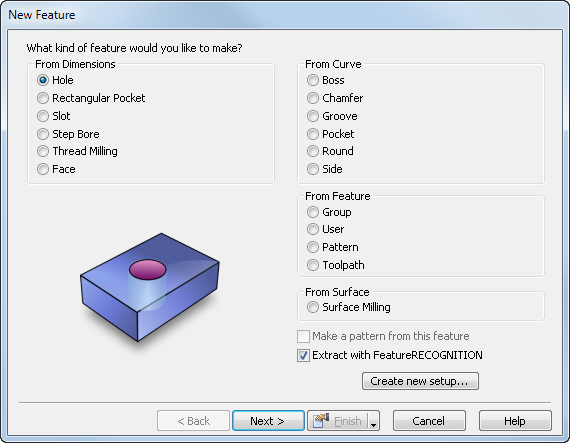
- In the
From Feature section, select
Toolpath and click
Next. The
New Feature - Curve or Operation
page is displayed.
- If you want to use a curve, select Curve and select the name of the curve from the list.
- To edit the toolpaths of an operation, select Operation and select the operation name from the list.
- Select NC code text to enter NC code directly, such as program stop code M00 or M01.
- Follow the steps of the wizard to pick a tool and feed and speed rates for the toolpath.
Each Toolpath feature creates a single toolpath operation. Each toolpath operation has a Tools, F/S, and Toolpaths tab. Use the Toolpaths tab to edit the Toolpath feature.
Program stop code example
To enter program stop code directly into the NC program:
- Click the
Features
step in the
Steps panel. The
New Feature dialog is displayed.
- In the From Feature section, select Toolpath and click Next. The New Feature - Curve or Operation page is displayed.
- Select the NC code text option and enter M00 (or M01).
- Click
Next. The
New Feature - Toolpath feature page is displayed.
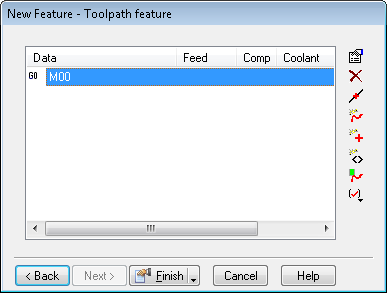
This page has the same toolpath editing buttons as the Toolpaths tab in the Toolpath Properties dialog.
- Click Finish. The Toolpath feature is listed in the Part View and on the Op List tab.
- Simulate the Toolpath feature. In this example, there are no toolpaths to see, but you must simulate the feature to produce the NC code.
- View the NC code on the NC Code tab.