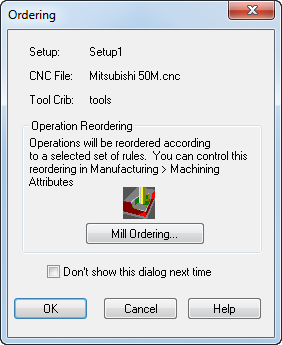
You can use the Ordering dialog to automatically optimize the manufacturing process.
Clicking
Play
 in the
Simulation toolbar displays the
Ordering dialog by default.
in the
Simulation toolbar displays the
Ordering dialog by default.
The Ordering dialog displays the current Setup, CNC File, Tool Crib, and has an option for operation ordering. There are different kinds of automatic operation ordering that work together to speed up the manufacturing of your part.
Depending on the type of part, click one of the following buttons to display the dialog for changing the machining order:
- Mill Ordering — displays the Automatic Ordering Options dialog, which contains options for setting the machining order for Milling parts.
- Turn Ordering — displays the Automatic Ordering Options dialog, which contains options for setting the machining order for Turning parts.
If the model contains a Points list Pattern, click Sorting in the Pattern - Dimensions dialog to display the Point List Sorting dialog, where you can change the machining order of the Pattern.
You can also use the Op List tab to change the order of operations.