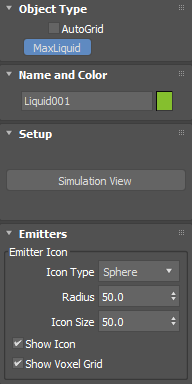
Object Type rollout
- Autogrid
- Lets you create objects on the surface of other objects.
- MaxLiquid
- When enabled, allows you to add liquid objects to the scene.
Name and Color rollout
Shows the automatically assigned name and viewport color of the Fluid object. Editable.
Setup rollout
- Simulation View
- Opens the Simulation View window where you can configure the simulation.
Emitters rollout
Use the Emitters rollout to set emitter options for new and existing fluid simulations. You can also set or change these options in the Simulation View window.
Emitter Icon group
- Icon Type
- Selects the type of emitter: Sphere, Box, Plane or Custom. Depending on the selected emitter, the available parameters change as detailed below.
Sphere
- Radius
- When Sphere is the selected icon type, sets the radius of the emitter.
Box
- Length
- When Box is the selected icon type, sets the length of the emitter.
- Width
- Sets the width of the box emitter.
- Height
- When Box is the selected icon type, sets the height of the emitter.
Plane
- Length
- When Plane is the selected icon type, sets the length of the emitter.
- Width
- When Plane is the selected icon type, sets the width of the emitter.
Custom
- Add Emitters list
- Adds a custom object as the emitter. Click Pick to select an object from the scene, or Add to choose from a list. Click the Delete icon to delete an already added custom emitter.
- Icon Size
- Set the size of the Fluids logo icon.
- Show Icon
- Shows the Fluids logo icon in the viewport.
Note: Disabling this option will still show the Emitter icon.
- Show Voxel Grid
- Shows the Voxel Grid, a cube that visually represents the current master voxel size in the viewport.
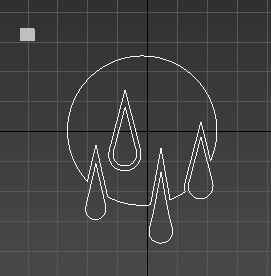
The Voxel Grid (upper left) and the Max Fluids logo icon.