The user cache stores the computed fluid simulation as files on disk pers frame. The simulation then reads the cache files for each frame, instead of recomputing the simulation. The Caching panel allows you to configure the parameters.
Cache Settings rollout
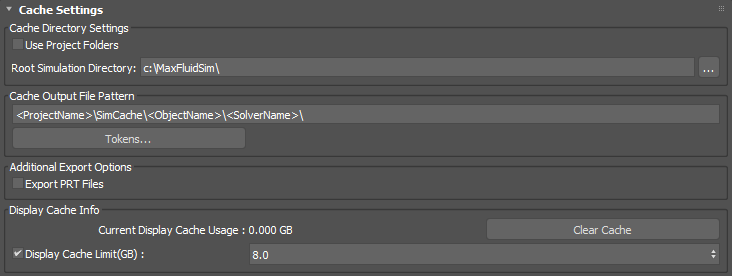
Cache Directory Settings group
- Use Project Folders
- Sets the project folder as the root directory for simulations.
Tip: If multiple people are working with/on the simulation, you can set the path so everyone has access.
- Root Simulation Directory
- Specifies a directory for storing the root simulation.
Cache Output File Pattern group
- File Pattern field
- Defines a pattern for naming the output cache files using a series of tokens.
- Tokens
- Displays a list of supported tokens to the Cache Output File Pattern field. The supported tokens are:
- Project Name
- Object Name
- Solver Name
- Frame Range
- Scene Name
- Frame Rate
Click anywhere in the pattern string and then select a token to add it there. You can right-click the field to access options such as Cut, Copy, and Paste, as well as Undo and Redo.
Additional Export Options group
- Export PRT Files
- Exports PRT files containing 3D modeling information and channel data in a global format. When this option is enabled, simulating liquid and foam components will generate PRT files and place them under the same cache output path in folders named Liquid_PRT and Foam_PRT.
By default, the PRT files contain Position, Velocity, Density and Vorticity channel information. There are editable .ini file options for PRT export, which are listed in the 3dsmax.ini under [Fluids].
The following are the file options:
PRTFileVersion=1 (.prt version 1 files)
PRTFileVersion=2 (.prt version 1.1 files) (Default)
PRTDensity=0 or PRTDensity=1 1 indicates that the Density channel should be exported, 0 indicates that it should not. Default is 1.
Display Cache Info group
- Current Display Cache Usage
- Shows the current cache usage for displaying the simulation.
- Clear Cache
- Clears the viewport cache from memory.
- Display Cache Limit (GB)
- When enabled, sets the amount of memory allocated to viewport caching of the simulation. When disabled, only one frame is cached at a time. Changing the Display Cache Limit settings can be particularly useful when working with heavy simulations requiring large amounts of memory.