When you have created the toolpaths to machine the product, you can simulate the toolpaths to visualise the machining passes and the resulting surface finish.
To simulate all toolpaths within a model:
- In the Project Tree, select the Toolpaths item. The Toolpaths panel is displayed.
- In the Simulation area, click the Simulate All Toolpaths
 button. The Toolpath Simulation - Block Definition dialog is displayed, for example: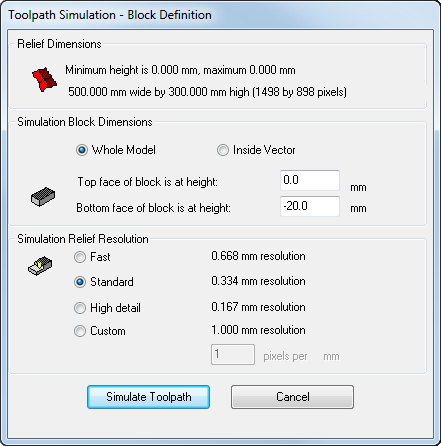
- Choose how much of the toolpath you want to simulate. Select:
- Whole model to simulate the entire model; or
- Inside vector to simulate part of the model within the selected vector.
- Choose the resolution for the simulation. Select:
- Fast to use a low resolution, which reduces the quality of the simulation but increases the speed.
- Standard to use a resolution that compromises between the quality of the simulation and the speed.
- High detail to use a high resolution, which increases the quality of the simulation but reduces the speed.
- Custom to specify a resolution.
- Click Simulate Toolpath. ArtCAM simulates the machining passes and adds a Simulation item to the Project Tree.
- In the Project Tree, select the Simulation item. The Simulation panel is displayed.
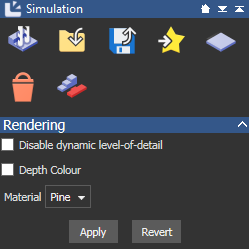
- To visualize the machined relief in the material from which it is to be manufactured, select a Material in the list, then click Apply.
- If you are cutting the relief out from a block of material, click the Delete Waste Material
 button and then click the waste material in the 3D view that you want to remove.