Use this menu option to create a circular-shaped vector.
Note: The
Create Circles
 button on the
Design and
Design Tools toolbars is a shortcut for this menu option.
button on the
Design and
Design Tools toolbars is a shortcut for this menu option.
button on the
Design and
Design Tools toolbars is a shortcut for this menu option.
To create a circle of a specific size:
- In the Project Tree, select the vector layer on which you want to create the shape.
- Select
Vector > Create > Circle or click
to display the
Tool Settings: Circle Creation panel.
- In the
Circle Centre area, enter the coordinates for the centre point in the
X and
Y boxes.
A red dot marks the centre point.
- In the
Circle Size area, enter the size of the circle. A dashed preview of the circle is displayed.
- Select the Radius to enter the circle's radius in the adjacent box.
- Select the Diameter to enter the circle's diameter in the adjacent box.
- Choose whether you want to create the circle with arc spans or Bézier spans. This affects how the circle vector can be edited in Node Editing mode.
- Select
Create with arcs if you want the circle to be created with four arc spans.
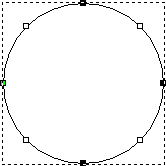
- Deselect
Create with arcs if you want the circle to be created with four Bézier spans.
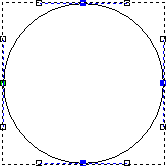
- Select
Create with arcs if you want the circle to be created with four arc spans.
- Click Create.
- Click Cancel to exit rectangle-creation mode.
To create an approximate-sized circle:
- In the Project Tree, select the vector layer on which you want to create the shape.
- Select
Vector > Create > Circle or click
.
- Move the
 cursor to the centre of the position at which you want to create the circle.
- Click and drag the cursor to create the circle. The boundary of the circle is a dashed line to indicate it is a preview.
- Release the mouse button to create a preview image of the circle.
The centre of the circle is identified by a blue dot and the resizing handle is identified by a red dot.
- To move the centre point of the circle:
- Move the cursor over the blue handle. The cursor changes to
 .
.
- Click and drag the handle to reposition the centre point.
- Release the mouse button.
- Move the cursor over the blue handle. The cursor changes to
- To resize the shape:
- Move the cursor over the red handle. The cursor changes to
 .
.
- Click and drag the handle to move the boundary. The centre point remains in the same position.
- Release the mouse button.
- Move the cursor over the red handle. The cursor changes to
- Right-click the 2D or 3D views to exit circle-creation mode.