Use this menu option to display the Simulation Control toolbar during simulation.
 button on the
Simulation toolbar and on the
Toolpath panel is a shortcut for this menu option.
button on the
Simulation toolbar and on the
Toolpath panel is a shortcut for this menu option.
The Simulation toolbar is hidden by default. To display the toolbar, right-click a docking area and select Simulation in the context menu.
When using the Simulation Control toolbar, a wireframe tool is displayed to simulate the tool moves. The simulation block is gradually updated to simulate the results of the machining process. For example, the image below shows the wireframe of a V-Bit 32 mm 130 degree tool machining bevel carved text into the simulation block:
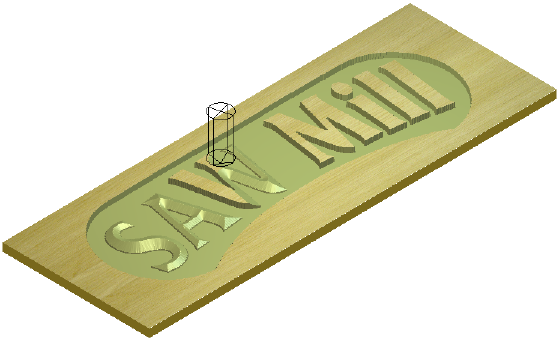
The simulation block and wireframe tool are displayed in the 3D view with the Simulation Control toolbar floating over it.
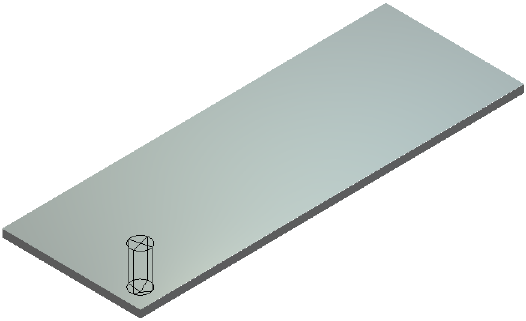
The toolbar includes the following buttons:
 — Click to pause the simulation.
 — Click to simulate the selected toolpath's next move, gradually updating the simulation block as it does.
 — Click to simulate the selected toolpath, gradually updating the simulation block as it does.
 — Click to simulate the selected toolpath until its next Z retract move, gradually updating the simulation block as it does.
 — Click to quickly simulate the whole of the selected toolpath.
 — Click to quickly simulate the selected toolpath up until its next retract move.
 — Click to stop the simulation and close the
Simulation Control toolbar.
— Click to stop the simulation and close the
Simulation Control toolbar.