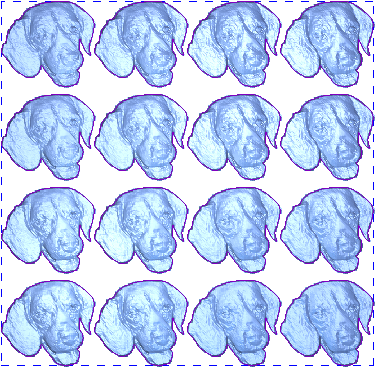
You can make a single copy of an object, or multiple copies in a grid pattern, using the Block and Rotate Copy panel.
To create copies of relief clipart or vectors in a grid pattern:
- Select
Edit > Block and Rotate Copy or click the
Block and Rotate Copy
 button. The
Block and Rotate Copy panel is displayed.
button. The
Block and Rotate Copy panel is displayed.
- Select the objects you want to copy. You can select vectors, relief clipart, or both.
- Select Block Copy.
- To specify an offset distance between the rows and columns of the grid:
- Select the Distances are offsets option.
- In the X Offset box, enter the distance between rows on the X-axis.
- In the Y Offset box, enter the distance between columns on the Y-axis.
- To specify a gap distance between the rows and columns of the grid:
- Select the Distances are gaps option.
- In the X Gap box, specify the interval between rows along the X-axis.
- In the Y Gap box, specify the interval between columns along the Y-axis.
- Choose the direction in which the copies are added. Select:
 to paste in the +X direction.
 to paste in the -X direction.
 to paste in the +Y direction.
 to paste in the -Y direction.
- In the Columns box, enter the total number of columns along the Y-axis.
- In the Rows box, enter the total number of rows along the X-axis.
- Click
Apply
to create the copies:
- Vectors are pasted into the active vector layer.
- Relief clipart copies remain floating and are not pasted into the model.
For example, copying a piece of relief clipart in four rows and columns with a 25 mm +X and +Y offset looks as follows:
Before
After