Set up Autodesk Vault Professional to work with Factory Design, and set up asset libraries.
For more information about Vault features, refer to the Vault online help.
Step 1: Set Up the Autodesk Data Management Server (ADMS)
An administrator uses the console to maintain Vault server file storage and databases. From the console, you create and manage vaults, back up and restore data, move databases, and perform other maintenance tasks.
This section covers two scenarios: Creating a Factory vault, and importing a Factory vault configuration into an existing vault.
Create a Factory Vault
Create a vault for Factory content:
- From the Windows® Start menu, select All Programs
 Autodesk Autodesk Data Management Autodesk Data Management Server Console.
- Log in to the ADMS Console.
- Right-click the
Vault folder and select
Create.

- Enter the name for the new vault.
- Select
Use Configuration, and then select
Factory from the Configuration drop-down list.
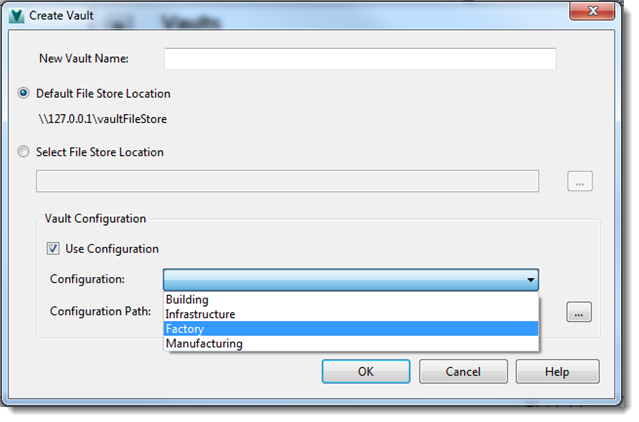
- Click OK.
Import a Factory Vault Configuration into an Existing Vault
- Log in to the ADMS Console.
- Open the Vaults folder and locate the vault from which you want to import the configuration.
- Right-click on the vault and select
Import Configuration.
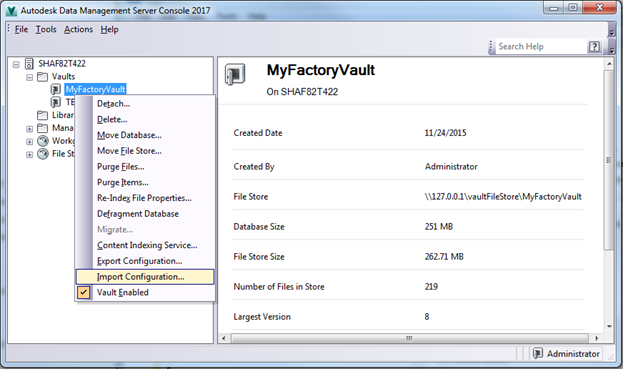
- Go to the ADMS folder and select
FACTVault.cfg.
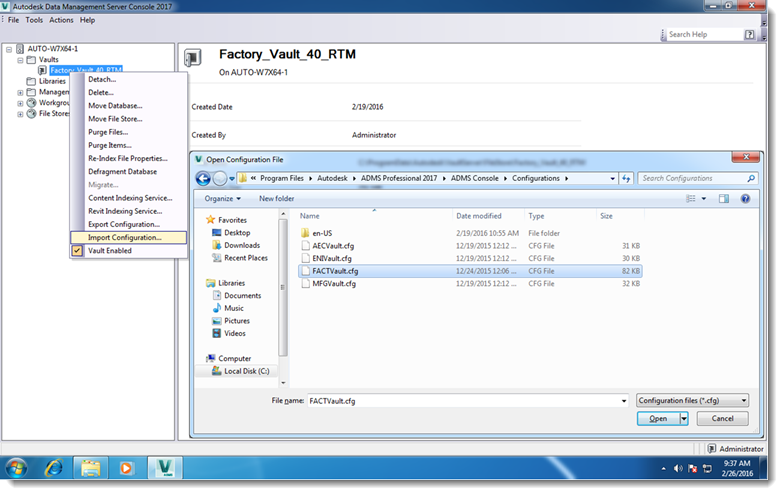
- Click Open.
Step 2: Set Up Your Vault Asset Library
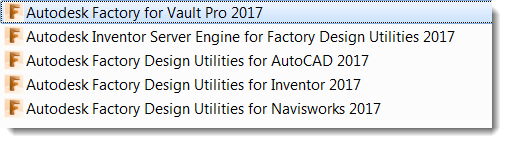
Complete the following steps to set up a Vault folder as a Factory asset library:
- Open Autodesk Vault Professional.
- Log in to the Factory Vault server.
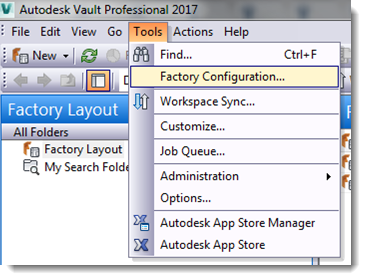
- Select
Factory Configuration
from the
Tools drop-down menu.
The libraries defined in this vault appear:
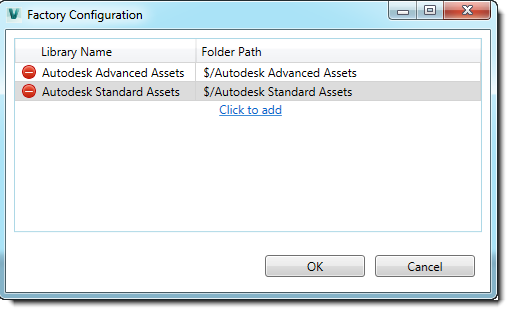
- Click Click to add to add a library.
- Select an existing folder or create a folder.
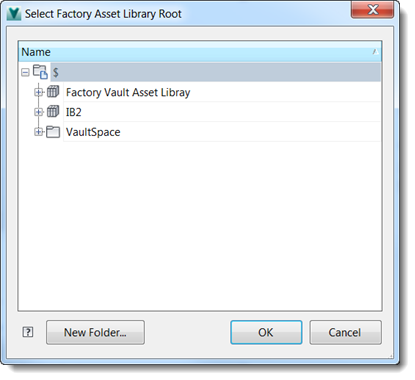
- Click
OK.
The folder now appears in the Factory Configuration list.
Clicking
 next to a library name removes the Factory Asset Library designation from the folder, but doesn't remove any folders or files from the vault.
Step 3: Set Vault Database Roles and Permissions
To check in factory layout files and publish/update Factory assets to the library in Vault, Factory users must be assigned the following roles:
- Custom Object Editor (Level 1)
- Document Editor (Level 1)
- Document Manager (Level 2)
For details about assigning roles Users, Groups, and Roles in the Vault online help.
Optionally, you can set folder memberships to control who can access the folders and the actions they can take within a folder. By default, no members are assigned to folders, meaning that all users have access to all folders. See Set Folder Membership in the Vault online help for instructions.