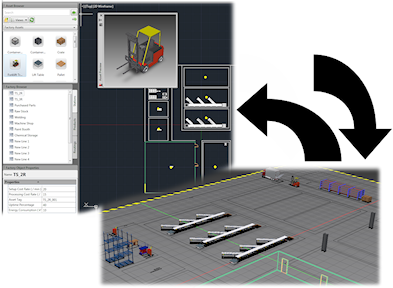
Sync Inventor
Factory tab  Sync Workflows panel
Sync Inventor
Sync Workflows panel
Sync Inventor
 .
.
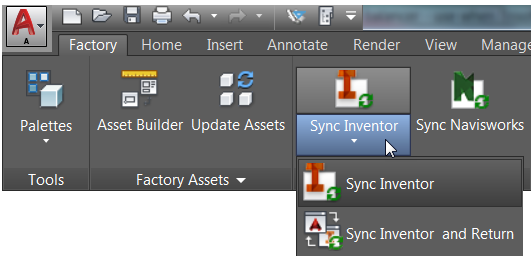
When you select one of the two Inventor Sync options, you create a 3D Inventor Factory layout from a 2D AutoCAD drawing. During the sync process:
- Any 2D assets, and chainable assets from AutoCAD are automatically populated with their 3D equivalents in the new layout.
- In Inventor, a 2D DWG underlay is created and overlaid onto the factory floor.
- In the Inventor browser, the DWG underlay node appears with the same name as the original 2D drawing and is represented with the
 icon, indicating the link between the 2D drawing and the new Inventor layout.
- Any point cloud data attached to the AutoCAD file appears.
When you select Sync Inventor, the Inventor 3D model remains open in Inventor after the sync is complete. The AutoCAD 2D drawing closes, but AutoCAD remains open.
Select Sync Inventor and Return to automatically close the Inventor 3D model after the sync finishes. The AutoCAD 2D drawing reopens and remembers where you left off in your drawing so that you can quickly get back to work in AutoCAD.
Sync Navisworks
Do the following to create a Navisworks Factory layout from a 2D AutoCAD drawing:
- Create a new, or open an existing, drawing in AutoCAD Factory. (AutoCAD Architecture and AutoCAD Mechanical are supported.)
- Click
Factory tab
Sync Workflows panel
Sync Navisworks
 .
.
Navisworks opens and a 3D layout of the current 2D drawing is created. Any 2D assets and chainable assets from AutoCAD are automatically populated with their 3D equivalents (if they exist) in the new layout.
Create from Inventor
Do the following to create a AutoCAD 2D drawing from an existing 3D Inventor Factory layout.
- Click
Factory tab
Sync Workflows panel
Create from Inventor
 .
.
- The Create from Inventor dialog appears. Navigate to and select the Inventor Factory layout (.iam) you wish to use. The following occurs:
- The new AutoCAD drawing is created. Any 3D assets from Inventor are automatically populated with their 2D equivalents.
- In Inventor, a 2D DWG underlay is created and overlaid onto the factory floor.
- In the Inventor browser, the DWG underlay node appears with the same name as the original 3D factory layout and is represented with this icon
 to indicate the link between the 3D factory layout and the new AutoCAD drawing.
Update from Inventor
Use the following procedure to update an AutoCAD drawing when revisions have been made to the original 3D factory layout.
- Click
Factory tab
Sync Workflows panel
Update from Inventor
 .
.
- Once the update is complete, the 2D drawing reflects the revisions from the original 3D factory layout.
- In the Inventor browser, the DWG underlay node appears with this icon
to indicate the link between the 3D factory layout and the updated AutoCAD 2D drawing is back in synch.
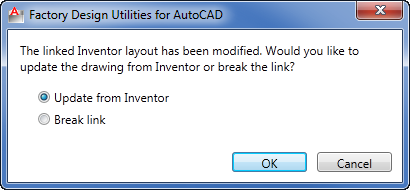
The following dialog appears when opening an AutoCAD 2D drawing whose linked Inventor Factory layout has been revised. Click OK to update the drawing with the changes from the 3D layout.
Break Link with Inventor
Do the following to break the link between a 2D AutoCAD drawing and a 3D Inventor layout.
- Click
Factory tab
Sync Workflows panel
Break Link with Inventor
 .
.
- In Inventor, the browser icon for the drawing node resumes its normal appearance
 to indicate that the link has been successfully broken.
What if a 2D layout contains XREF's?
Any XREF's (External References) attached to a 2D layout are automatically converted to sublayouts (subassemblies) when synced to Inventor Factory. If the XREF contains any 2D assets, those assets are replaced with their 3D equivalents in Inventor.