In AutoCAD (or another CAD program that generates a DWG file format), you can create a 2D drawing of a factory floor layout showing all factory components and personnel in their proper locations. Using the Add DWG Underlay command, the drawing can then be overlaid onto the factory floor in Inventor Factory to serve as a snap-to guide in the precise placement of 3D factory assets.
After placement, right-clicking the DWG Underlay node in the assembly browser displays a pop-up context menu with various options. The drawing may be repositioned, scaled, rotated, cropped, or deleted. The visibility of drawing layers may also be toggled on and off. The context menu also provides the option to open the underlay directly in AutoCAD (all flavors of AutoCAD are supported).
Underlay DWG files
- Click the New button on the Quick Access toolbar.
- In the New File dialog box, select the appropriate Factory Layout.iam template based on the system of units (inches or millimeters) used in the 2D drawing layout. Click the OK button to close the New File dialog box.
-
 On the ribbon, click
Factory tab
On the ribbon, click
Factory tab  Layout panel
Add DWG Underlay to display the
Select DWG file dialog box.
Layout panel
Add DWG Underlay to display the
Select DWG file dialog box.
- If you are working with Autodesk Vault, then click
 Factory tab
Layout panel
Add DWG Underlay from Vault .
Note: This option is only available when the Vault client is installed.
Factory tab
Layout panel
Add DWG Underlay from Vault .
Note: This option is only available when the Vault client is installed. - Navigate to the folder that contains the DWG file you wish to underlay. Select the file and click the Open button.
- The Layer Settings dialog box displays if the Show Layer Settings dialog on placement check box is enabled in the Factory Options dialog box.
- Additionally, a preview window displaying the drawing appears if the Show Dwg preview in Layer Settings dialog check box is enabled (also from the Factory Options command).
- You can toggle on or off the visibility of any layers defined in the 2D drawing. The drawing preview updates to reflect any changes to layer visibility.
Note: Some of the more complex graphical entities from the drawing file, such as xlines, are not supported and may result in a partial display of the DWG Underlay.
- The 2D drawing is now overlaid on the factory floor with the 0,0 base origin of the drawing coincident with the 0,0 factory floor origin. The floor resizes automatically to accommodate the size of the drawing underlay.
- The DWG Underlay node is represented in the browser with this icon
 . Its name will be identical to the name of the original 2D drawing.
- Click TOP on the ViewCube at the upper right of the graphics window to obtain a plan (top) view of the factory layout.
- Optional:
 On the ribbon, click
Factory tab
Options panel
Resize Floor . Use the grips located at the midpoints and corners of the factory floor to dynamically increase or decrease the floor size if applicable.
On the ribbon, click
Factory tab
Options panel
Resize Floor . Use the grips located at the midpoints and corners of the factory floor to dynamically increase or decrease the floor size if applicable.
-
 On the ribbon, click
Factory tab
Options panel
Snap Types . A drop-down menu displays.
On the ribbon, click
Factory tab
Options panel
Snap Types . A drop-down menu displays.
- Enable the Snap to DWG Underlay check box in the drop-down menu. You can now place 3D factory assets on the designated areas of the 2D layout. Components can be snapped to endpoints, midpoints, and along an entity.
- Use the Align, Reposition, and Set Landing Surface commands in the Relationships panel, if necessary, to help you orient the assets correctly.
Reposition DWG underlays
You can reposition a DWG underlay after placing it onto the factory floor. Using a 3-axis triad, you can move the underlay in the X and/or Y directions. The Z-axis of the triad lets you rotate the underlay into a new orientation. The translations or rotations are performed from the 0, 0 origin of the DWG underlay.
- In the browser, locate the DWG underlay node. Its name will be identical to the name of the original 2D drawing.
- Right-click over the DWG underlay node and select Reposition from the pop-up context menu.
- The
Reposition triad appears at the drawing underlay origin.
Note: Remember that placing a DWG underlay into a factory floor layout positions the underlay so that its origin and the origin of the factory floor layout are coincident. Moving the underlay in either the X or Y directions shifts the drawing origin away from the factory floor origin.
- Use the triad to move or rotate the DWG underlay. Depending on where you click on the triad, you can make a planar (2D) translation, an axial translation, or an axial rotation.
- On the triad, select the shaft of the
X or
Y axis (at its base) for linear repositioning of the underlay.
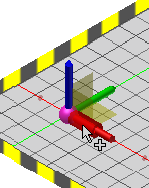
To dynamically reposition the drawing, click and drag the shaft of the axis to move the underlay.
To manually reposition the underlay, click the shaft of the X or Y axis and enter the translation value in the Heads-Up Display. Press Enter to move the underlay and close the HUD.
- On the triad, select the
XY plane at the base of the triad for simultaneous
X and
Y repositioning of the underlay.
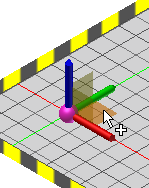
To dynamically reposition the drawing, click and drag the XY plane.
To manually reposition the underlay, click the XY plane once and enter the X translation value in the Heads-Up Display. Next, press TAB to enter the Y value in the display. Finally, press Enter to move the underlay and close the HUD.
- On the triad, select the end of the
Z-axis to rotate the underlay.
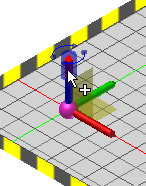
To dynamically rotate the drawing, click and drag the end of the Z-axis to orient the underlay.
To manually rotate the underlay, click the end of the Z-axis and enter the rotation value in the Heads-Up Display. Press Enter to rotate the underlay and close the HUD.
- On the triad, select the shaft of the
X or
Y axis (at its base) for linear repositioning of the underlay.
- Right-click and select Done to accept the changes and exit the Reposition command. Right-click and select Cancel to exit the command without moving the DWG underlay.
Transform DWG underlays
A DWG underlay can also be repositioned, as well as scaled, using the Transform command. Unlike the Reposition command which moves the underlay relative to the 0,0 origin of the drawing, the Transform command moves the underlay relative to the 0,0 origin of the factory floor.
- In the browser, locate the DWG underlay node. Its name will be identical to the name of the original 2D drawing.
- Right-click over the DWG underlay node and select Transform from the pop-up context menu.
- The Transform dialog box appears.
- In the Offset section, enter a value in the X: text box to move the drawing in the X direction. Enter a value in the Y: text box to move the drawing in the Y direction.
- In the Angle section, enter an angular value to rotate the drawing in the XY plane.
- In the Scale section, enter a value to scale the entire drawing. You can increase or decrease the size of the DWG underlay. The factory floor resizes automatically to accommodate the revised drawing scale. The ability to scale the underlay is particularly useful if you need to convert a metric drawing to imperial units or vice-versa.
- Click the Apply button to preview your changes.
- Click the OK button to accept the changes and close the dialog box. Click Cancel to discard any changes and terminate the command.
Control visibility of DWG layers
Upon initial placement of a DWG underlay, you have the option to toggle on or off the visibility of any layers defined in the 2D drawing. This capability, as well as a drawing preview in the Layer Settings dialog box (if both are enabled using the Factory Options command) updates to reflect any changes you make to layer visibility.
You can return to the Layer Settings dialog box at any time if you wish to change the on/off visibility status of any of the layers.
- In the browser, locate the DWG underlay node. Its name will be identical to the name of the original 2D drawing.
- Right-click over the DWG underlay node and select Layer Settings from the pop-up context menu.
- The Layer Settings dialog box appears with a preview of the drawing, if enabled, and a list of all layers defined in the DWG underlay.
- A checked box to the left of each layer name indicates that the layer is visible in the DWG underlay. Check (or uncheck) the layer boxes to toggle layer visibility on or off in the DWG underlay.
Crop DWG underlays
You can trim and remove unwanted portions of a DWG underlay using the Crop Underlay command. Cropping removes unwanted areas of an underlay by retaining only the portion contained within two diagonal corners.

- Start by clicking TOP on the ViewCube at the upper right of the graphics window to obtain a plan (top) view of the underlay.
- In the browser, locate the DWG underlay node. Its name will be identical to the name of the original 2D drawing.
- Right-click over the DWG underlay node and select Crop Underlay from the pop-up context menu.
- A window selection set glyph appears in the graphics window. Pick two diagonal corners that fully enclose the objects you want to include in the cropped area. As you select the corners, the rectangular window appears in red.
- After picking the second diagonal corner, right-click and select Done from the pop-up context menu to create the crop and terminate the command. The portions of the underlay outside the two selected diagonal corners are trimmed away.
Opening an underlay in AutoCAD
There may be occasions when, after placing a DWG underlay into a factory layout, you may want to make some additional revisions to the original DWG file. You can easily launch AutoCAD and open the drawing from within Inventor using the Open Underlay in AutoCAD command. All flavors of AutoCAD, (AutoCAD, AutoCAD Architecture, and AutoCAD Mechanical) are supported.
- In the browser, locate the DWG underlay node. Its name will be identical to the name of the original 2D drawing.
- Right-click over the DWG underlay node and select Open Underlay in AutoCAD from the pop-up context menu.
- The most recently opened flavor of AutoCAD launches and the underlay appears in the AutoCAD graphics window. Make any revisions as required and save the DWG file.
- Return to Inventor. The browser icon for the node will indicate that the original drawing has been revised and the DWG underlay requires an update
 .
.
- Use the Update command as described in the Update DWG underlays section (below)
- The original DWG graphics are deleted and the revised DWG file is once again overlaid onto the factory floor.
- Any changes previously made to the drawing X or Y position, angle, or scale are retained in the updated underlay.
Update DWG underlays
There is associativity between the 2D drawing from which the DWG underlay originated and the 3D factory layout. If any revisions occur to the original drawing file, you can read the changes back into Inventor Factory using the Update command.
- In the browser, locate the DWG underlay node. Its name will be identical to the name of the original 2D drawing.
- The browser icon for the node will indicate that the original drawing has been revised and the DWG underlay requires an update
.
- Right-click over the DWG underlay node and select Update from the pop-up context menu.
- The original DWG graphics are deleted and the revised DWG file is once again overlaid onto the factory floor.
- Any changes previously made to the drawing X or Y position, angle, or scale are retained in the updated underlay.
Delete DWG underlays
A drawing underlay may be deleted at anytime.
- In the browser, locate the DWG underlay node. Its name will be identical to the name of the original 2D drawing.
- Right-click over the DWG underlay node and select Delete from the pop-up context menu.
- The drawing underlay is deleted. However, any assets previously snapped to the underlay are retained in the assembly.