Vault data management tools provide several ways to view factory layout and asset information. Once a factory layout is checked into Vault, you can quickly view which assets are used in the layout, and how many other layouts are using a particular asset. Similarly, you can view data from an asset perspective to determine where an asset is used, how many versions of the asset are available, and instance level details.
Based on the type of information you need, click one of the following Vault tabs:
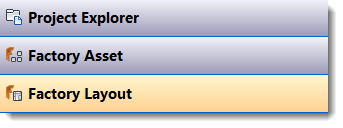
Project Explorer
Project Explorer displays the files stored in the vault, including Factory layout files and the asset library.
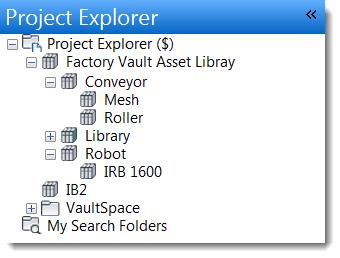
Clicking an item displays more details. For example, when you click an asset, the number of versions and revisions appears along with the asset Properties palette:
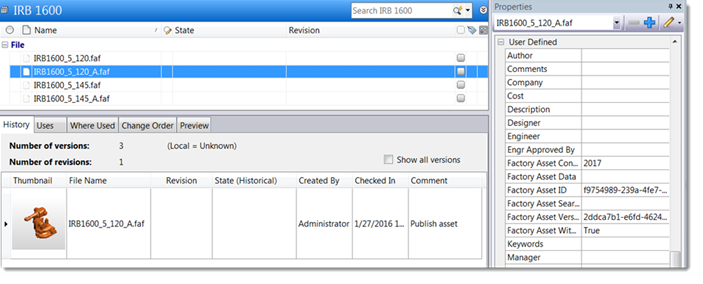
Tabs within the window show the following:
- History: File version history list
- Uses: Files used by the current file. If you are viewing a layout file, this list shows the assets included in the layout and their properties.
- Where Used: Files that use the current file. If you are viewing an asset, this list shows the layouts in which the asset is used.
- Change Order: Change order summary information
- Preview: Asset image
Factory Asset
Click Factory Asset to view a list of assets in the vault and their corresponding properties. To see layouts that use an asset, click on the asset and then click the Where Used tab.
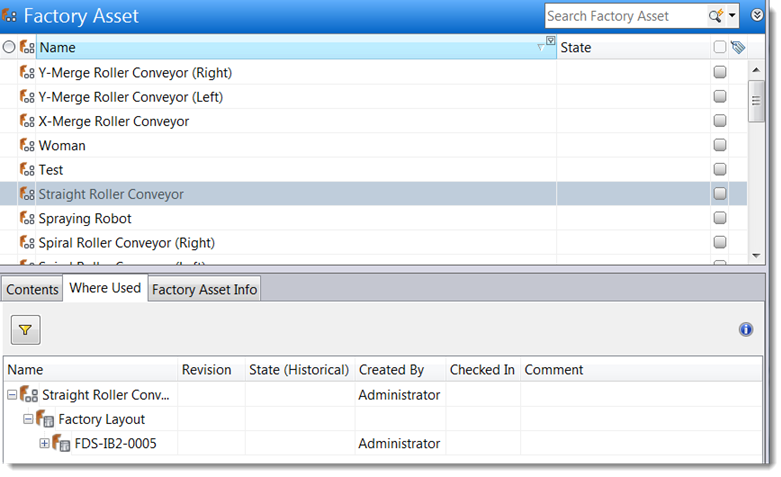
- Select
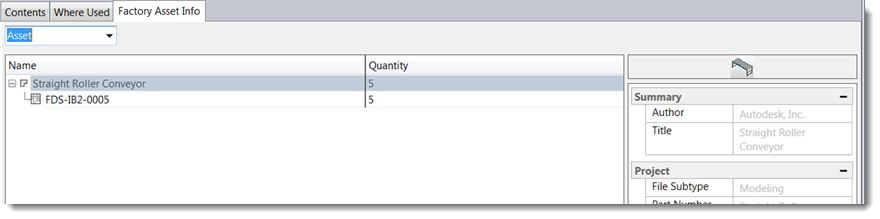
Asset from the drop-down menu to see the asset name, the layouts in which it is used, and the number of times the asset is used in each layout. Asset properties also appear:
- Select
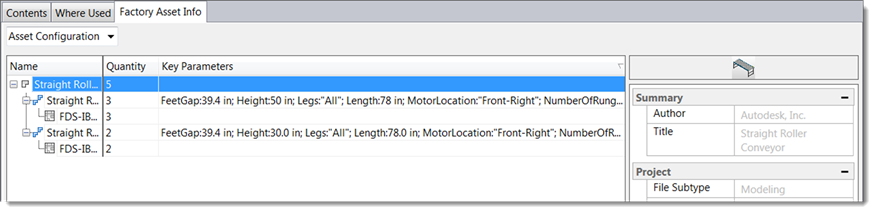
Asset Configuration to see a breakdown of the different configurations for the asset (for example, different heights or widths) and where used. This view provides an easy way to determine how many different configurations there are for an asset. Asset properties defined in Asset Builder appear in the browser. If key parameters are defined, the browser shows the model information:
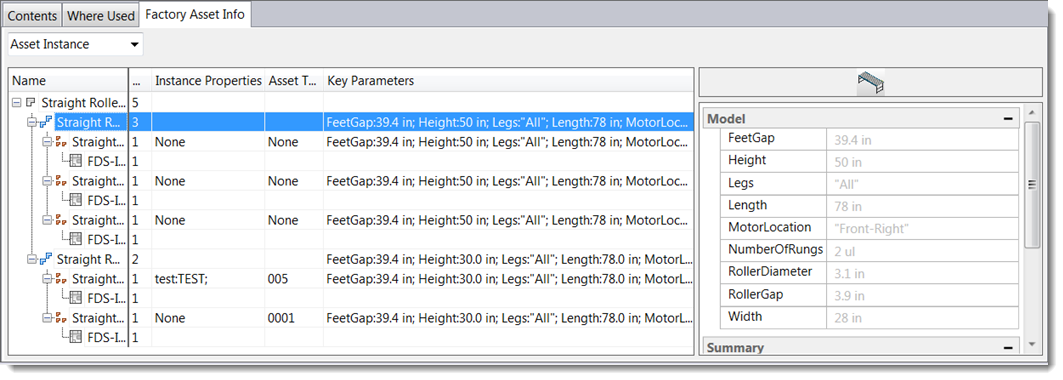
- Select Asset Instance to see the asset name, quantity, custom properties, asset tag, and key parameters:
Factory Layout
Click Factory Layout to see a list of assets used in the selected layout.
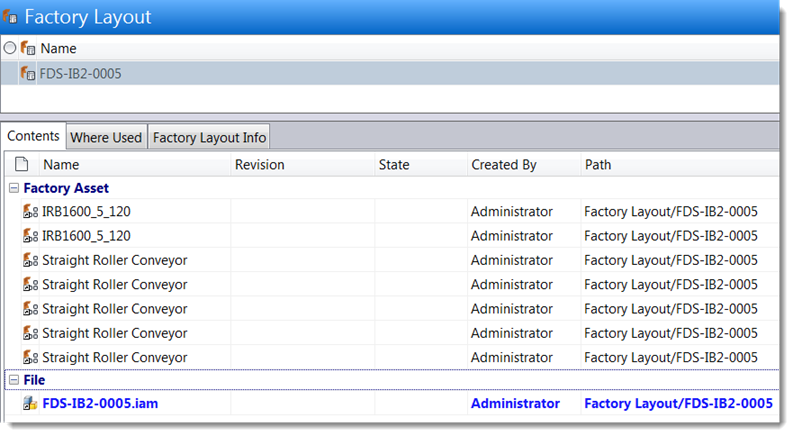
Assets appearing multiple times in a list indicate multiple instances of the asset in the layout.
- Select Asset from the drop-down menu to see a list of assets in the layout (including sublayouts) and the number of times each asset is used.
- Select Asset Configuration to see the different asset configurations (for example, different heights or widths) and how many times each configuration is used in the layout. When you select a configuration, the corresponding properties appear.
- Select Asset Instance to see each asset placed in the layout. Click on an instance to see the asset parameters and properties.