The Factory Design user interface is located on the Factory tab. A blend of Factory and standard Navisworks panels create the default Factory working environment.
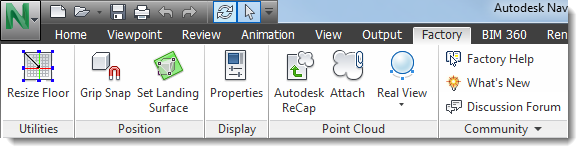
Resize Floor: Drag handles to change the floor size.
Grip Snap: Drag models to a new location or precisely position them.
Set Landing Surface: Define how models sit on the floor.
Properties: Click to display a properties window for the selected object. By default, the window shows the object name and type. Additional information may appear based on your Quick Properties settings in Options.
Autodesk ReCap: Open ReCap to index scans, and create and edit point cloud project files.
Attach: Attach point cloud scans and ReCap project files.
Real View: Control Real View scan indicator and label display.
Factory Help: Access the Factory Design online help.
What's New: Learn about new features included in this release.
Discussion Forum: Access Factory-related online discussion topics.
Community drop-down menu: Access the Factory Asset Warehouse, Factory Design YouTube channel, and shared Ideas where you can discuss your ideas with the Factory Development team about how to improve Factory Design.