
The Markers view displays all of the Markers and Segment Markers set on the clip currently displayed in the Player, in a table. It can be accessed from the Player options dropdown or by using the Toggle Markers Panel shortcut (assigned to ALT-6 by default in the Flame and Lustre profiles).
From the Markers view, you can organize your Markers, by naming them, assigning them a colour and a comment. The following information is displayed in the Markers view:
- Name: Displays the marker's name.
- Location: Displays the record frame (in frames or timecode) on which the marker is set.
- Duration: Displays the duration of the marker
- Type: Displays whether the marker is a marker of a segment marker.
- Colour: Displays the marker's colour.
- Comment: Displays the content of the marker's comment.
- Parent: Displays the name of the segment on which a segment marker is located. This applies only to Segment markers.
- Track: Displays the track on which a segment marker is located. This applies only to segment markers.
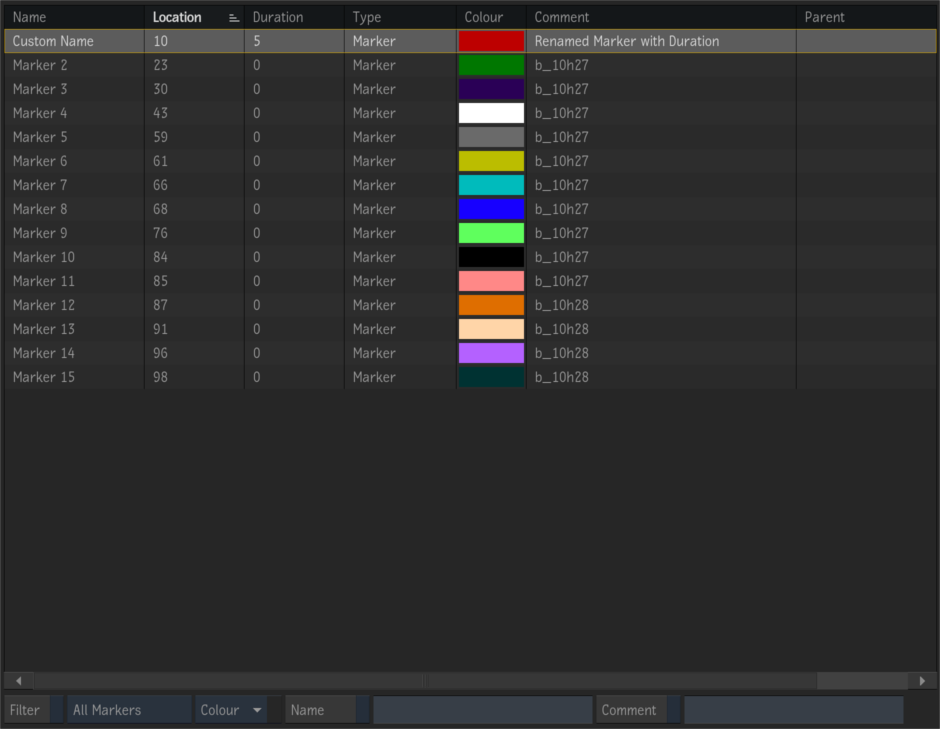
The table can be customized, by choosing which columns are displayed or hidden. Only the Name column is mandatory and cannot be hidden. The columns can also be re-ordered as needed.
You can jump to a marker by double-clicking it. The viewer dynamically updates to display the frame corresponding to the selected marker and the Timeline positioner parks itself on the selected marker/frame. This can also be achieved by using the contextual menu, along with deleting the marker or deleting all of the markers.
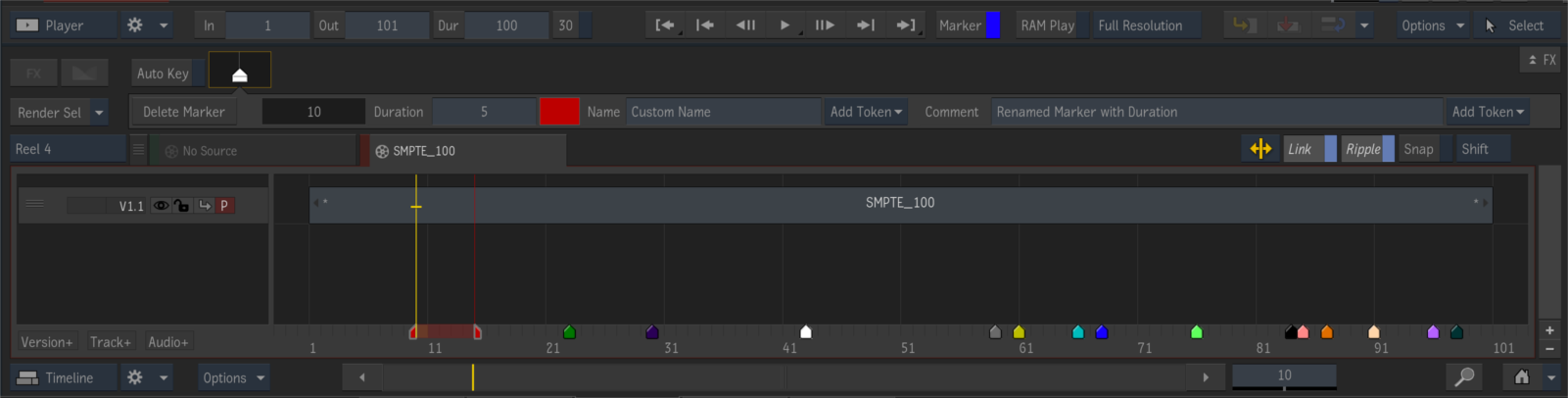
You can assign a duration to a Marker or a Segment Marker. The duration can be set using the Duration numeric field in the Timeline Markers menu or the Markers view.
You can separate a marker into two parts using the "Enable Duration Mode on Marker" shortcut (assigned to Shift-Click by default) and set the duration by dragging the left / right marker parts to the location and length of your choice. The Marker can be moved by grabbing the coloured strip between the left and right icons.
It is also possible to automatically set a Segment Marker to its parent segment length using the "Set Marker Duration To Segment Length" shortcut. It is assigned to Ctrl-Shift-Click by default.
Below the table are the Filter options, which enable you to only display certain markers, based on the filtering criteria.

- The Filter button enables/disables the filtering within the table.
- The Type button enables the display of the Segment Markers only, the Markers (Markers) only or All Markers.
- The Colour button enables the display of just the Markers of a selected colour. The dropdown menu’s content is dynamically updated and only displays the colours used in the selected clip.
- The Name button enables the display of Markers of a particular name. The * character can be used as a wildcard.
- The Comment button enables the display of Markers containing a particular comment. The * character can be used as a wildcard.
Burning-in Marker Information to Clips

You can burn-in the content of Markers to images, using Burn-in Metadata.
The "Marker" layer is available from the Information list of the Burn-in Metadata user interface. Once "Marker" is selected, you can do the following:
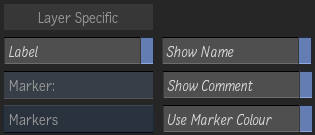
- Select whether to burn-in the content of the Markers or Segments Markers. You cannot burn-in both at the same time, on the same layer.
- Enable the "Show Name" and "Show Comment" buttons to burn-in the Marker's Name and / or Comment.
- Enable the "Use Marker Colour" button to burn-in the metadata in using the colour of each marker in the clip.
You can display more than one marker at once in a Burn-in Metadata layer. Lines are automatically added to the Marker layer when multiple Markers or Segment Markers are available at the same time. It is possible to control whether the layers are added towards the top or the bottom using the Stack Up and Stack Down options.