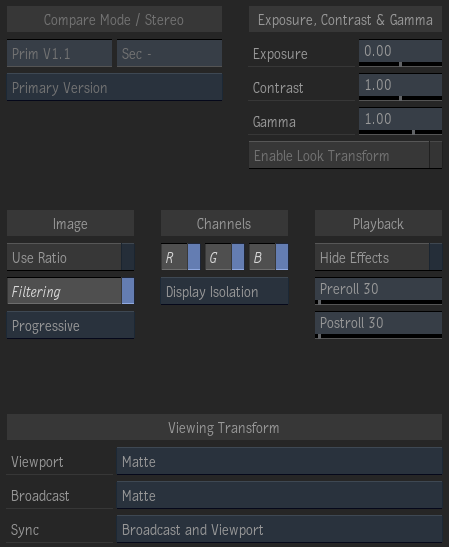
Compare Mode /Stereo
- Primary Video Track field
- Displays the track and version assigned as the Primary track in the Player. Editable.
- Secondary Video Track field
- Displays the track and version assigned as the Secondary track in the Player. Editable.
- Preview Setup box
- Select which track or version to display in the Player. Options are available to display two tracks or versions.
Image
- Use Ratio button
- Enable to simulate rectangular pixel display that corresponds to the delivery format.
- Filtering button
- Enable to set the filtering.
- Scan Mode button
- Adjusts the display to the desired scan mode format.
Playback
- Hide Effects button
- Enable to hide effects during playback. Disable to display effects (may affect performance).
- Preroll field
- Displays the number of preroll frames when playing a clip. Editable.
- Postroll field
- Displays the number of postroll frames when playing a clip. Editable.
- SDI Preview button
- Enable to activate the SDI Preview.
- 360 VR button
- Enable to activate the SDI Preview.
- Pitch Slider
- Use to modify the longitude of the 360 VR Viewer.
- YAW Slider
- Use to modify the latitude of the 360 VR Viewer.
Exposure, Contrast, and Gamma
- Exposure field
- Displays the exposure that is used to transform image display in the image window. Editable.
- Contrast field
- Displays the contrast that is used to transform image display in the image window. Editable.
- Gamma field
- Displays the gamma that is used to transform image display in the image window. Editable.
- Enable Look Transform button
- Toggles the dynamic look of a colour transform on and off. Available only when the selected viewing transform has dynamic look operators defined. Editable.
Channels
- Red Channel button
- Enable to display the red channel of the clip. You may press Shift+R to enable and Shift+R again, or Shift+Z, to disable.
- Green Channel button
- Enable to display the green channel of the clip. You may press Shift+G to enable and Shift+G again, or Shift+Z, to disable.
- Blue Channel button
- Enable to display the blue channel of the clip. You may press Shift+B to enable and Shift+B again, or Shift+Z, to disable.
- Isolation button
- Use Source Isolation to isolate the selected channel as a grey scale image, then apply the viewing transform. Use Display Isolation to isolate the selected channel(s) after the viewing transform (this is equivalent to turning off channels in the display itself). You may press Shift+X to toggle between the two modes.
Viewing Transform
- Graphics Monitor Viewing Rule box
- Select the Viewing Rule to use for the graphics monitor viewport.
- Broadcast Monitor Viewing Rule box
- Select the Viewing Rule to use for the broadcast monitor.
- Viewport and Broadcast Synchronization box
- Broadcast and Viewport synchronizes the Viewing Transform of both the Viewport and the Broadcast, across Multi- and Player views. Do Not Sync allows you to assign a Viewing Transform to the broadcast monitor that differs from the one assigned to the Player views.
Note:
- The Colour Management settings (Exposure, Contrast, Gamma) of a viewport are bypassed in the Broadcast Monitor when Viewport Monitoring is enabled in the Broadcast Monitor preferences, and the Bypass option is enabled in the viewport.
- The selected Viewing Transform of a Player view is now shared between its different tabs (Source, Sequence, Container, Batch) even if "Do not Sync" is the selected option.