In the image window of the tools that support multiple viewports, you can view the reference area with the currently displayed clip. A split bar divides the view between the current clip display (above the bar) and the reference area. The reference area can either display one of the current tool's working clips (for example, front, back, or matte), or one of the reference frames that you grab on-the-fly.
Using the Split Bar
To turn on the split bar, enable Compare in the Reference Buffer section of the View menu (also available below the viewports in Batch FX). When the split bar is on, by default it lies along the lower edge of the image window.
The split bar has a pivot point (indicated by a small box) around which the split bar can be rotated, or from which the split bar can be moved. The letter R next to the pivot box indicates the side of the bar where the reference clip is displayed.
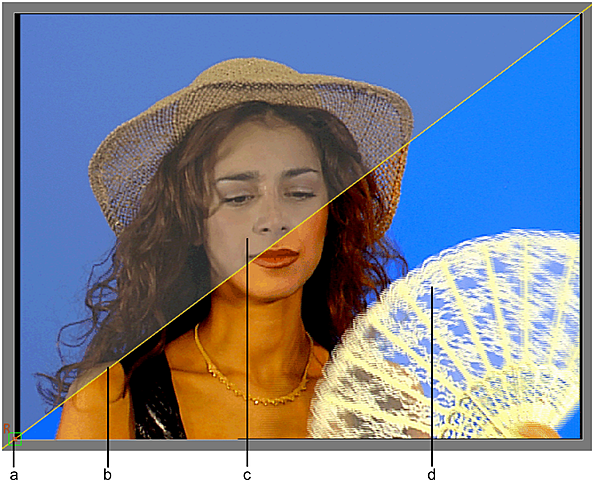
(a) Pivot point (b) Split bar (c) Current display (d) Reference display
Rotate and move the split bar using these techniques:
- To rotate the split bar around its pivot point, drag the split bar.
- To move the split bar, drag the pivot point. You can also Ctrl+Alt-click the image to place the pivot point under the cursor, and then drag over the image to move the split bar.
- To restore the split bar to its default position, Ctrl-click the pivot point.
Showing and Hiding the Split Bar
When the split bar is on, you can show or hide it in the image window.
To show or hide the split bar:
- Ctrl-click the split bar.
When the split bar is hidden, it is still active. The letter R is displayed indicating the location of the reference clip.
Loading a Clip into the Reference Area
You can display one of the tool's clip views in the reference area. For example, turn on the split bar to show the reference area, and then display the matte of a Colour Corrector clip while working on its result.
To load a clip into the reference area:
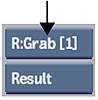
- Select an option from the Reference box.
Storing Reference Frames in the Reference Buffer
You can grab any number of reference frames in the reference area, limited only by framestore space.
To store reference frames in the reference area:
- Display the frame you want to grab in the viewport.
- In the Reference Buffer section of the View menu of a tool, click Grab.
The current frame appears in the reference area.
- To grab another frame, display it in the viewport (or make the changes to the current frame) and then do one of the following:
- Press Ctrl+G to replace the current reference frame.
- Press Ctrl+Shift+G to append the new frame to all existing reference frames.
Cycling Through Multiple Reference Frames
When you work with several frames stored in the reference buffer, you can cycle their display in the reference area.
To cycle through multiple reference frames:
- With the split bar on and the reference area showing, click the Prev and Next buttons in the View menu.
To cycle through multiple reference frames using the reference overlay:
- Press and hold Ctrl+NUM5 to display the reference overlay.
- While holding Ctrl, press NUM4 and NUM6 to cycle backwards and forwards through all stored reference frames.