Timeline FX Quick Menu Settings
To see the full Timewarp menu, click the Editor button.
- Timewarp Quick Menu selector
- Select which Timewarp quick menu to display.
Note: There are also some
Timeline Timewarp preferences that you can set in the Preferences menu.
Timing Info Settings
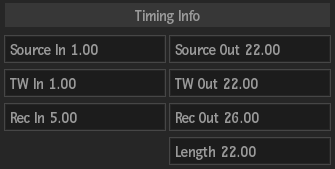
These settings are only available if you accessed Timewarp as a Timeline FX, and entered the full editor. They are informational settings only, to give you information about the segment on the timeline.
- Source In field
- Displays the frame or timecode of the In point of the source segment. Non-editable.
- Source Out field
- Displays the frame or timecode of the Out point of the source segment. Non-editable.
- Timewarp In field
- Displays the frame or timecode of the In point of the timewarp result. Non-editable.
- Timewarp Out field
- Displays the frame or timecode of the Out point of the timewarp result. Non-editable.
- Record In field
- Displays the frame number or Record timecode of the In point of the segment in the sequence. Non-editable.
- Record Out field
- Displays the frame number or Record timecode of the Out point of the segment in the sequence. Non-editable.
- Length field
- Displays the length of the segment. Non-editable.
Mode Settings
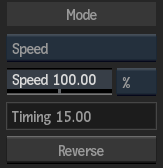
- Timewarp Type box
- Select a timewarp type: Speed, Timing, or Duration (Duration only available from timeline timewarp). Different settings appear depending on the type selected. Timewarp types are mutually exclusive, that is, animation settings are remembered for each type.
Tip: On the timeline, you can quickly create speed or duration timewarps with the keypad and a keyboard shortcut. For speed timewarps, enter the speed on your keyboard, then press Ctrl-T. For example, select the clip, enter 50 on the keypad, then press Ctrl-T to automatically create a 50% timewarp. For duration, use the same method, but press Alt-T.
- Speed field
- Displays the timewarp speed. Editable.
- Speed Type box
- Select whether to display the speed as a percentage, or as frames per second.
- Speed Timing field
- This locked field displays the timing animation value for the current time. Non-editable.
- Reverse button
- Enable to create a reverse timewarp effect; that is, change the speed field value to negative or positive.
- Timing field
- Displays the source frame or timecode value for the current time. Editable. You can slip the source Media underneath a Timeline FX Timewarp, without affecting your keyframes, using the Timing field.
- Duration field
- Displays the duration of the timewarp in frames or timecode. Editable.
- Duration Speed field
- This locked field displays the speed value corresponding to the duration set in the Duration field. Non-editable.
Strobe Settings
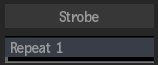
- Repeat field
- Displays the number of frames or fields to be repeated to create a strobe effect. The strobe effect is applied after the timewarp effect, so any speed or timing animations are respected when applying the strobe effect. Editable.
Anchoring Settings
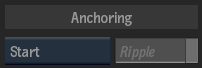
- Anchoring box
- Select where to set the anchor frame so that its timing is not affected when modifying a timewarp.
Select: To anchor: Start The In frame value as the value not to change. End The Out frame value as the value not to change. Start and End Both the In and Out frame values. In this case, any speed changes affect the length of the media (and the state of the Ripple button has an effect).
Repeat Mode Settings
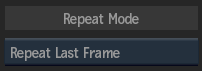
- Repeat Mode box
- Select how out of range timing values are handled.
Select: To: Lock to Segment Range Only use timing values within the range of the segment. The Timing field is displayed in red when reaching a timing value that is impossible to achieve with the current source clip frame range (heads and tails). Repeat Last Frame Not clamp or limit the timing values, by repeating the last frame when reaching the last frame of the segment range. Trim Segment Trim the segment (based on the selected ripple settings), when any modification to the speed or timing cause the range of source frames to exceed the available frames.
Frame Interpolation Settings
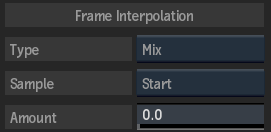
- Frame Interpolation Type box
- Select which type of interpolation to use to blend timewarped frames. Different settings appear below depending on the type selected.
Type: Description: Mix When mixing frames, you are combining multiple frames together to create one blended frame using an additive mix. Each result frame is a blend of an equal number of frames from both sides of the given frame. Trails With Trails blending, you have more control than in a simple mix. You can blend the frames before and after a given frame by different amounts. Do this to create a trail that comes before or after any motion in the clip. You can also set the amount of fall-off for the blend so that the trail fades away completely, partially, or not at all. Motion Motion estimation blends frames with subpixel accuracy, and is well-suited for particularly challenging timewarps. Motion estimation is good for processing slow-motion, constant, or variable speed timewarps of interlaced and progressive material. It is particularly good for material that introduces artefacts or for which you cannot get satisfactory results using Trail or Mix values.
- Sample Mode box
- Select whether the interpolated position of the timewarp is set in relation to the beginning, middle or end of each frame or field. Available for Mix and Trails types.
- Mix Amount field
- Displays the mix value for the timewarp. Each result frame is a blend of an equal number of frames from both sides of the given frame. Editable.
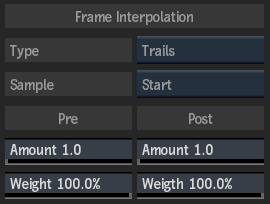
- Pre Amount field
- Displays the value to mix the frames that precede the current frame with the current frame. Editable.
- Pre Weight field
- Displays the fall-off value for the pretrail. When the value is 0%, the image in the current frame is at 100% intensity and the first image in the trail is at 0% intensity. When the value is at 100%, there is no fall-off. Editable.
- Post amount field
- Displays the value to mix the frames that follow the current frame with the current frame. Editable.
- Post Weight field
- Displays the fall-off value for the posttrail. When the value is 0%, the image in the current frame is at 100% intensity and the first image in the trail is at 0% intensity. When the value is at 100%, there is no fall-off. Editable.
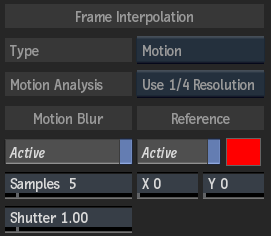
- Motion Analysis Quality box
- Select the level of motion analysis accuracy and rendering speed. Select Use Full Resolution to render the images at the current resolution. In Batch FX, this setting is unavailable if an external input is attached to the node's forward vector or backward vector tabs.
- Motion Blur Active button
- Enable to apply a motion blur to the selected clip.
- Sample field
- Displays the number of frames to sample when creating the timewarp. The samples include the current frame, and an equal distribution of past and future frames. Editable.
- Shutter field
- Displays the number of frames for which the shutter stays open. For example, when the shutter value is set to 3, every third frame is as a sample. Editable.
- Reference Active button
- Enable to apply the timewarp only to objects that do not have the same relative motion as the selected pixel. When enabled, you can edit values in the X and Y fields.
- Reference colour pot
- Displays the colour of the crosshair that marks the reference point. Editable
- Reference X field
- Displays the horizontal position of the pixel to use as a reference point at the selected frame. Editable.
- Reference Y field
- Displays the vertical position of the pixel to use as a reference point at the selected frame. Editable.
Rendering Mode Settings
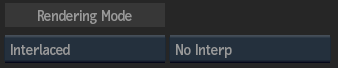
- Rendering Mode box
- Select whether to render in Automatic, Progressive or Interlaced mode.
- Interpolation Mode box
- Select an interpolation mode (available if Interlaced or Automatic is selected in the Rendering Mode box). Interpolation helps remove field jitter artefacts that are produced when a reversal of fields occurs during the timewarp.
Select: To: No Interpolation Use no field interpolation. Half Interpolation Interpolate only on displaced fields. Full Interpolation Interpolate on all fields. Note that this option has the least aliasing, but you may notice some softening of the image due to the blending of the fields. Shift Up Shift the image up by a single line. This may help reduce artefacts that appear in reverse timewarps of 100%. Shift Down Shift the image down by a single line. This may help reduce artefacts that appear in reverse timewarps of 100%.