Method 1
To connect attributes using connection lines
- In the
Node Editor, click on the
 icon on the top right hand corner of each node to expand it to its full mode.
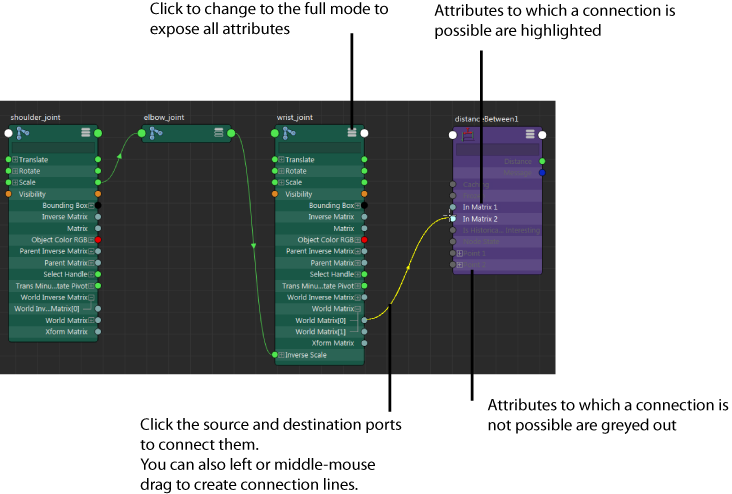
 Click the source and then the destination ports to connect them.
Alternatively, you can middle-mouse or left-mouse drag to create connection lines between your output and input attributes.
You can easily find a specific attribute using the search (filter) field. The filter field is hidden by default in custom mode (mode 4). Click
 to display it.
To release a connection line, left click on any empty area of the graph, or press Esc.
to display it.
To release a connection line, left click on any empty area of the graph, or press Esc.
If you mouse over a compound attribute, the Node Editor automatically expands to expose its children to which you can make a connection.
As you mouse over the available inputs, all inputs that can receive the connection are highlighted. This indicates that it is possible to make a connection with this input.
All inputs that cannot receive a connection are greyed out. This indicates that a connection is not possible.
In addition, it also snaps to the ports to which you can make a connection. This allows you to easily identify the attributes that you can connect to.
Method 2
To connect attributes without expanding the nodes
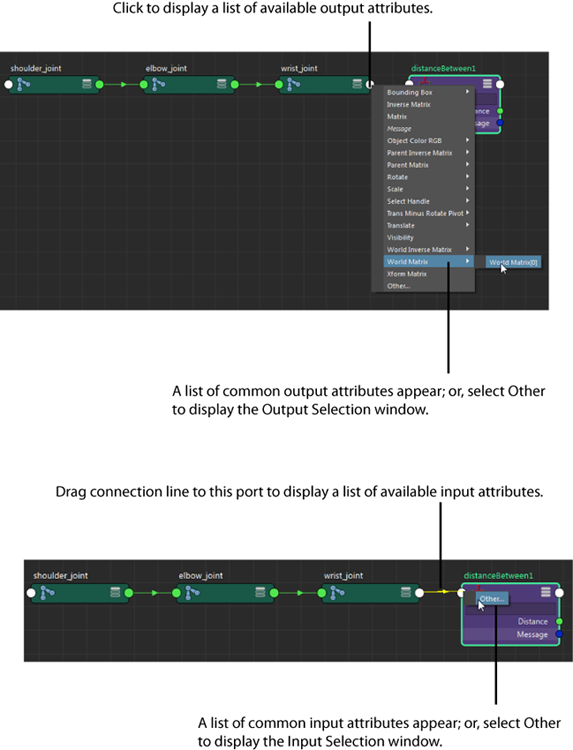
- Click the output master port of the node to display the menu of available output attributes. A list of common output attributes is displayed; or, select Other to display the Connection Editor, Output Selection window. From this window, you can select the output of your choice.
- Drag the connection line to the input master port of the node receiving the input connection.
A list of common input attributes is displayed; or, select
Other to display the
Input Selection window. From this window, you can select the input of your choice.
Note: The Input Selection window only lets you select an attribute that is compatible with the previously selected output attribute.