Image based lighting support in the Hypershade Material Viewer
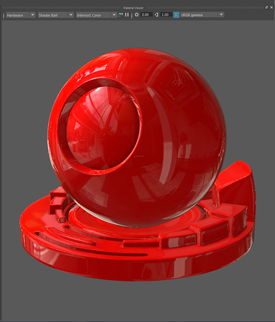
You can now select any of the available HDRI environments to add image based lighting in the Material Viewer.
New Shaderfx Game Hair shader
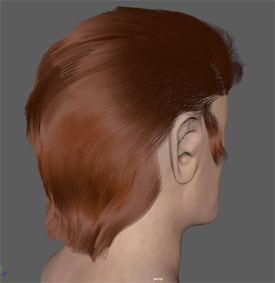
The Shaderfx Game Hair shader allows you to view realistic game hair shading for models directly in the viewport. You can create this shader via the Create tab in the Hypershade.
Create polygon strips to model the hair and apply the Shaderfx Game Hair shader to these polygon strips, then connect an opacity map to the shader to define the hair strands per strip, and a breakup map to provide controlled noise to make hair appear more realistic. You can then preview your hair shading in the viewport.
Color Management
New input space rules
By default, there are two new preset rules in the Color Management preferences. These assign files with .hdr and .exr extensions to the Raw input color space. Note that these rules are not available if you have previously saved preferences for Maya LT 2018.
Output color space conversion
In addition to the previously available output options, you can apply a specific color space conversion when rendering or creating playblasts. In the Output Color Transform Preferences section of the Color Management preferences, set Transform Type to Color Space Conversion and then select an Output Transform. The options include any available input color spaces.
Option to enable or disable color management for new scenes
The Color Management enabled setting in the New Scene Options determines whether or not color management is enabled by default for new scenes.
Support for OCIO contexts
If you are using an OpenColorIO configuration file for color management, you can change OCIO context environment variables and see the effect without restarting Maya LT. For more information, see Use an OCIO configuration file for color management.