Compatibility issues
Scenes saved in Maya LT 2018 cannot be opened in previous versions because of recent updates to the time precision.
Maya interface improvements
A number of improvements have been made to the Maya interface. These include:- Search field for the Plug-in Manager
- Better docking highlights: The interface now highlights more clearly when dragging windows to better indicate where that window will be docked.
- New icons: Various icons around the interface have been modernized so that they scale better.
New Viewport features
Displacement Preview additions and improvements
Previewing the results of a displacement map in the Viewport is now easier. After adding a displacement map to a mesh, enable the new Displacement Preview attribute in the object's shape node Smooth Mesh attribute group. All other attributes in this group are automatically set so you can see the displacement map results right away. Displacement Preview replaces the Show Displacement attribute.
You can also use the Alt + 3 hotkey or toggle Displacement MEL command to toggle the displacement results on and off.
When Displacement Preview is enabled, the following Smooth Mesh attributes are automatically set:
- Smooth Mesh Preview is enabled.
- Global (OpenSubdiv Catmull-Clark) is turned off, if it is enabled.
- Subdivision Method is set to OpenSubdiv Catmull-Clark Adaptive.
Note that turning Displacement Preview off does not return these attributes to their previous settings.
Displacement preview now supports multi-tiled UV textures. This means you can load texture sequences as well as use low resolution textures to generate high quality displacement.
Shadow and shading support
-
A new Transparent Shadows option lets you see transparency mapped shadows in your scene. Access Transparent Shadows in the Viewport 2.0 Options window.
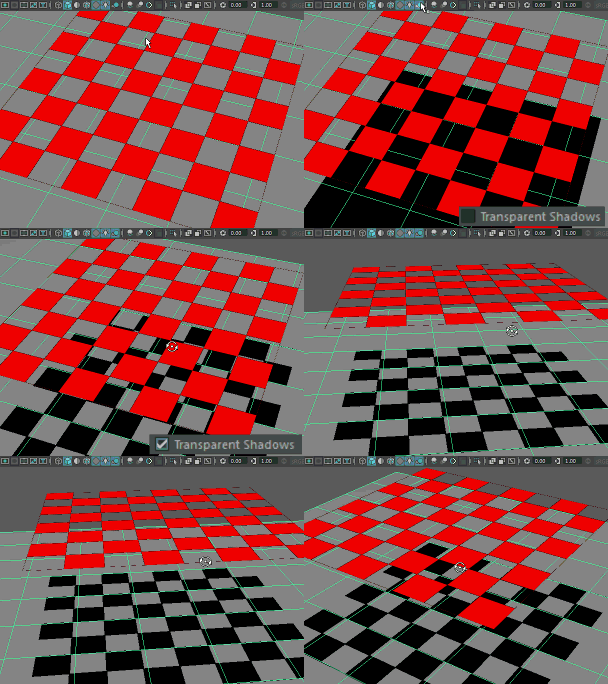
- Shadows are now supported for point lights, and shadow maps with resolutions between 64 to 1024 are supported.
- Shadows and screen space ambient occlusion are now supported for the OpenSubdiv Catmull-Clark Adaptive subdivision method and for displaced meshes.
- Shading networks can now be previewed on displaced surfaces in the Viewport. Adjust attributes on the shading network and preview the results in real-time.
- OpenSubdiv adaptive and displacement meshes can now receive and cast shadows.
Alpha Cut Transparency
A new Alpha Cut Transparency Algorithm has been added to the Viewport Performance settings. This transparency algorithm provides accurate object sorting for fully transparent and opaque objects. It generates less optimal results when rendering semi-transparent regions. Alpha Cut provides performance gains that are comparable to the Simple mode, while matching or exceeding the image quality of the Object Sorting algorithm.This algorithm is ideal for quickly rendering foliage as well as light-weight objects for the purposes of pre-visualization or low LOD stand-ins.
Other Viewport improvements
- Native support for OSD 3.1 now allows modelers and animators to preview the actual shape and surface of adaptive openSubdiv geometry. For example, see the realtime results when sculpting an adaptive openSubdiv mesh or view creases in the mesh while animating.
- Support for complex shading networks on displaced surfaces. This includes realtime preview of ramps, adjustments to texture file attributes, and multi-tiled UV textures.
- Addition of previously unsupported viewport effects including point light shadows, and ambient occlusions.
- When accessing Maya through Windows Remote Desktop,
Maya LT automatically switches the
Viewport 2.0
Rendering engine to
DirectX 11 mode for the remote session. If your
Viewport 2.0
Rendering engine is set to an OpenGL setting, Maya posts the following message to the status line to inform you of the change:
VP2 : OpenGL is not supported when running Maya via a remote session, switch to DX11.
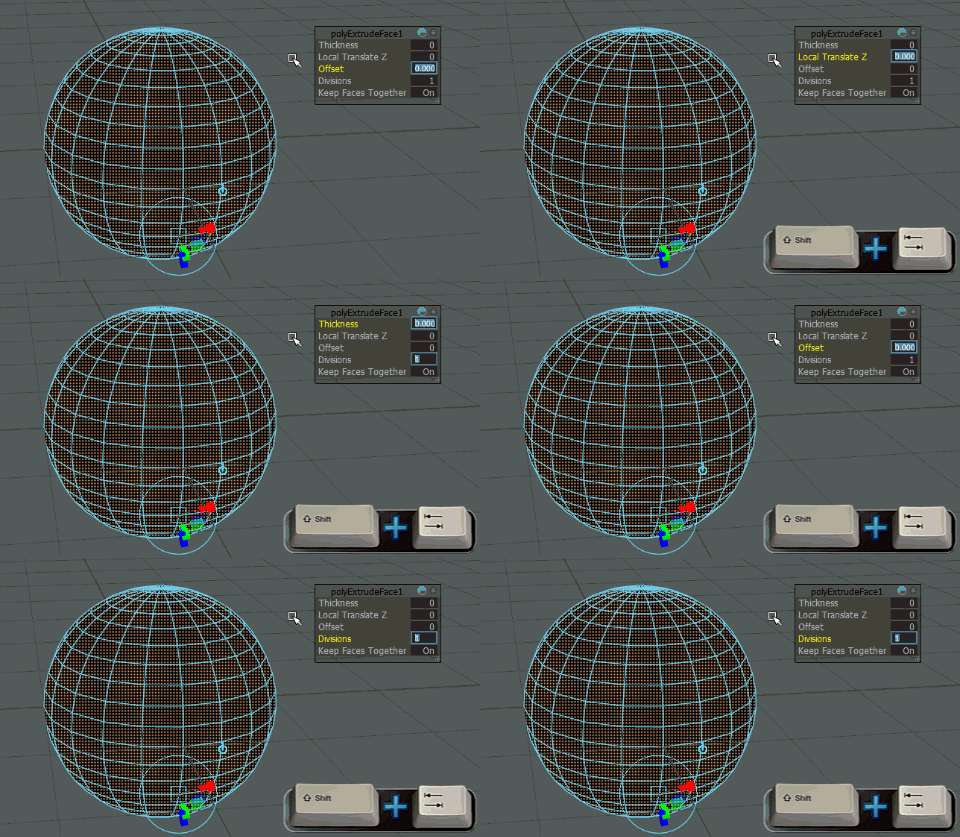
Reverse cycle through attributes
Display multiple penumbra decay regions for spot lights and easily adjust the penumbra angle
You can display multiple penumbra decay regions for spot lights, and the manipulators for the penumbra angle and cone angle are now offset slightly to make it easier to adjust each one individually. The penumbra angle now reflects its true meaning, where the penumbra region is equal to the sum of the cone angle and the penumbra angle.
Enable Show Decay Regions for Penumbra in the Manipulators preferences to enable this feature.
New Script Editor features
New features have been added that simplify your workflow when loading a MEL script from a file. For example, the Script Editor tab now indicates the name of the file, and you can save changes directly to the file through the Script Editor.
Node Editor improvements
It is now easier to connect nodes, and you can simply click the source and destination ports to create connection lines. It is no longer necessary to drag with your mouse to connect attributes. You can also press Esc to release a connection line.
Select from different connection line styles: bezier, straight, corner, and s-shape.
When selecting a node, you can now choose to highlight also the incoming and outgoing connection lines. To choose this option, enable Options > Highlight connections on selected. This option is most useful when working in a densely populated node graph.
Ports are now highlighted when you mouse over them.
Dock a shelf vertically or horizontally
You can now dock the shelf with a horizontal or vertical orientation to better fit the UI layout you've set up.
Automatically save Workspaces
You can now choose whether or not to automatically save workspace layout changes in the Workspace layout options.
Content Browser improvements
The Content Browser now opens much faster than before. In addition, it now saves its window layout, current path, and other settings separately per workspace.