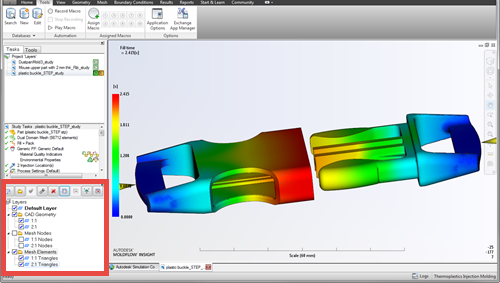
The Layers panel is an invaluable tool for organizing and managing the various components of your model, and the changes that you make to those components. Considerable effort has been placed in this feature to make it more flexible, from the moment you import your CAD model, to the final stages of your analysis setup.
Import
- CAD body names
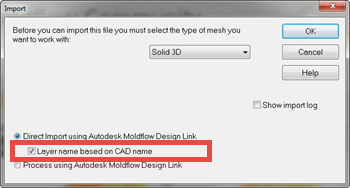
- When you import a CAD file, the names of the bodies in the CAD file become the names of the layers when the bodies are imported. This is an optional feature - you can use the existing CAD Body label if you prefer. To turn this option off, deselect Layer name based on CAD name in the import dialog.
- CAD body colors
- The CAD body layer will inherit the color from the model in the CAD package. You can change the color by clicking
 Layer Display in the Layers toolbar.
In the Layer Display dialog select the Specify option, click Select and choose your preferred color.
Organization
A wide range of enhancements have been made to improve the organization of the layers:
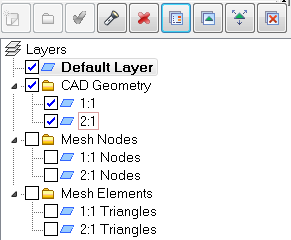
- Model entities are placed in layers, and layers are placed in folders, automatically, based on entity type, such as CAD Geometry, Mesh Nodes, Mesh Elements, etc.
- You can create new folders with the
 New Folder icon that has been added to the layers toolbar and move one or more layers at a time into them. You can rename the folder to reflect its contents.
 - You can drag layers or folders into other folders.
- You can move folders up and down the tree structure.
- You can select and deselect folders to turn on or off all the layers within that folder.
- You can select more than one folder at a time to drag up and down, turn on and off, or delete.
Highlight tool
To make it easier to find what is on a given layer, a new Highlight tool has been added to the Layers toolbar.

The Highlight tool is off by default, but when you click it and then click on the model, the layer on which that component is located is highlighted.
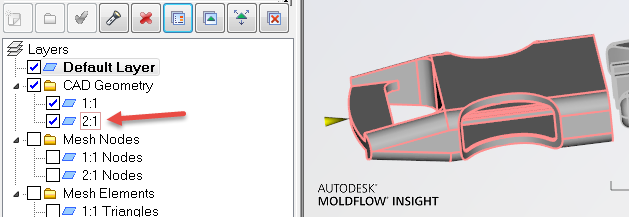
Likewise, with the Highlight tool selected, when you hover over a layer, the components on that layer are highlighted on the model.
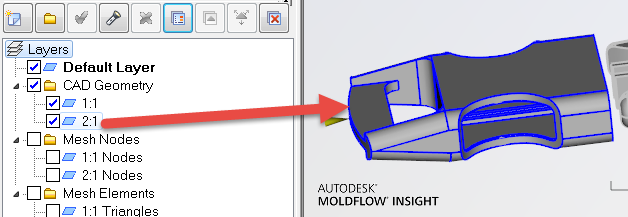
To change the highlight color, click  (), select the Background and Colors tab, and click Select associated with the Highlight color to open the color palette.
Expand Layers
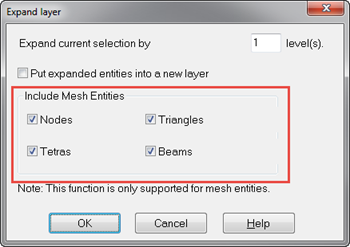
The Expand Layer tools has been enhanced to include the option to include any or all of the following mesh entities:

- Nodes
- Tetras
- Triangles
- Beams