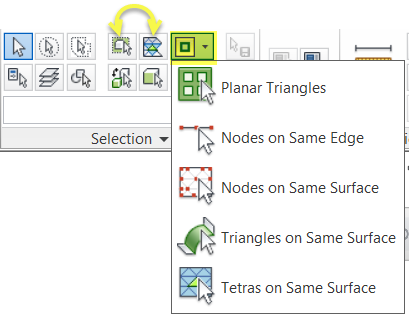
Four new expansions of the selection tools have been implemented for release 2017.
1. Select Nodes on Same Edge:
Use the Expand Selection to Nodes on the same Edge tool to select all nodes on a feature edge of a surface or 3D mesh.
Example: Use this tool before applying boundaries condition.
First select at least one node on an edge. You can hold the
Ctrl key and accumulate selections. Then click
 ().
().
The selection expands to all nodes on that edge.
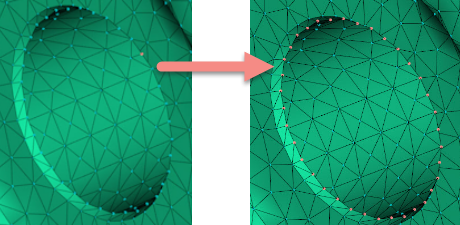
2. Select Nodes on Same Surface:
Use the Expand selection to nodes on the same Surface tool to select all nodes on a feature surface for triangular or 3D meshes.
Example: Use this tool before applying boundaries condition.
First select at least one node on the interior of a surface. You can hold Ctrl key and expand selection continuously. Then click (). The selection expands to all nodes on that surface.
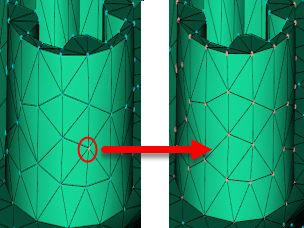
3. Select Triangles on Same Surface:
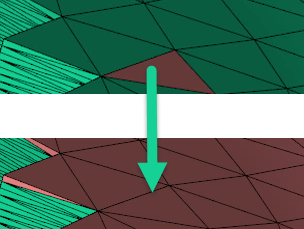
Use the Expand Selection to Triangles on the same Surface tool to select all triangles on a surface of a surface mesh.
Example: Use this tool before applying boundaries condition, or editing a surface.
First select one or more seed triangles on one or multiple surfaces. Click
 (). All triangles on those surfaces are selected.
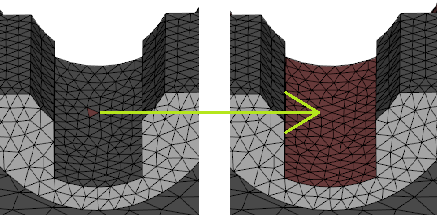
4. Select Tetras on Same Surface
Use the Expand Selection to Tetras on the same Surface tool to select all tetra elements with three nodes on the same surface of a 3D mesh.
Example: Use this tool before applying boundaries condition or editing a surface.
First select one or more seed tetras on one or multiple surfaces. Click
 (). All the tetras with three nodes on those surfaces are selected.
Other Changes:
Two icons on Selection ribbon have been swapped