Use the command line to run a series of simulations.
Video length (4:36).
This tutorial guides users through the process of exporting input files from the graphical interface to run a batch job from the command line.
Follow the step-by-step instructions below. Sample files for use with the tutorials are available on the Download Page.
- Click .
- In the dialog that opens, click
Powder Bed Fusion and then
Create Simulation.
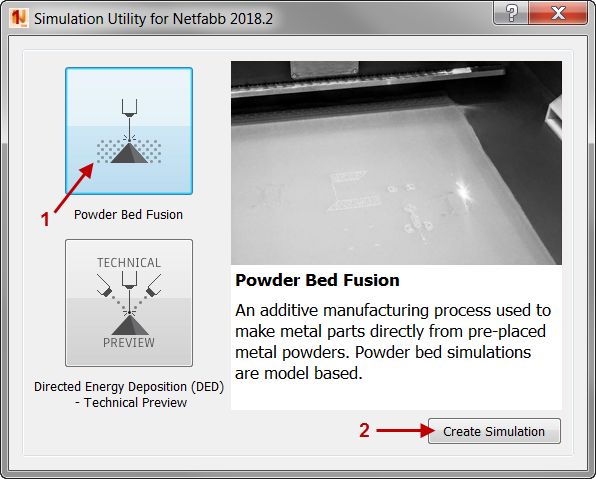
- In the Import Model dialog, browse to the sample file Example_11al.stl, and open it.
- Click OK in the Import dialog and the Converted model units dialog.
- From the Machine dialog choose the generic AlSi10Mg Process Parameters. Press OK.
- Click
Simulation menu
 > Export.
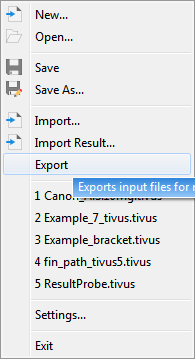
- In the Export Files dialog, click the Browse button, create a new folder in a good location and name it Example 11. Select this folder and click Export to save the input files.
- Create another new project, importing Example_11ti.stl.
- In the Machine dialog, assign this part the generic Ti6Al4V Process Parameters.
- Export the new project to the same folder created earlier, Example 11.
- Also in the Example 11 folder, right-click in an empty space, select New > Text Document, and name the new document Batch.que
- Open Batch.que in a text editor.
Simulations executed from a batch .que file proceed serially through the list. The input, PRM, and STL files for each simulation must all be in the same folder as the .que file.
- Type or copy/paste the names of the 4 exported input files, without the .in file extension, into the Batch.que file, ensuring that each
*_thermal
file precedes the corresponding
*_mechanical file. The resulting batch file should look like this:
Example_11al_thermal
Example_11al_mechanical
Example_11ti_thermal
Example_11ti_mechanical
- Save and close the Batch file, and then open the command terminal. The most efficient method to do this is to place the cursor in the Windows navigation bar in the Example 11 folder, type cmd and press Enter to execute. This will bring up the command prompt starting in the Example 11 directory. Alternatively the command prompt may be opened from the start or run menu, and users can navigate to the Example 11 directory using the cd command.
- To execute the batch command type
pan -q Batch from the command prompt, then press Enter.
pan is the solver executable,
-q indicates a batch file will be used for the inputs, and
Batch is the name of the .que file, without the file extension. The execution and output returned from the solver should look similar to the following:
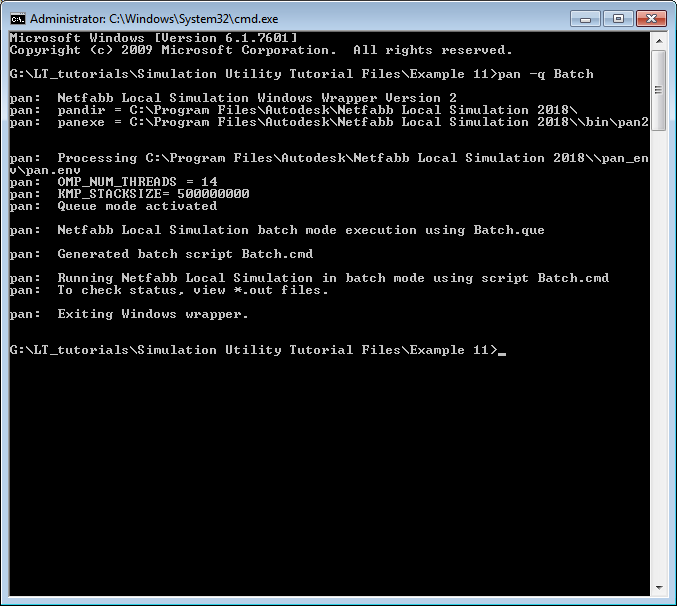
The solver ran the 4 simulations in sequential order. In the Example 11 folder, you should see .out, .case, and other output files for each simulation.
Two recommended methods to review the simulation progress are as follows :
- From the terminal, use the type command to print to the command window the contents of the .out log files. For the first simulation this would be: type Example_11al_thermal.out
- Open the .out files in a text editor. It may be necessary to refresh the file in the text editor to update the log file information.